

Sensory Markers is a small companion app that puts transparent draggable icons on your screen. The icons sit on top of whatever you’re looking at — you grab them with the mouse and place them where they’re needed. They’re a way to point at something on screen: a section you want to come back to, a phrase a learner should focus on, or a window you want to keep an eye on among many.
Sensory Markers is particularly useful on large displays or multi-monitor setups, where it’s easy to lose track of where you were on screen.
What Sensory Markers does
Sensory Markers draws transparent icons on top of the screen. The icons don’t change anything underneath — they just sit there, visible above all your applications. You can drag them anywhere, change which icon is shown, add more, or remove them. Common uses include:
- Marking a place on screen to come back to
- Pointing at a passage you want a learner to focus on
- Keeping your attention on the right window among many
- Indicating a position on a large or multi-monitor display
How to launch Sensory Markers
Type Markers into the Windows Search box and select the Sensory Markers app from the results. On launch, the default marker appears on screen ready to be dragged into position.
Marker styles
Sensory Markers ships with a range of icon styles in different colours and shapes:
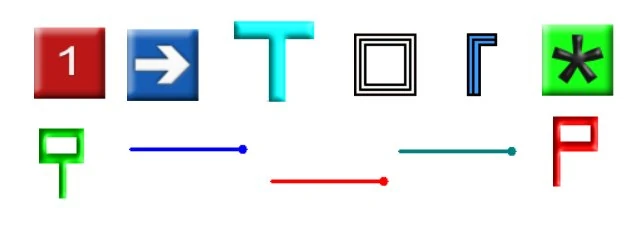
You can also add your own marker styles if none of the built-in ones fit. New markers can be any image you supply.
The Markers toolbar
When Sensory Markers is open, a small toolbar gives you the current set of available markers plus controls for adding new styles, loading saved sets, and closing the app.
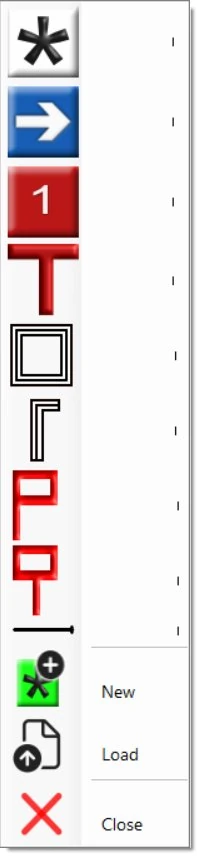
Adding, changing or removing markers
Once a marker is on screen:
- Drag it with the mouse to move it
- Right-click it to change the marker style, add more markers, or remove it
- Use Close on the toolbar to remove all markers and close the app
Sensory Markers with Readable
Sensory Markers and the main Sensory Readable application work alongside each other without interfering. Common uses:
- Place a marker next to a passage you want Readable to come back to later
- Point a learner at the next paragraph to be read aloud
- On a multi-monitor setup, mark which monitor’s window currently has Readable’s attention