
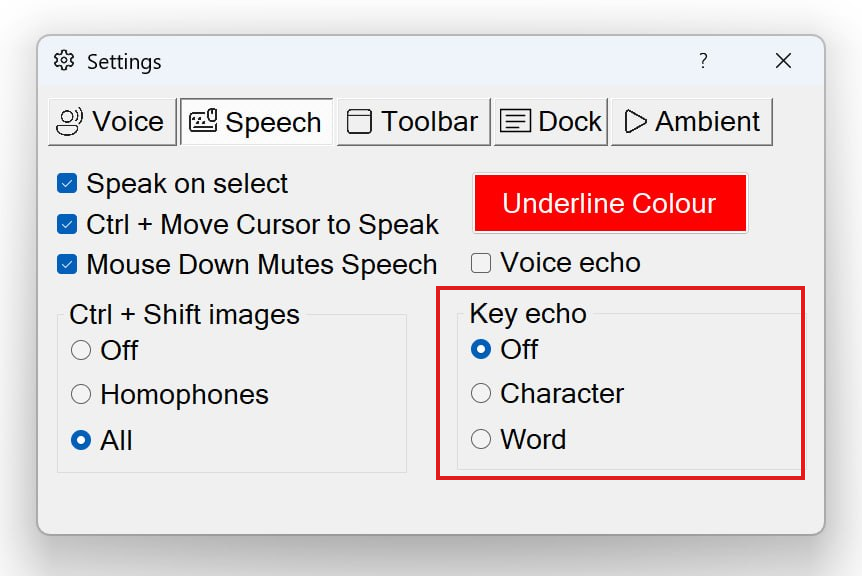
Key Echo is a typing-feedback feature: as you type into any application, Readable speaks back what you have just typed. You can choose to hear each character as it is pressed, or each completed word.
It is widely used by people learning to type, by users with low vision who want spoken confirmation that the right keys are being pressed, and by anyone who proofreads-as-they-type by ear.
The three Key Echo modes
- Off
- No echo — Readable does not speak as you type. This is the default.
- Character
- Each character is spoken the moment you press its key. Letters are spoken as their letter name (e.g. "A", "B"); numbers as their number (e.g. "five"); common punctuation as its name ("comma", "full stop").
- Word
- Each completed word is spoken aloud when you finish typing it (typically when you press space, return, or punctuation that ends a word). This is more natural for fluent typists who want auditory confirmation without the staccato of per-character echo. If you type quickly, you may find you "get ahead" of the echo — as soon as you start the next word, the previous word's echo is interrupted. This is by design, so the echo never lags behind your typing.
How to enable Key Echo
- Click the Settings button on the Readable toolbar
- Open the Speech tab
- Find the Key Echo section
- Choose the mode you want — Off, Character, or Word
- Close the Settings dialog — Key Echo takes effect immediately in any application
Where Key Echo works
Key Echo works in any Windows application that accepts text input — word processors, email clients, chat apps, browsers, code editors and so on. It uses the same speech engine and voice as the rest of Readable.