
Voice Echo reads back what you've just dictated using voice typing. Each time the speech-recognition engine settles on a phrase — typically after you pause for breath or thought — Readable speaks that phrase aloud so you can hear what was transcribed. This makes voice dictation a much more usable typing method, especially if you find proofreading on screen difficult.
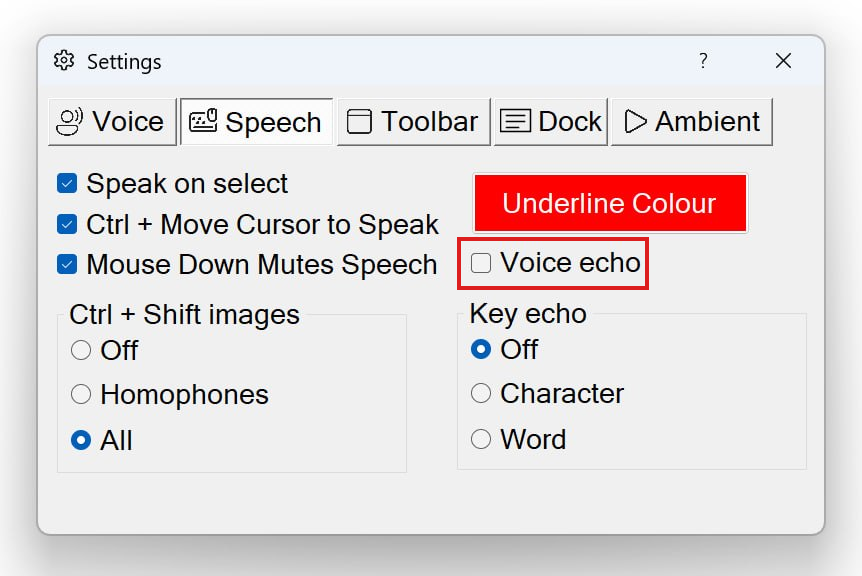
How Voice Echo works
Voice Echo does not look at punctuation or sentence boundaries. Instead, it works in step with the speech-recognition engine itself: the engine groups your speech into phrases at natural pause points, and Readable reads each phrase back once the engine has settled on it.
Settled is the important word here. While you are still speaking, the engine may revise text it has already transcribed — small corrections it processes when it detects a pause. Voice Echo waits for that pause-and-correct moment to pass before reading the phrase, so what you hear is the engine's final version, not an early guess that may have changed.
Because the engine decides where phrases begin and end, the phrases you hear back will vary in length:
- If you pause after just a couple of words, you'll hear those couple of words echoed.
- If you carry on through half a sentence before pausing, you'll hear that half-sentence.
- If you keep going across two or three sentences in one breath, the whole stretch will be echoed as a single phrase, including any punctuation you spoke.
How to turn Voice Echo on
- Click the Settings button on the Readable toolbar
- Open the Speech tab
- Tick the Voice echo checkbox
- Close the Settings dialog — Voice Echo activates immediately
To turn it off again, untick the same checkbox.
Video help
These short walkthroughs show setting up and using Voice Echo with Windows Voice Access. They only contact YouTube once you press play.
Which dictation tools Voice Echo works with
Voice Echo is designed to sit alongside whichever PC speech-dictation system you already use. It does not perform speech recognition itself — it listens to the dictation tool's output and reads back each phrase once the engine has settled on it.
Windows Voice Access
Readable integrates directly with Windows Voice Access (built into Windows 11 and recent versions of Windows 10). Where Voice Access is available on your PC, you can launch it from the Voice Access button on the Readable toolbar — no need to start it separately from Windows settings. Voice Echo then reads each phrase Voice Access transcribes back to you using your chosen Readable voice.
Dragon NaturallySpeaking and other dictation tools
Voice Echo also works with most other speech-dictation software for Windows, including Dragon NaturallySpeaking. Start your dictation tool the way you normally would, then dictate into any application as usual — Voice Echo will read each completed phrase back to you. There is no special integration step; the same Voice echo checkbox on the Speech tab is all you need.
Correcting dictation errors
When an echoed phrase is wrong, it's usually quickest not to edit by hand. Say your dictation tool's delete-last command — "scratch that" on Windows — and re-dictate the phrase. Echo → "scratch that" → re-dictate soon becomes a natural rhythm, and for many users it's faster than reaching for the keyboard.
Why Voice Echo matters
For confident readers it's a handy extra check on what was transcribed. For anyone who finds on-screen proofreading hard — through dyslexia, low vision or other reading differences — it's more than that: it swaps the read-every-line-back step for an auditory one, so dictation, and the "scratch that" correction loop, work without relying on careful reading.
Choosing the right voice for Voice Echo
Voice Echo works particularly well with a voice that sounds different from your inner reading voice. If you naturally hear your own writing in a particular accent or pitch, choose an Voice Echo voice that contrasts with it — that way the brain treats it as someone else's voice and is more likely to spot problems.
You can choose any installed voice for this — see Choosing a Voice.