
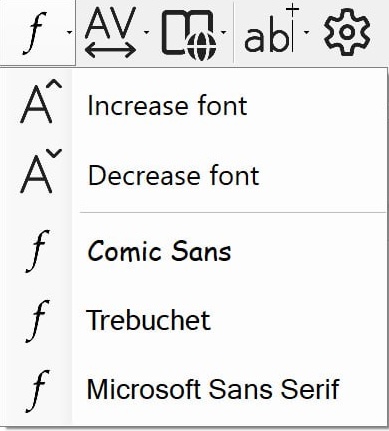
When working in Microsoft Word with Sensory Readable, the Font button on the Readable toolbar lets you quickly change the font style and size of your Word document. Three popular easy-to-read font styles are pre-set in the menu, alongside increase and decrease font size shortcuts.
Menu options
- Increase font — make the document text larger.
- Decrease font — make the document text smaller.
- Comic Sans — apply Comic Sans MS to the document.
- Trebuchet — apply Trebuchet MS to the document.
- Microsoft Sans Serif — apply Microsoft Sans Serif to the document.
How to use
- Open your Word document.
- Optionally, select a portion of the text if you only want to change part of it. Without a selection, the change applies to the whole document.
- Click the Font button on the Readable toolbar.
- Choose an option from the menu.
Each click changes the document immediately. The change is saved with the document the next time you save.
Video help
A walkthrough of changing fonts — and spacing and colour — in Microsoft Word with Readable. The video only contacts YouTube once you press play.