
Sensory Readable updates regularly with new features, voice additions, bug fixes and performance improvements. This page tells you which version you have installed, what's changed recently, and how to check for the latest update.
How updates reach you
Sensory Readable does not automatically download updates in the background. Instead, you can check for the latest version manually whenever you'd like — useful if you've heard about a new feature, or if you're troubleshooting and want to confirm you're on the latest build.
How updates are delivered depends on which installer you used:
- .exe install (typical for home use). The Check for updates button in the About dialog will check the Sensory App House server and offer to download and install any newer version.
- .msi install (typical for managed PCs in schools, workplaces, or healthcare). Updates are handled entirely by your IT department — there's no in-app update check. Your IT team will deploy new versions when they're ready.
Checking your installed version
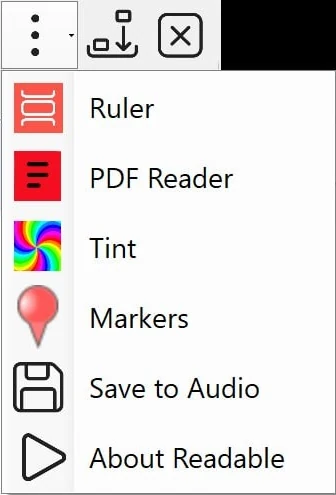
To check which version of Sensory Readable you have installed, open the More menu on the Readable toolbar (the three-dot icon at the far right) and choose About Readable.
The About Readable dialog shows your current version number, copyright information, and a Check for updates button (on .exe installs).
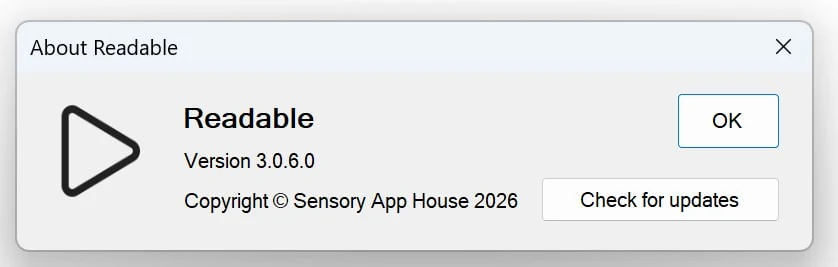
Have this version number handy when contacting support — it speeds up troubleshooting considerably.
Checking for updates manually
To check for updates manually:
- Open the More menu on the Readable toolbar and choose About Readable
- Click Check for updates
- Readable contacts the Sensory App House update server
- If a newer version is available, you're given the option to download and install
- If you're already on the latest version, a confirmation message appears
This works on .exe installs. On .msi installs (typical for managed PCs) the Check for updates option is not part of the in-app experience — updates are handled by your IT department.
Installing an update
When an update is ready to install, Readable prompts you. You can choose to install immediately, or defer until later (typically until you next restart the application or your PC).
Updates install quickly. During installation, Readable closes briefly and reopens. Your settings, custom pronunciations, prediction learning data and other personal data are preserved across updates.
What's new in recent versions
For a summary of what changed when moving from v2.5 to v3, see What's New in Sensory Readable v3.
For a full list of what's changed in each version, see the release notes on sensoryreadable.com.
Updates in managed IT environments
If Sensory Readable is installed via .msi on a managed PC (school, workplace, healthcare environment), all updates are handled by your IT department — there is no in-app update check on .msi installs. Your IT team will deploy new versions when they've been tested in your environment.
If you're not sure which installer was used, the simplest sign is the About dialog: an .exe install shows a working Check for updates button; an .msi install does not include in-app updating.
Troubleshooting update issues
If updates aren't downloading or installing as expected:
- Make sure you have internet connectivity
- Check whether your antivirus or firewall is blocking the update server
- Try a manual update check (sometimes prompts the system to retry)
- If problems persist, see Getting Help for support contact details