
The Readable toolbar is the central control panel for everything Sensory Readable does. This page walks through every button, what it does, and how to access additional options via the dropdown menus.
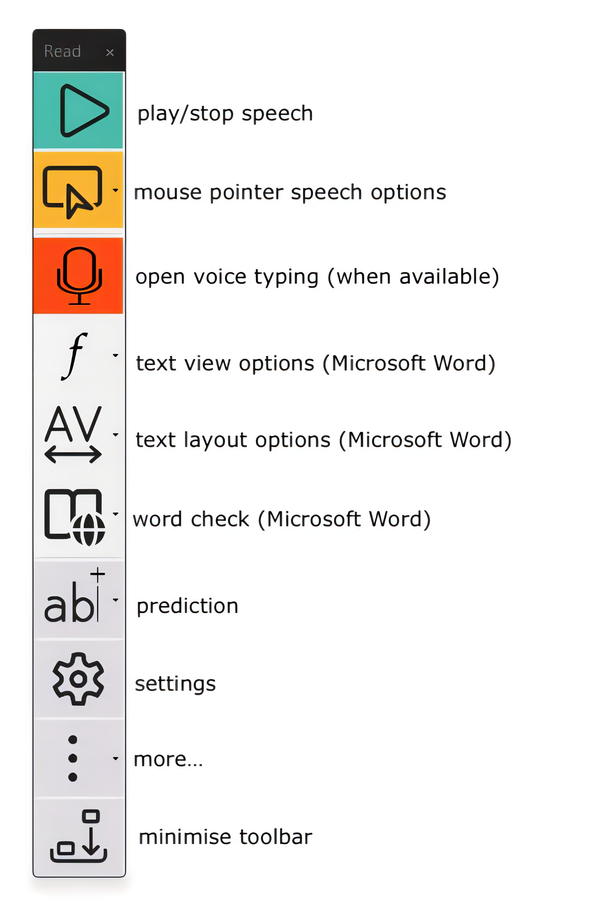
Core speech buttons
- Play
- Starts speech from the current cursor position or from any selected text. The Play button shows as a green triangle when the toolbar is in Colours mode, and plain black-on-white in BW or Blue modes. See Click Play Button to start speaking. The keyboard shortcut F7 does the same thing from anywhere in Windows.
- Stop
- Stops speech immediately. The Stop button shows as a red square when the toolbar is in Colours mode, and plain black-on-white in BW or Blue modes. Pressing Ctrl or F7 on the keyboard also stops speech. Clicking the mouse (left-click) anywhere on screen also stops speech — this is the default behaviour and can be turned off; see Click Stops Speech. See also Stop Speech.
Hover button
The Hover button activates and configures Hover Read Modes. Click the button to toggle the current mode on and off, or click the small dropdown arrow next to it to choose between modes. The default mode after installation is Word — one word at a time.
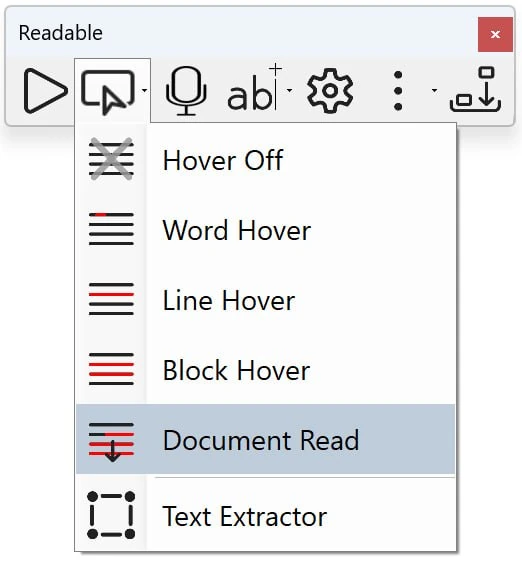
The dropdown contains:
- Off / Word / Line / Block / Document — the five Hover Read Modes; see Hover Read Modes
- Text Extractor — opens the OCR screen capture tool; see Text Extractor
- Ambient Sounds toggle — when Ambient Sounds is enabled in Readable Settings, this dropdown item appears so you can quickly turn the sounds on or off without reopening the Settings dialog. (If Ambient Sounds is not enabled in Settings, this item is not shown in the Hover dropdown.)
Predict button
The Predict button opens the word prediction menu, where you can choose between Windows 11 system prediction (the default) and the specialist Sensory Prediction available inside the Readable Editor.
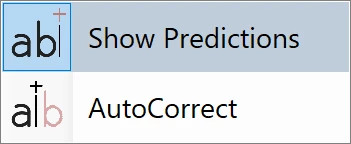
See Word Prediction and Autocorrect for a full explanation of the two modes.
More button
The More button is a dropdown that gathers everything that does not need a permanent toolbar slot — companion app launchers, audio file save options, and a range of less frequently used utilities.
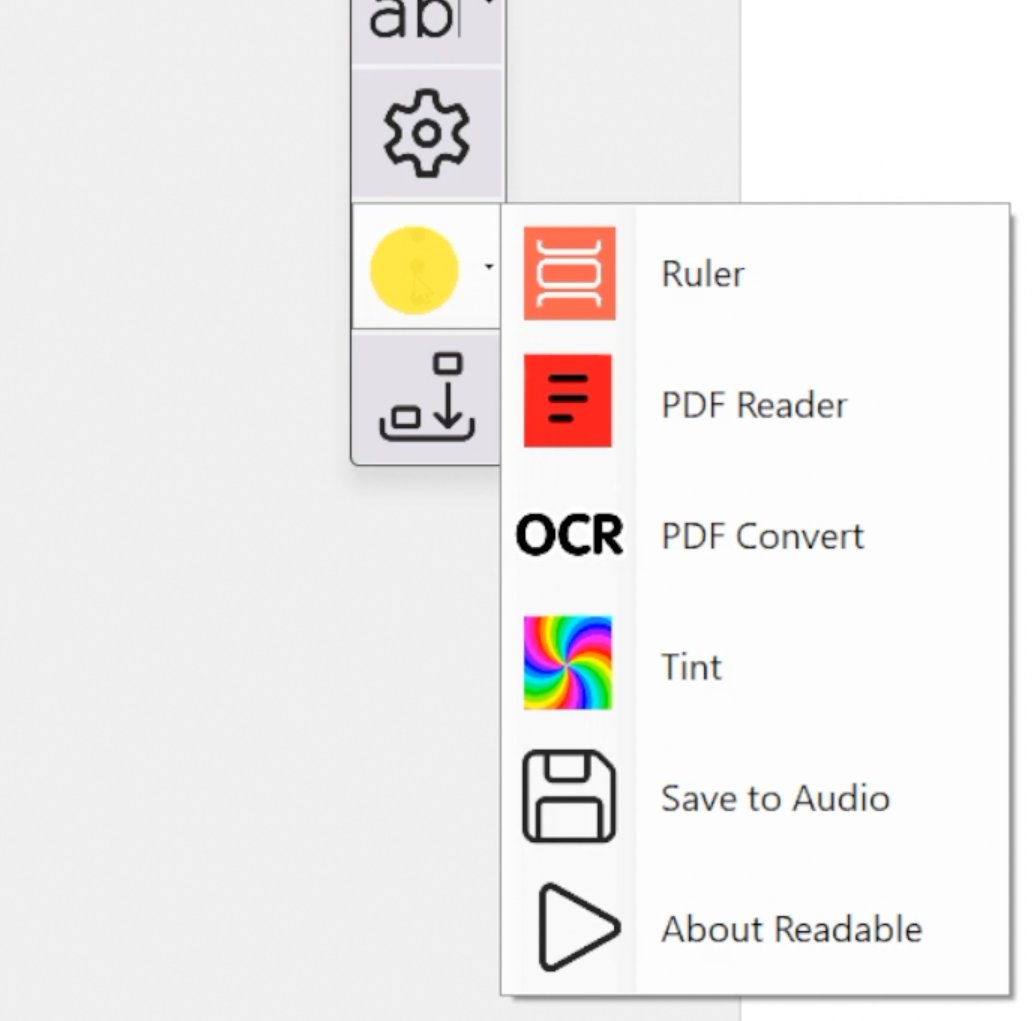
Items in the More dropdown include:
- Show Hints — reopens the on-screen hints shown when Readable was first launched
- Save to Audio File — see Create an MP3 Audio File
- Convert PDF — opens PDF Convert
- Companion app launchers — Sensory Tint, Sensory Ruler, Sensory PDF Reader, Sensory Markers, Readable Editor; see Companion Apps
- Each app launcher is greyed out if that app is already running
Settings button
Opens the Settings dialog, which has tabs for Voice, Speech, Toolbar, Dock (Banner) and Ambient. Each tab is referenced from the relevant feature page.
Voice Typing button
Activates Windows speech recognition so you can dictate text into any application. See Voice Typing.
Microsoft Word integration buttons
When the active window is Microsoft Word, an additional row of toolbar buttons appears for Word-specific operations — font change, spacing & colour adjustments, spell checking and word lookup. These buttons are hidden when Word is not the active application. See Microsoft Word Integration.
Toolbar view and position
The toolbar can be floated, docked or oriented vertically — see Toolbar View and Position. Readable v3 also adds Track Window Mode (the toolbar follows your active window) and Small Toolbar options.