
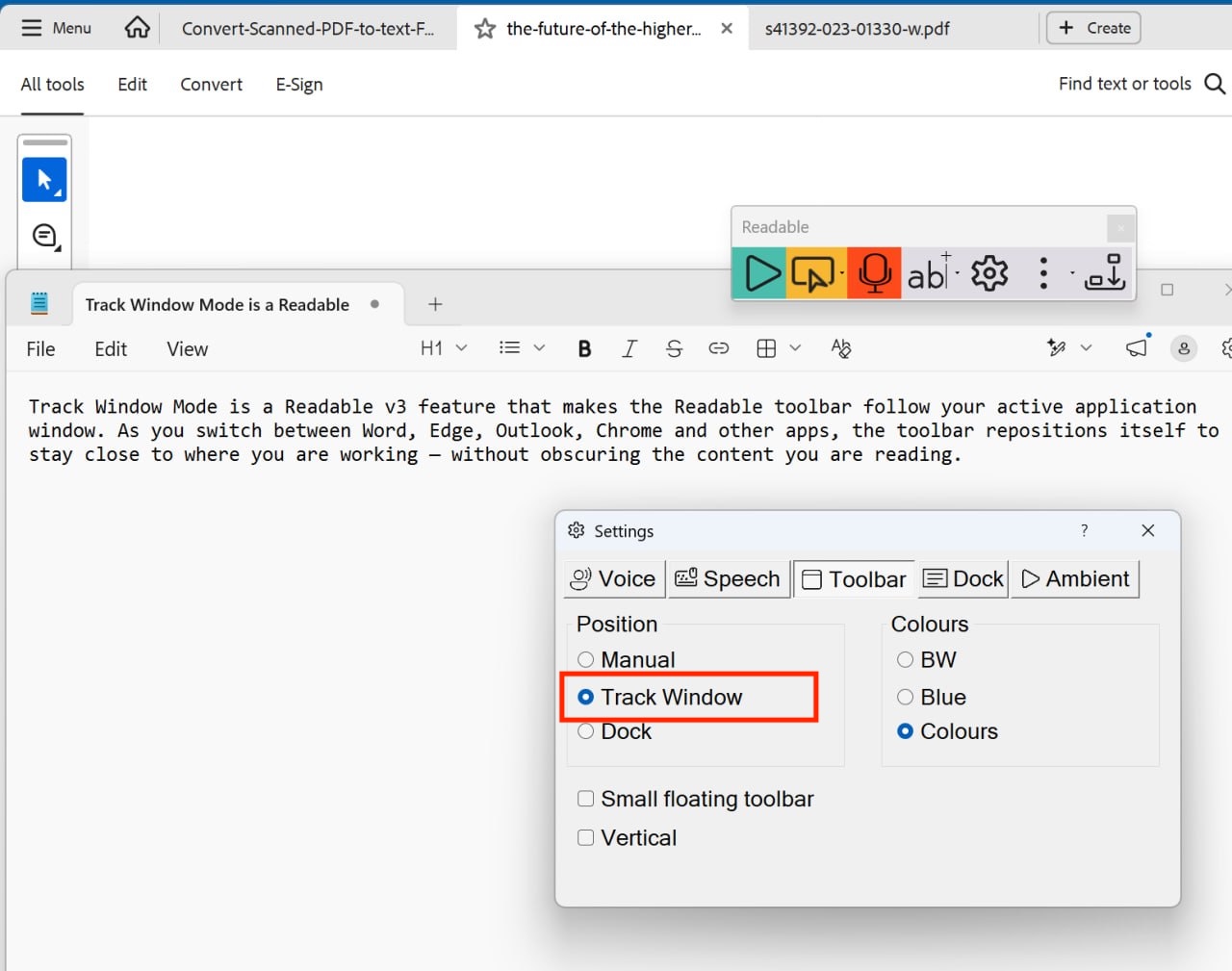
Track Window Mode makes the Readable toolbar follow your active application window. As you switch between Word, Edge, Outlook, Chrome and other apps, the toolbar repositions itself to stay close to where you are working — without obscuring the content you are reading.
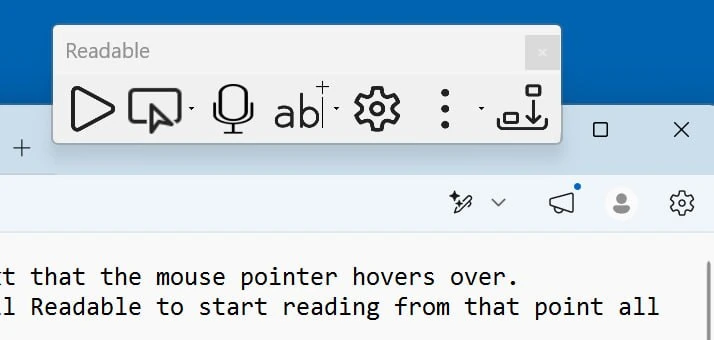
It is particularly useful for users who routinely work across multiple windows or applications and find a fixed-position toolbar inconvenient.
What Track Window Mode does
With Track Window Mode enabled, the toolbar:
- Detects each time you switch focus to a different application window
- Smoothly repositions itself near the focused window — typically just above or to the side, depending on available screen space
- Stays out of the way of the content area of that window
- Returns to its previous floating position when no application window is in focus (e.g. when you click on the desktop)
The toolbar's orientation, size and theme stay the same — only its on-screen position changes.
How to turn on Track Window Mode
- Click the Settings button on the Readable toolbar
- Open the Toolbar tab
- Enable the Track Window option
- Close the Settings dialog — Track Window takes effect immediately
How it behaves with different applications
Track Window Mode works with any standard Windows application. For applications that open multiple windows (such as Microsoft Word with several documents open), the toolbar follows whichever document window is currently in focus.
Some special-case behaviours:
- Full-screen apps — the toolbar overlays the top of the screen so it remains visible
- Multi-monitor setups — the toolbar moves to the same monitor as the active window
- Modal dialogs and pop-ups — the toolbar treats these as the active window and follows them
Combining with other position modes
Track Window Mode is mutually exclusive with docking. If you dock the toolbar at the top or side of the screen, Track Window is automatically disabled (the toolbar can't both follow a window and stay attached to a screen edge). Re-enabling Track Window will undock the toolbar.
You can use Small Toolbar mode at the same time as Track Window Mode — they configure different things.
When to use Track Window Mode (and when not to)
Use Track Window Mode when:
- You routinely work across multiple applications and want the toolbar always near your current focus
- You use a large or multi-monitor display where a fixed toolbar position can be too far from your work
Consider a fixed position instead when:
- You work primarily in one application and prefer the toolbar to stay where you put it
- You use the Readable Banner, which requires the toolbar to be docked at the top of the screen