
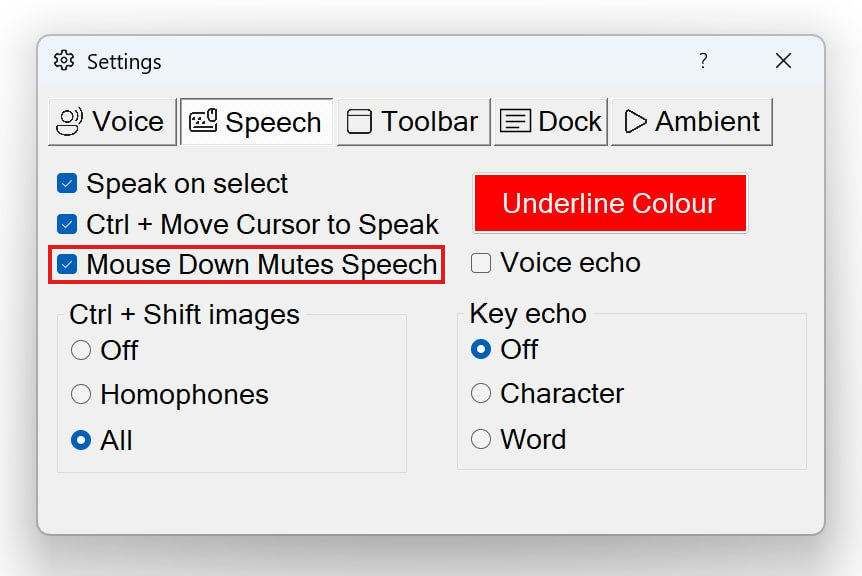
Click Stops Speech (or Mouse Left Click Stops Speech in its longer form) controls what happens to ongoing speech when you click the mouse. The matching toggle in the Settings dialog is labelled Mouse Down Mutes Speech — same setting, same behaviour. By default, this option is enabled when you install Readable, so out of the box, clicking the mouse anywhere stops Sensory Readable speaking. This is a sensible default because clicking the mouse is usually a context change — you're moving to a different window, application, or area of the screen — and continuing to speak the previous content rarely matches what you want next.
The interesting case is when you turn this off. With Click Stops Speech disabled, mouse clicks no longer stop speech. This unlocks options where listening and clicking happen independently — listening to one application while clicking and typing in another.
How Click Stops Speech works (default — on)
With Click Stops Speech enabled (the default):
- Clicking the mouse anywhere stops ongoing speech immediately
- The same as pressing Ctrl, pressing F7, or clicking the toolbar Stop button
- Trackpad taps count as clicks and stop speech the same way
This default works well for most everyday reading: you click on something, you've moved on. Continuing to speak text from a previous window or document rarely matches what you want next.
Turning Click Stops Speech off
With Click Stops Speech disabled:
- Mouse clicks do not stop speech
- Speech continues across windows, applications, and displays
- You can switch focus, click into other apps, drag windows around, and type — all while Readable keeps reading the original source
This opens up active multi-tasking with audio. The most common use cases:
Listening in one app while typing in another
Have Readable read aloud from a web article in your browser while you take notes in Notepad. Read-and-type is one of the highest-value uses of text-to-speech, but it only works smoothly if your typing-context clicks don't stop the audio. Disabling Click Stops Speech enables this directly.
Multi-display setups
If you have two (or more) displays, Click Stops Speech off becomes especially powerful:
- Display 1 — open the source you're listening to (a web page, PDF, Word document)
- Display 2 — open the workspace where you're producing something (notes, an essay, code, a reply)
- Click freely between displays without interrupting the audio on display 1
The result is something like working with a second person reading aloud to you while you do your own work — without the constant audio interruptions that the default Click Stops Speech behaviour would cause.
Listening to slides while taking notes
Have PowerPoint speaking through Readable while you click into Word, OneNote, or Notepad to capture key points as you go.
How to enable or disable
- Click the Settings button on the Readable toolbar
- Open the Speech tab
- Find Mouse Down Mutes Speech (this is the in-app label for Click Stops Speech)
- Toggle it on or off
- Close the Settings dialog — the change takes effect immediately
Stopping speech with Click Stops Speech disabled
When the setting is off, you stop speech using the keyboard or the toolbar:
- Press Ctrl — stops speech
- Press F7 — toggles speech off (and on next press)
- Click the Stop button on the Readable toolbar
Mouse clicks just don't trigger a stop any more — that's the whole point of disabling the option.
Video help
A short walkthrough of Click Stops Speech — using a mouse click to stop speech. The video only contacts Vimeo once you press play.