
The More tab inside the Readable Editor dialog controls how Sensory Readable offers next-word suggestions while you type, and includes two utility settings. This help page refers to it as the Prediction tab for clarity, but the on-screen label is "More".
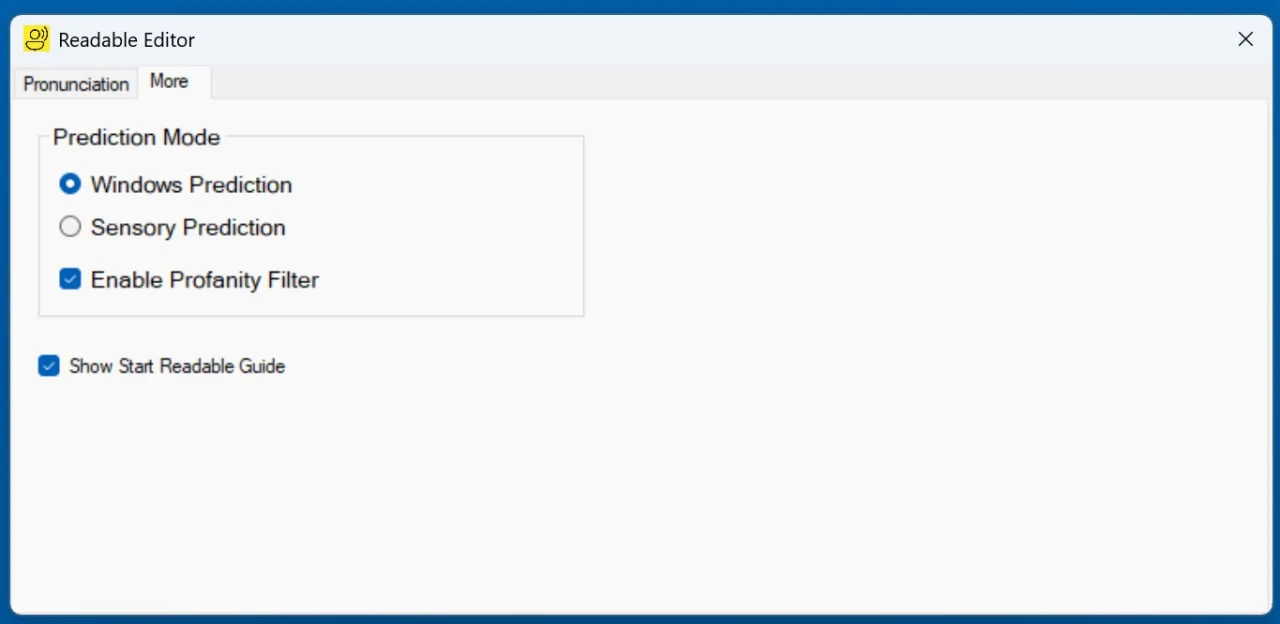
Prediction Mode
Two radio options, mutually exclusive — pick one:
- Windows Prediction (default)
- Use the operating system's built-in word prediction (the same predictions Windows 11 offers natively in many text fields). This is selected by default.
- Sensory Prediction
- Sensory App House's specialist prediction engine, optimised for users with reading and writing differences. Uses 65+ phonetic rules to suggest words that sound like what you typed, even when the spelling is wide of the mark — helpful for dyslexic readers, emergent readers, and AAC users.
For deeper background, see Sensory Prediction Engine.
Enable Profanity Filter
A checkbox, on by default. When on, Sensory Prediction will not suggest profane or potentially offensive words. Suitable for school, work, and any context where bland-by-default is preferred.
The profanity filter applies to Sensory Prediction only. Windows Prediction has its own (different) content filtering controlled by Windows.
Show Start Readable Guide
A checkbox, on by default. It controls whether the Start Readable Guide — the brief on-launch orientation overlay with short tips on the main features — appears when Sensory Readable starts.
- Leave it ticked to see the guide each time Readable launches.
- Untick it once you're comfortable with Readable and no longer need the tips on startup.
- Tick it again at any time to bring the guide back — useful if a different person is taking over the computer, or if you'd simply like to revisit the orientation.