
Speed and volume are the two most-adjusted speech settings.
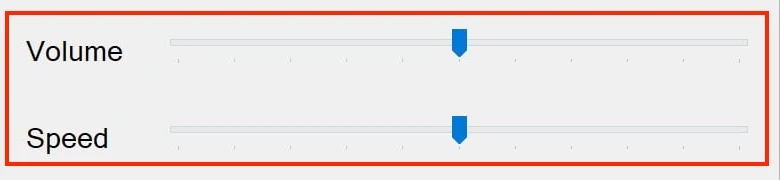
Adjusting speech speed
Speech speed is measured in words per minute. The default is comfortable for most users, but everyone has a different preferred reading pace.
- Click the Settings button on the Readable toolbar
- Open the Speech tab
- Left-click on the Speed slider, then drag — left for slower, right for faster. After clicking, you can also use the ← and → cursor keys to step the value down or up
- Click the test play button to hear a sample at the new speed
- Close the Settings dialog
Some general speed guidance:
- Slow (about 120–150 wpm). New users, learners, anyone unfamiliar with the voice, careful proofreading.
- Default (about 180 wpm). A natural conversational speed for most users.
- Fast (about 220–280 wpm). Experienced users who use Readable for high-volume reading, or for speed-listening to long documents.
- Very fast (above 300 wpm). Some power users prefer this for efficient consumption of familiar material.
You can change speed at any time, including while speech is in progress — the new rate takes effect from the next word.
Adjusting volume
Speech volume is independent of your Windows system volume. Use the Volume slider in Readable to set how loud Readable speaks relative to other audio on your PC.
- Open the Settings dialog and go to the Speech tab
- Left-click on the Volume slider, then drag — left for quieter, right for louder. After clicking, you can also use the ← and → cursor keys to step the value down or up
- Click the test play button to hear the level
If Readable is too quiet even at maximum, check that your Windows system volume is also turned up, and that no per-application volume mixer setting is muting it.