
Sensory Readable can identify many homophones in the English language — words that sound the same but have different spellings and meanings, like their / there / they're, pour / pore / poor, or peace / piece. Spell-checkers don't catch homophone errors because each word is correctly spelled even when used in the wrong sense — which makes them one of the commonest sources of writing mistakes.
Highlight homophones in Microsoft Word
Click your cursor into your Microsoft Word document at the point you want to begin from. Then select Homophones Show from the Readable Word Check menu on the Readable toolbar.
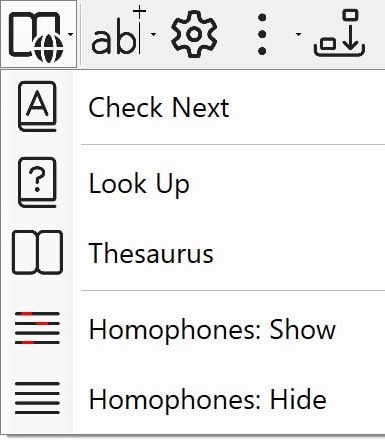
All recognised homophones in the document will be highlighted in blue text. Click any highlighted word to look up its definition and confirm you have used the correct one.
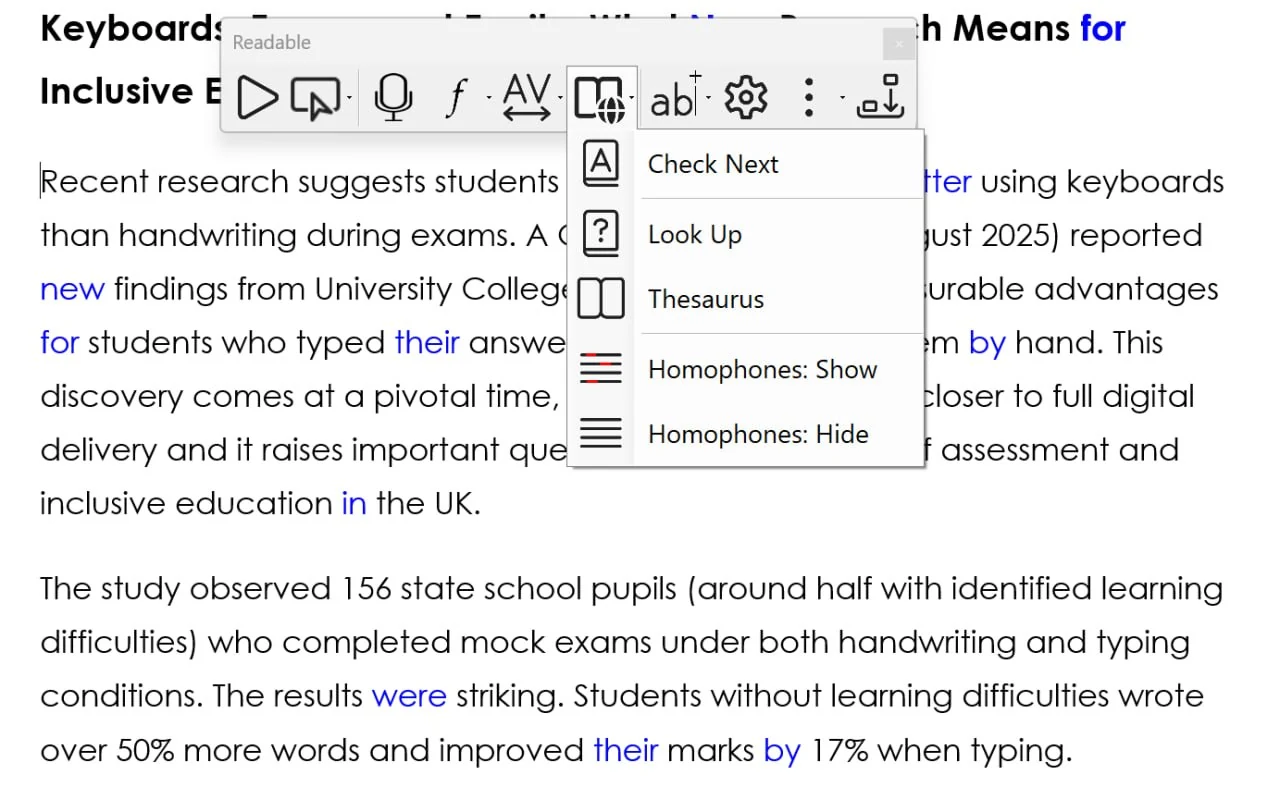
To clear the highlighting, select Homophones: Hide from the same menu.
Check homophones outside Microsoft Word
The Ctrl+Shift hover lookup in Sensory Readable v3 also recognises homophones — anywhere on Windows, not just in Word. Hold Ctrl+Shift and move your mouse cursor over a word in a browser, email, PDF, or any other application. Readable's offline dictionary appears with the definition, and where applicable a small symbol (pictogram) representing the word.
For words with homophone alternatives, the popup makes it easier to confirm you've got the right one — by hearing it, seeing the symbol, and reading the definition together. See Dictionary & Thesaurus for the full description of this feature.
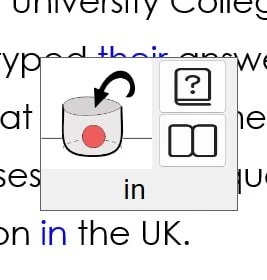
Symbols can be turned on or off in Settings if you prefer text-only popups.