
The Word Underline is one of Sensory Readable's most distinctive visual features. As Readable speaks, a thin coloured line appears under the current word in the original document — moving from word to word in time with the speech, so you can follow along visually.
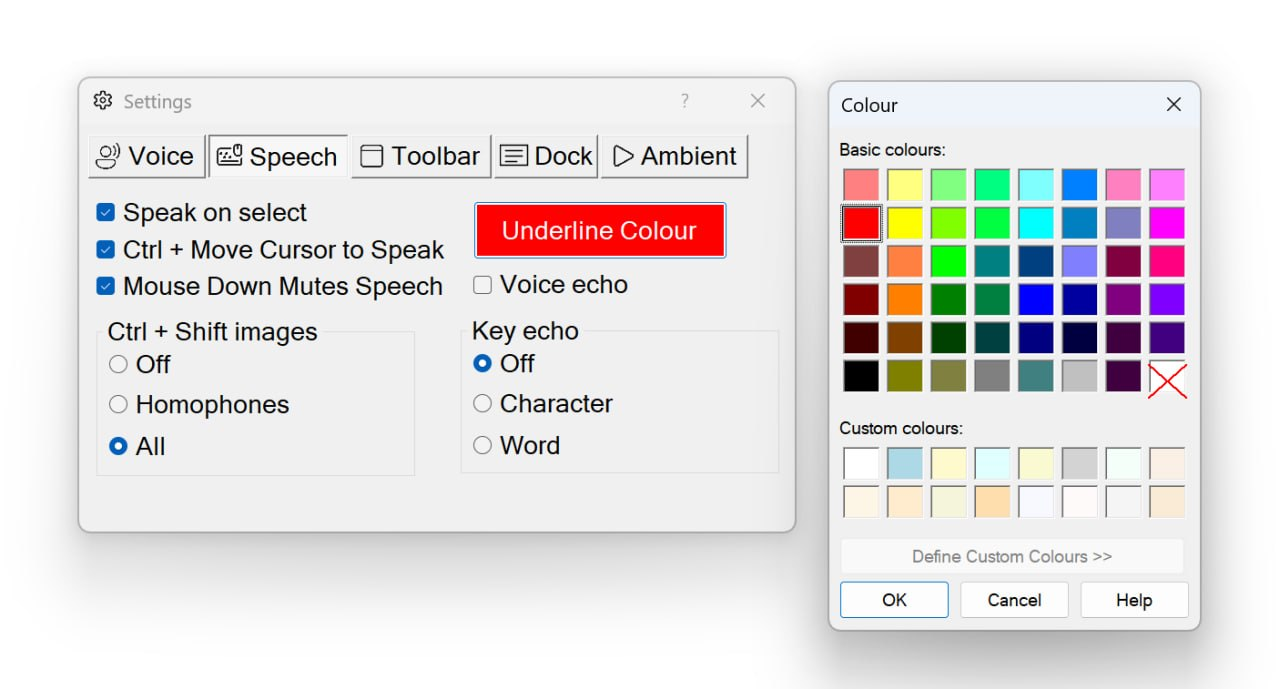
The underline colour can be set from a wide selection of pre-set colours, or you can choose a transparent option for speech without any visible mark.
How the Word Underline works
When Readable speaks any text — via Play, Hover modes, Ctrl+Space, or any other trigger — it draws a coloured underline under the current word in the original document. The underline tracks the speech word-by-word, automatically moving forward as each word is spoken.
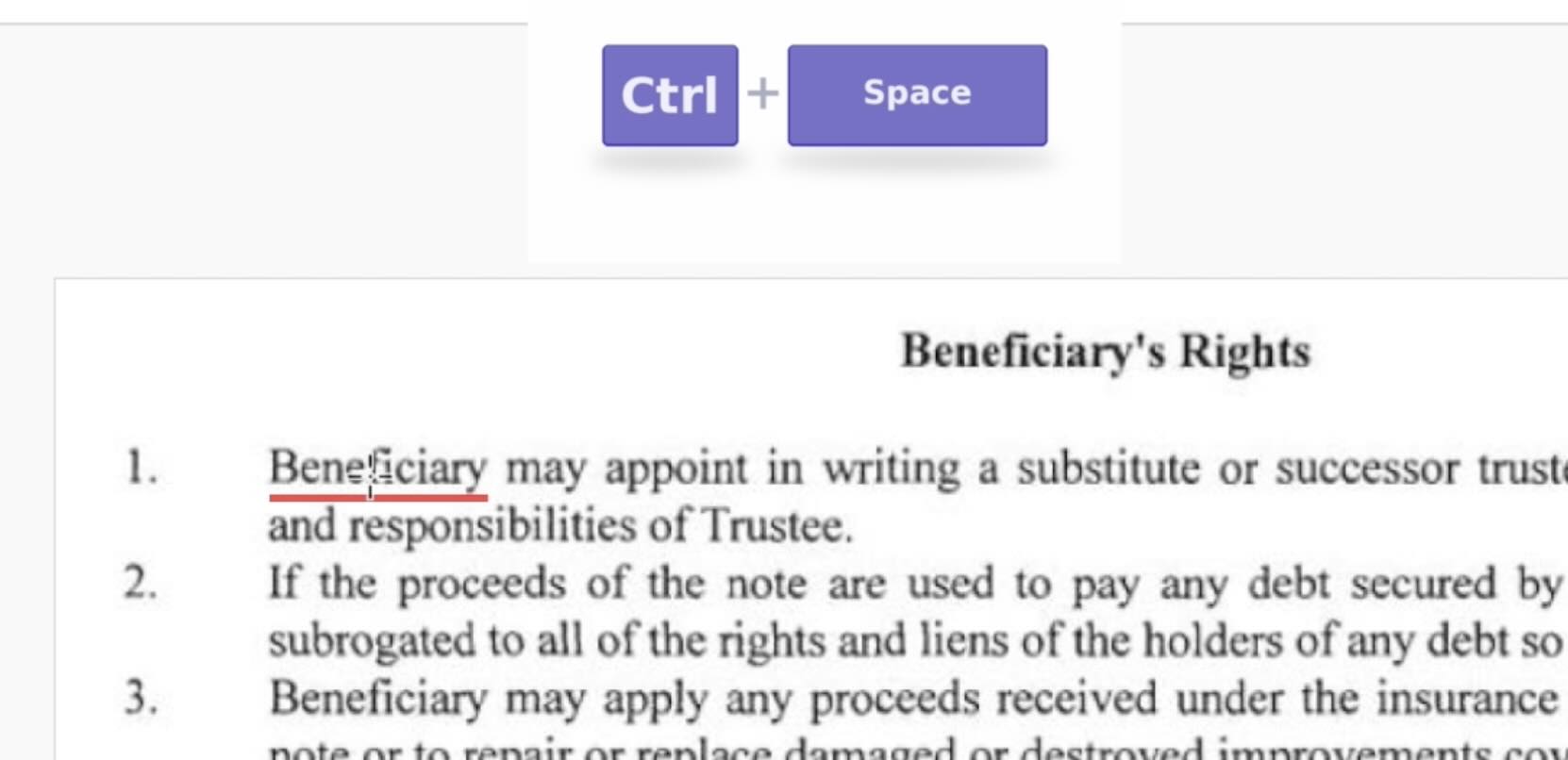
In some applications, the underline may follow a whole sentence, line or paragraph rather than a single word. This happens when the application doesn't expose individual word positions to Readable due to technical or accessibility limits. The speech itself is unaffected — only the visual granularity of the underline changes.
The Transparent Highlight option (new in Readable v3)
Readable v3 introduces a Transparent (invisible) Highlight option. With this enabled, the underline is drawn invisibly, with no visual mark on the screen — but Readable still tracks the current word internally for accurate speech timing.
How to turn on Transparent Highlight
- Open the Settings dialog from the Readable toolbar and go to the Speech tab
- Click the Underline Colour button to open the standard Windows colour picker
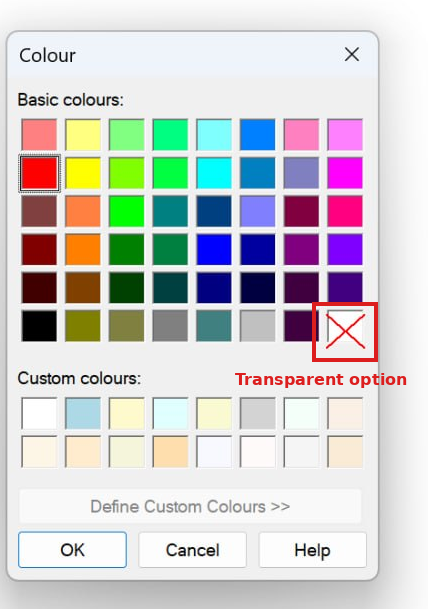
- Click the X icon in the bottom-right corner of the basic colours grid — that is the transparent option
- Click OK to confirm, then close the Settings dialog
Choosing the underline colour
Click the Underline Colour button on the Speech tab of Settings to open the standard Windows colour picker. Choose from over 60 pre-set basic and custom colours. High-contrast colours work well on white backgrounds; muted colours are kinder during long reading sessions. You cannot define your own custom RGB colour at present — but the wide pre-set selection covers most needs.
Auto-hide behaviour
The underline appears only while Readable is speaking and stays inside the document being read — bringing another window in front of it doesn't carry the underline onto that other window.