

Sensory PDF Reader is a standalone accessible PDF reader for Windows, Mac and Chromebook. It is part of the Sensory Readable Suite for Windows, but runs as its own app — it doesn’t require Sensory Readable to be open. On Windows it shares Readable’s text-to-speech voices; on Mac and Chromebook it uses the system voices.
It opens any accessible PDF and reads it aloud with built-in text-to-speech voices, lets you change the background colour and text size, supports typed and freehand annotations on the page, and works completely offline. It is widely used as a JCQ-compliant computer reader in UK schools.
What Sensory PDF Reader does
- Opens and views any accessible PDF — drag-and-drop or open from local or cloud storage
- Reads PDFs aloud with built-in text-to-speech voices (shared with Sensory Readable on Windows)
- Changes background colour from a palette of tinted options for easier reading
- Zoom from 50% to 400%, with fit-width / fit-height / rotation controls
- Speak under the mouse: Word, Line, Block, or Section — see below
- Annotate PDFs with typed text or freehand drawing
- Works fully offline — required for examination use
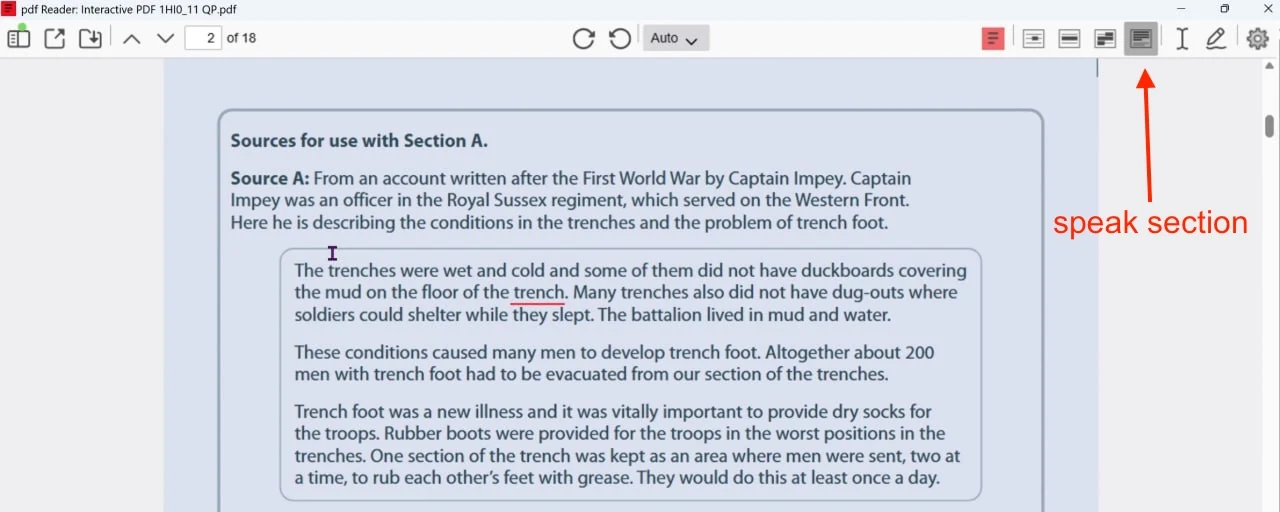
Speaking PDF text
There are several ways to have Sensory PDF Reader speak the document:
- Select text with the mouse — any selected text is spoken automatically (unless Silent Mode is on)
- Hover modes — choose Word, Line, Block, or the new Speak Section option. The mouse pointer triggers speech on the matching unit of text underneath it
- CTRL + Move to speak — an option that requires you to press Ctrl while moving the mouse to trigger speech, instead of having it speak automatically
To stop speech, press Ctrl or left-click the mouse. Speech stops immediately.
You can also choose to highlight the spoken text as it’s read — either as a background block highlight (colour determined by the document background) or as an underline-highlight with a colour of your choice.
Annotating PDFs
Sensory PDF Reader includes two annotation methods that mark the PDF directly:
- Text annotation — click the text annotation icon, then click anywhere on the page to type. You can choose the font, size and colour. Useful for typed answers on exam papers, or notes on study materials.
- Free-form annotation — freehand drawing with the mouse or touch. Choose colour and line thickness. Press Esc to select an annotation, Del to remove it.
Remember to save the document after adding annotations — annotations are stored in the PDF file itself.
Use in UK examinations (JCQ compliant)
Sensory PDF Reader is designed to meet UK Joint Council for Qualifications (JCQ) Access Arrangements requirements. It can be used as a computer reader in GCSE, A-Level, BTEC, Functional Skills, KS2 SATs and other UK examinations. Unlike a human reader, a computer reader is permitted in GCSE English Language reading comprehension assessments because it reads text neutrally, without inference or expression that could aid interpretation.
For exam use, the software must be installed locally and used offline (no internet access during the exam). The student should also be using it routinely in lessons and internal assessments as their normal way of working — no separate application to JCQ is required.
Scanned or image-based PDFs
If a PDF doesn’t speak when you try, the document is probably not accessible — the “text” is actually an image of text. A quick check: try to select text with the mouse. If you can’t, the PDF is image-based.
For image-based PDFs, use the Sensory PDF Convert companion app on Windows, which uses optical character recognition to extract the text and create an accessible PDF. The converted file looks identical to the original but with selectable, speakable text.
Sensory PDF Reader vs Sensory Readable for PDFs
Sensory Readable can read PDF content in any PDF viewer — Adobe Acrobat Reader, Microsoft Edge, Chrome’s built-in viewer, and so on — using its general speech and hover features. Sensory PDF Reader is different: a dedicated, standalone PDF viewer with PDF-specific features (annotations, page navigation, background tinting). Both can be used; PDF Reader is the better choice when PDF is your primary working format, or when you need JCQ compliance for examinations.