
The Pronunciation tab inside the Readable Editor dialog is where you manage your personal pronunciation list. Entries on this list tell Sensory Readable how to say specific words — useful for names, acronyms, technical terms, brand names, or any word whose default pronunciation needs correcting.
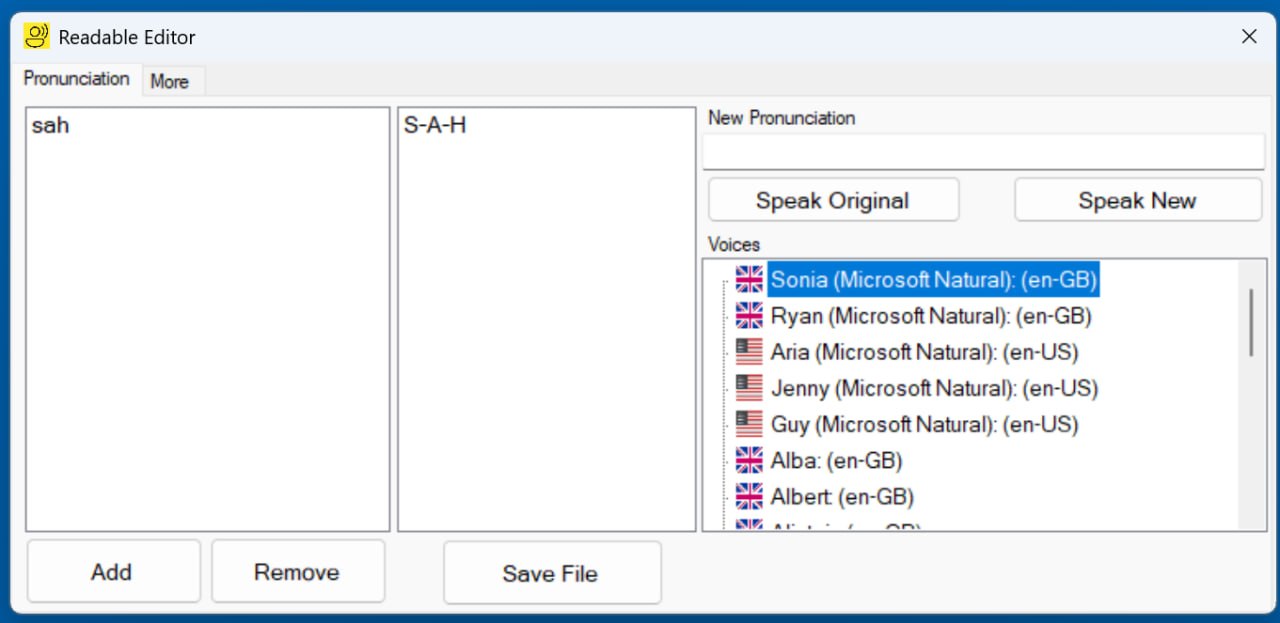
What the tab shows
- Left list — Original word
- The word as written in your text. In the example shown, this is "sah".
- Middle list — Pronunciation
- How Sensory Readable should say it. In the example, "S-A-H" (read as the spelled-out letters).
- New Pronunciation field
- Where you type the corrected pronunciation when adding a new entry. Iterate the spelling until it sounds right.
- Speak Original / Speak New buttons
- Test how the selected entry sounds with the original spelling versus your corrected version, using the voice highlighted in the Voices list.
- Voices list
- All installed voices, used for testing entries — your downloaded Microsoft Natural voices and Sensory voices. Click a voice to make it the active test voice.
- Add / Remove buttons
- Add a new entry to the list, or remove the currently selected one.
- Save File button
- Persist your changes. Until you click Save File, edits live only in the dialog.
Adding a pronunciation
- Click into the Original column (the leftmost list) and type the word as it appears in your text.
- Type the corrected pronunciation in the New Pronunciation field.
- Pick a voice from the Voices list — typically your usual reading voice.
- Click Speak Original to hear the default pronunciation.
- Click Speak New to hear your corrected version.
- Iterate the spelling in New Pronunciation until it sounds right.
- Click Add to add it to the list.
- Click Save File to persist the changes.
Useful entry patterns
- Acronyms read as letters — "sah" → "S-A-H", "NHS" → "N-H-S"
- Acronyms read as words — "NATO" → "Nay-toh", "NASA" → "Nass-uh"
- Proper names — "Sláinte" → "slawn-cha"
- Brand or product names — "Bahá'í" → "ba-HIGH"
- Version numbers — "v3.7" → "version three point seven"
Pronunciation list vs Custom Pronunciations page
The Pronunciation tab and the Custom Pronunciations page describe the same data — two views of one underlying pronunciation file. An entry added in either place is used by Readable everywhere it speaks: in Microsoft Word, in any application via Hover Read, when saving to MP3, and so on.