
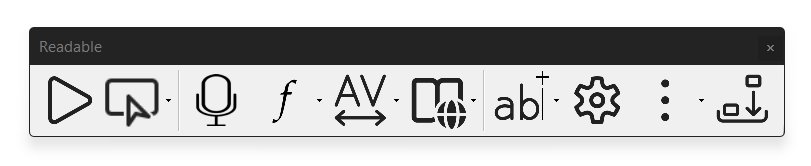
The Readable Toolbar is the visible front of Sensory Readable — a small floating bar of buttons that gives one-click access to all the most-used features. This section explains how the toolbar works and how to position, resize and customise it.

Topics in this section
What the toolbar does
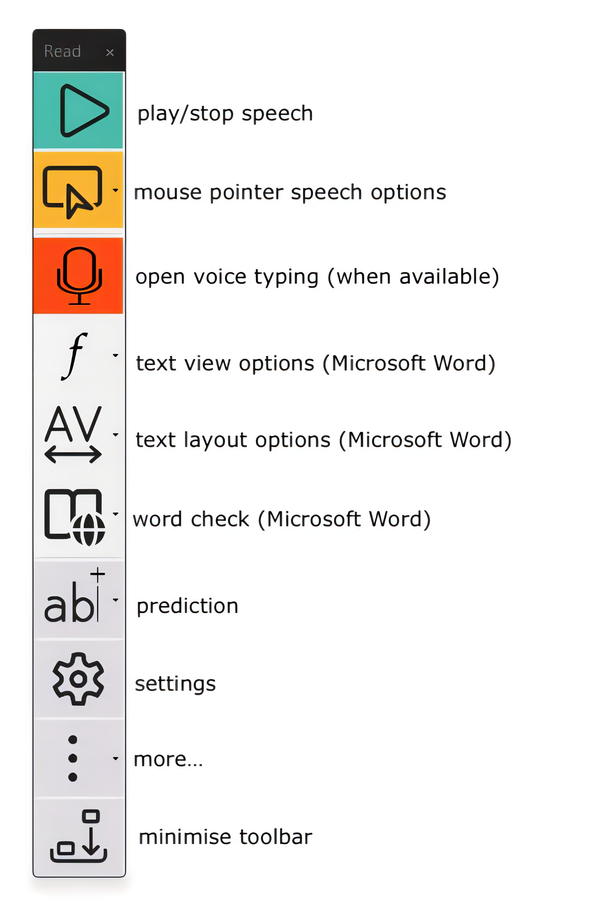
The toolbar is the launching point for almost every Readable action — Play and Stop for speech, Hover Read Modes, Settings, the Word Information popup trigger, the Stop button, and dropdowns for hover, prediction and "more" features. When Microsoft Word is in focus, additional Word-specific buttons appear automatically.
You can place the toolbar anywhere on screen, dock it to the top via Settings, switch between the standard and small toolbar, and choose between BW, Blue or Colours visual styles — see the individual topic pages for details.