
The Readable Editor is a small settings dialog where you configure two things that affect how Sensory Readable speaks and predicts.
How to find and open the Readable Editor
Sensory Readable installs the Readable Editor as a separate small tool — it isn't part of the Readable toolbar itself. There are two ways to open it:
- Windows Search — type "Readable" into the Windows Search box, then select Readable Editor from the results.
- From the toolbar — click the More button on the Readable toolbar and choose Open Readable Editor.
You do not need to be a Windows administrator to run the Readable Editor.
The Editor opens as its own small window with two tabs: Pronunciation and More. After you make changes, click Save File in the Editor — Sensory Readable picks up the new settings the next time it starts.
The two tabs at a glance
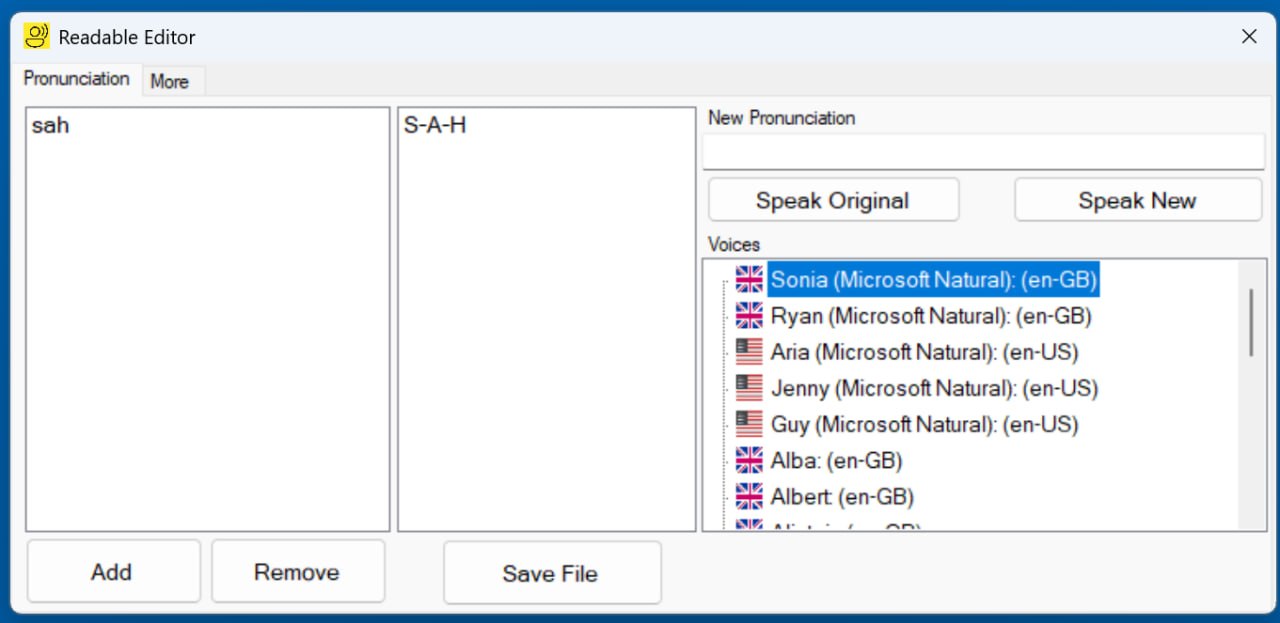
Pronunciation tab
The Pronunciation tab manages your personal pronunciation list — entries that tell Readable how to say specific words. Useful for names, acronyms, technical terms, brand names, or any word where the default pronunciation isn't right.
The tab includes a Voices list so you can test entries against any installed voice.
See Editor — Pronunciation Tab for the full description, and Custom Pronunciations for the underlying concept.
More tab
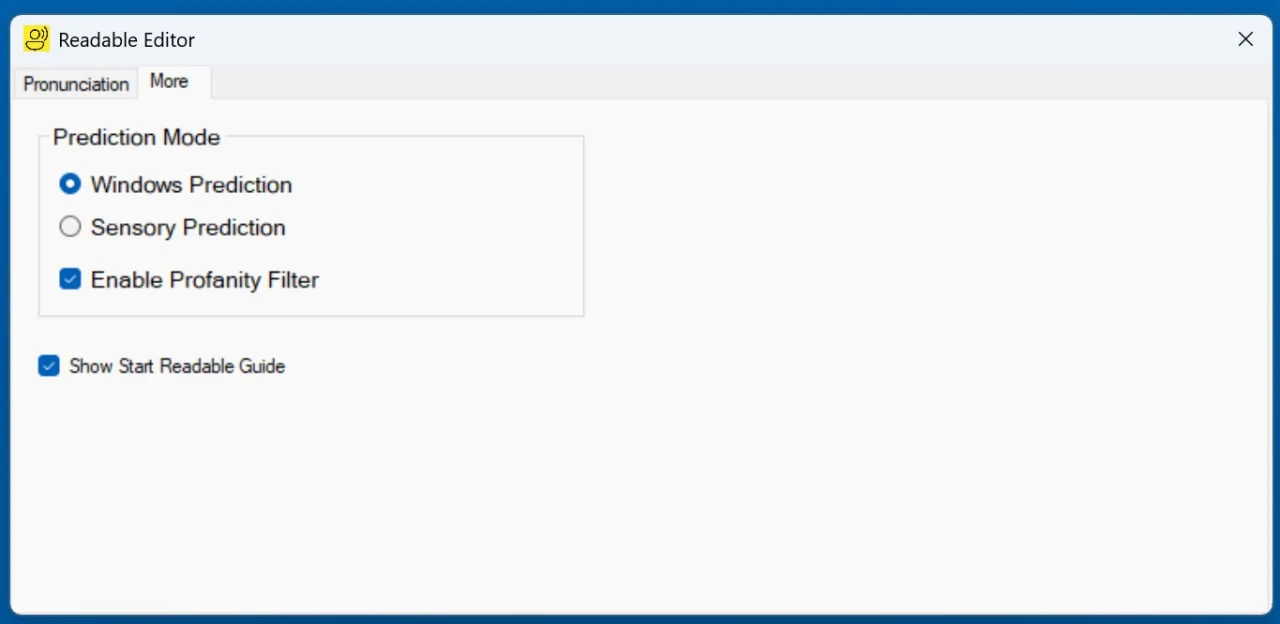
The More tab controls how Sensory Readable offers next-word suggestions while you type, and includes a couple of utility settings.
- Prediction Mode — choose between Windows Prediction (the default) and Sensory Prediction.
- Enable Profanity Filter — on by default; filters profanity out of Sensory Prediction suggestions.
- Show Start Readable Guide — a checkbox controlling whether the on-launch orientation guide appears when Readable starts.
See Editor — Prediction Tab for the full description of the tab, and Word Prediction and Autocorrect for the broader context of how prediction works across Windows.