
When working in Microsoft Word with Sensory Readable, the Spacing and Colour button on the Readable toolbar lets you quickly adjust the visual layout of your Word document. You can change character, line, and paragraph spacing, switch the document into Focus Mode, or change the background colour.
Background colour changes are saved with the document and will appear when printing — change them prior to printing if needed.
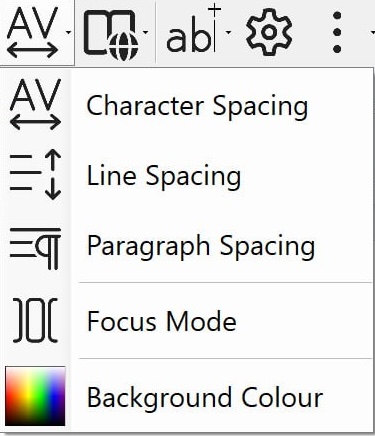
Menu options
- Character Spacing — adjust the space between letters in the Word document.
- Line Spacing — adjust the vertical space between lines of text.
- Paragraph Spacing — adjust the gap between paragraphs.
- Focus Mode — remove Word's menus and toolbars to clear the screen for reading, editing, or proofreading. Click again to bring them back.
- Background Colour — set a coloured background for the document. The chosen colour is saved with the document and will print.
How to use
- Open your Word document.
- Click the Spacing and Colour button on the Readable toolbar.
- Choose an option from the menu.
Each click adjusts the document immediately. Spacing and colour changes are saved with the document the next time you save.
Video help
A walkthrough of changing spacing and colour — and fonts — in Microsoft Word with Readable. The video only contacts YouTube once you press play.