
When working in Microsoft Word with Sensory Readable, the Word Check button on the Readable toolbar gives you one-click access to Word's spelling, dictionary, thesaurus, and homophone tools — with Sensory Readable's speech and underline highlighting added on top. The button appears only when Microsoft Word is the active application.
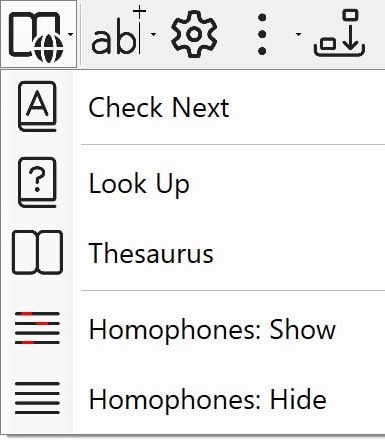
Menu options
- Check Next — step through the next spelling or grammar query in the document. The query opens in Word's right-hand Editor pane. Move the cursor onto a suggestion and press Ctrl to have Sensory Readable speak the suggestion and any meaning text.
- Look Up — opens Readable's built-in offline dictionary for the word the cursor is on, showing the definition, speech, and where applicable a visual symbol. This is the same dictionary as the Ctrl+Shift hover popup used elsewhere on screen — just one click away while you're writing in Word.
- Thesaurus — find synonyms and alternative word choices for the word the cursor is on.
- Homophones: Show — highlight any words in the document that have known homophones (words that sound the same but mean different things), so you can check the right one is in use.
- Homophones: Hide — clear any homophone highlighting.
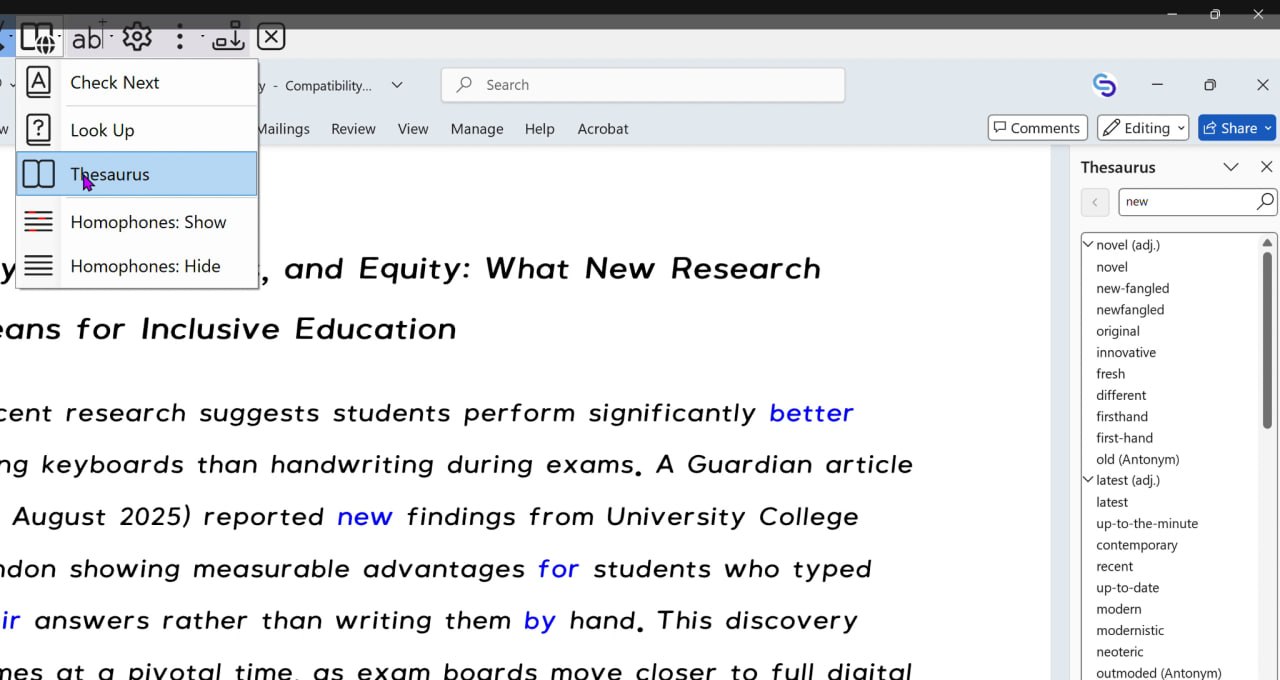
How to use
- Open your Word document.
- Position the cursor in the document — for Look Up and Thesaurus, on the word you want to check.
- Click the Word Check button on the Readable toolbar.
- Choose an option from the menu.
Thesaurus uses Microsoft Word's own thesaurus — Readable adds speech support on top, so pressing the Ctrl key reads the suggestion or thesaurus entry aloud. Look Up uses Readable's built-in offline dictionary directly.
For lookup outside Microsoft Word — in browsers, email, PDF readers, and any other Windows application — Sensory Readable v3 includes its own built-in offline dictionary and thesaurus, accessed by holding Ctrl+Shift and hovering over a word. See Dictionary & Thesaurus for the full description.
Video help
A walkthrough of Text Check & Lookup in Microsoft Word with Readable. The video only contacts Vimeo once you press play.