
Ambient Sounds is a built-in collection of background sounds — white, brown and pink noise, birdsong, crackling fire, waterfall, river, sea waves, whale song and more — that play while you read or work. Many users find that gentle background sound improves concentration, particularly in quiet environments where small noises can be distracting, or in noisy environments where the ambient sound masks unwanted noise. A key part of the feature is that the volume balances automatically around speech — dropping while Readable is speaking and returning afterwards — so you can leave it on without it ever competing with the voice (see Volume balancing during speech below).
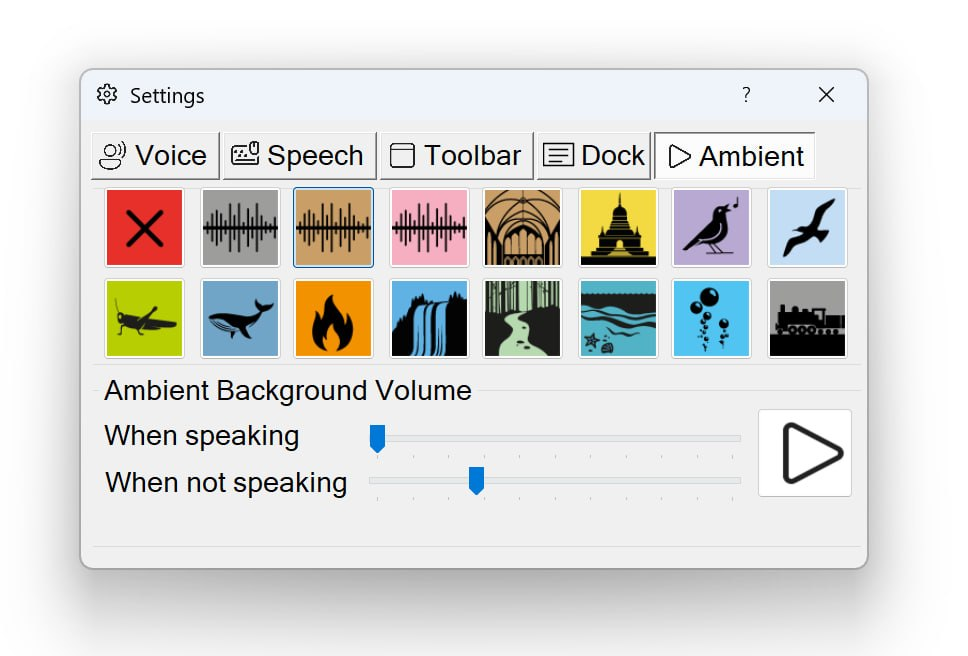
The sound library
Sensory Readable includes 15 ambient sounds (plus an Off option). In the Ambient tab each one has its own icon — click an icon to preview it:
 White Noise
 Brown Noise
 Pink Noise
 Birdsong
 Crickets
 Crackling Fire
 Waterfall
 River
River Sea Waves
 Whale
Whale Church
 Temple
 Bubbles
 Seagulls
 Train
TrainThe three noise options are worth telling apart: White Noise is a neutral hiss that masks all other sound; Brown Noise is deeper and softer, often preferred for reading and relaxation; Pink Noise sits between the two. The rest are natural and environmental — water (waterfall, river, sea waves, whale), wildlife (birdsong, crickets, seagulls), and calming spaces (church, temple, crackling fire, bubbles, train).
Turning Ambient Sounds on or off
- Click the Settings button on the Readable toolbar
- Open the Ambient tab
- Enable Ambient Sounds
- Choose a sound from the library
- Adjust the When speaking and When not speaking volume sliders — both are typically much quieter than your speech volume
- Close the Settings dialog
Once enabled, ambient sound plays whenever Readable is active. Pause or change it any time from the Hover dropdown on the toolbar (which shows an Ambient toggle when ambient sounds are enabled).
Volume balancing during speech (ducking)
The Ambient tab provides two separate volume sliders — When speaking and When not speaking. Together they create a ducking effect: the first sets the ambient sound level while Readable is speaking; the second sets the level for the rest of the time, which is typically louder.
When Readable starts to speak, the ambient sound automatically ducks from the When not speaking level down to the When speaking level so it doesn't compete with the speech. When speech ends, it returns to the higher When not speaking level. The transitions are gentle and unobtrusive, so you can leave ambient sound on during work without manually pausing it whenever Readable speaks. Because the balancing is automatic, you only need one set of headphones for both the ambient sound and Readable's speech.
A practical starting point: set the When speaking slider to about 20–30% of the When not speaking level for a comfortable balance — quiet enough that speech is always clearly audible, loud enough that the ambient sound doesn't feel cut out.
Video help
A short overview of Ambient Sounds in Sensory Readable. The video only contacts YouTube once you press play.
Choosing the right sound
- For deep concentration — try white or brown noise; both mask distractions without engaging attention
- For creative work — try birdsong or a gentle environmental sound; some research suggests low-level ambient noise improves creative thinking
- For sensory regulation — try sea waves or river at a steady volume; the consistent rhythm can be calming for users with sensory differences
- For masking unwanted office noise — try white or brown noise at moderate volume
- For relaxation breaks — try crackling fire or birdsong