
Autocorrect runs alongside Windows text prediction and quietly fixes common typing errors as you write — without slowing you down or interrupting your flow. It is the system-wide companion to Windows 11 Prediction: the same Readable toolbar menu controls both. A particularly useful side-effect is that autocorrect then becomes available in any Windows application — including Notepad, WordPad, chat apps, and other lightweight editors that don't have a built-in autocorrect of their own.
Readable also speaks the suggested word as it's applied — useful in learning situations where hearing the correct spelling reinforces it.
What autocorrect fixes
Autocorrect uses the underlying Windows text-prediction rules. Common fixes include:
- Reversed letters — "teh" → "the", "adn" → "and"
- Missing apostrophes — "cant" → "can't", "dont" → "don't"
- Capitalisation at the start of a sentence
- Days and months — Monday, January, etc.
- Common spelling errors covered by Windows' built-in corrections
Turning Autocorrect on
Click the word-prediction button on the Readable toolbar — the same one used for Show Predictions. The dropdown menu has an AutoCorrect toggle. Click it to switch autocorrect on or off.
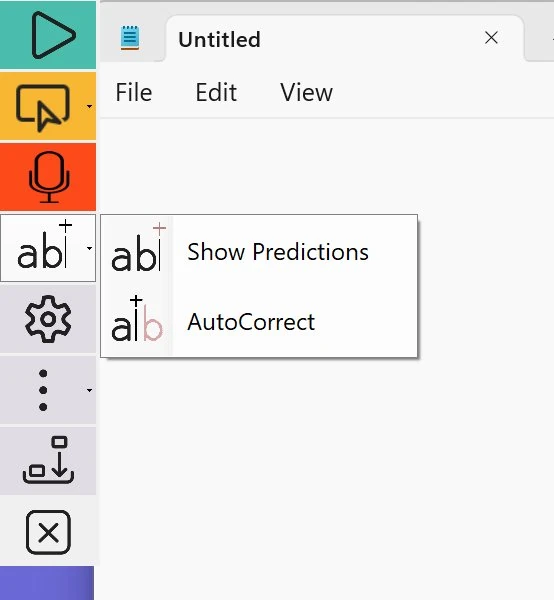
The change takes effect immediately. Try typing a common misspelling — autocorrect will replace it as you finish the word:
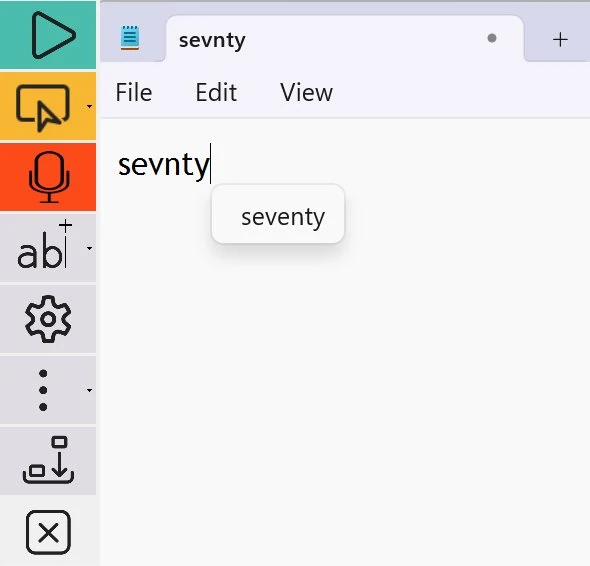
Hearing the suggested word
Readable's contribution on top of standard Windows autocorrect: hold Ctrl and move the mouse over a suggested autocorrection to hear it spoken aloud before it's applied. Helpful in learning contexts, and for users who recognise words by sound more readily than by sight.
Where Autocorrect works
Because it is built on the Windows text-prediction system, autocorrect works in any Windows application that accepts text input from a physical keyboard — Microsoft Word, Outlook, Chrome, Edge, Notepad, WordPad, chat apps and so on. Behaviour is consistent across applications.
Undoing an autocorrect
If autocorrect makes a change you didn't want, press Ctrl+Z immediately to undo. The corrected text reverts to what you originally typed.