
Text Extractor reads aloud any on-screen text that you can see but cannot select — text inside images, locked PDFs, scanned documents, screenshots, content in remote desktop windows, and any other place where the standard text extraction would normally fail.
The Text Extractor does four things in a single action:
- Performs OCR (Optical Character Recognition) on the selected area
- Speaks the extracted text aloud
- Highlights each spoken word in place on the original screen area
- Adds the extracted text to the Windows clipboard so you can paste it elsewhere
How to use Text Extractor
- Click the small dropdown arrow next to the Hover button on the Readable toolbar
- Choose Text Extractor from the menu
- The cursor changes to a crosshair
- Click and drag to draw a box around the on-screen text you want to read
- Release the mouse button
- Readable performs OCR, starts speaking the extracted text, and highlights each word as it is spoken — directly on top of the original area you selected. If you want to stop the speech, just press Ctrl or the Stop button on the Readable toolbar.
- The extracted text is automatically copied to the clipboard, ready for pasting
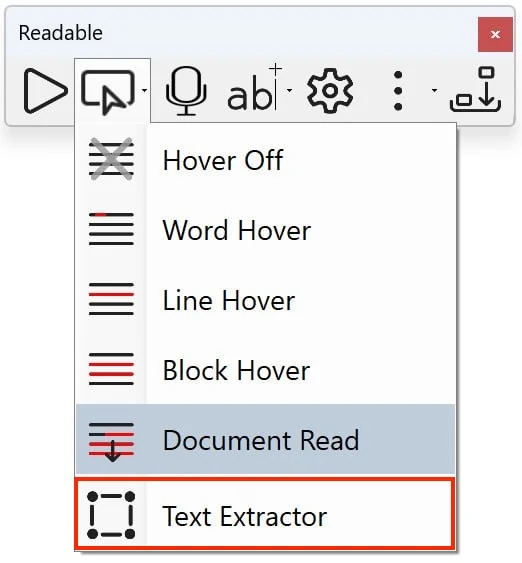
What you can use Text Extractor on
Text Extractor works with effectively any on-screen content. Common use cases:
- Images of text — JPEG/PNG images embedded in documents, web pages or emails
- Locked or secured PDFs — where text selection has been disabled
- Scanned documents — image-based PDFs from scanners
- Remote desktop windows — content displayed inside RDP, Citrix, VirtualBox, VMware, etc.
- Legacy applications — older Windows apps that don't expose their text properly
- Diagrams and infographics — text labels embedded in graphics
- Screenshots — paste a screenshot into a viewer and use Text Extractor to read it
How accurate is the OCR?
Readable v3 uses a high-quality OCR engine that handles standard typefaces, mixed-case text, numbers and most punctuation correctly. It performs best on:
- Clean, sharp text at normal screen resolution
- Black-on-white or white-on-black colour schemes
- Standard fonts at body-text size or larger
It may struggle with very small text (zoom in first), highly stylised display fonts, handwriting, very low-contrast colour combinations, or text overlaid on busy backgrounds. If you find an OCR result is wrong, simply re-run Text Extractor on the same area — sometimes a slightly different selection box gives better results.
The clipboard copy
After Text Extractor completes, the extracted text is automatically on the Windows clipboard. You can paste it into any application with Ctrl+V — for example to:
- Paste a passage from a locked PDF into your own document
- Search for the text in a web search
- Save it as plain text for later reference
This is particularly useful in education and research settings where transcribing image-based source material is a common task.
Video help
A walkthrough of the upgraded Text Extractor in Readable v3. The video only contacts Vimeo once you press play.