
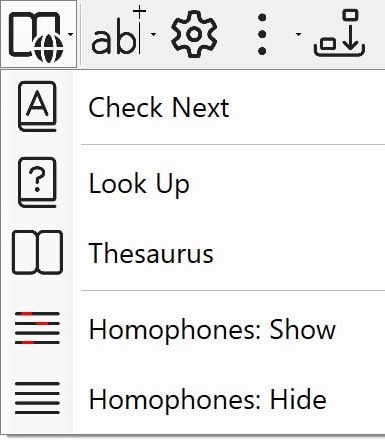
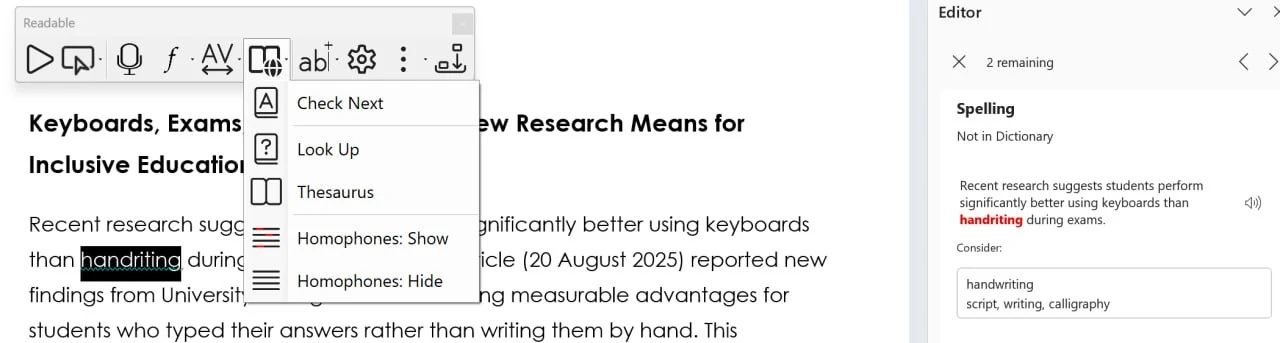
The Check Next option in the Word Check menu works through your Microsoft Word document one spelling or grammar issue at a time, surfacing each one in Word's right-hand Editor pane with Sensory Readable's speech and underline highlighting added on top.
How Check Next works
Click the Word Check button on the Readable toolbar (visible only when Microsoft Word is the active application) and choose Check Next. Sensory Readable steps to the next spelling or grammar query in your document and shows it in Word's right-hand Editor pane.
To hear any content in the Editor pane read aloud, move your cursor over it and hold the Ctrl key. Sensory Readable will speak the flagged word, the suggested corrections, and any explanatory text — anywhere in the pane.
You then make the spelling correction (or dismiss it) using Microsoft Word's own Editor proofing tool. Repeat Check Next to step through to the next query.
Why use it
The combination of Check Next and the Ctrl-to-speak action is particularly helpful for users with reading or writing differences. Hearing each suggestion read aloud — particularly the difference between similar-looking spellings — often makes the right choice obvious in a way that visual inspection alone does not.
The other Word Check menu items
Check Next is one of five items on the Word Check menu. The others are described in Text Check & Lookup in MS Word:
- Look Up — definition of the word at the cursor
- Thesaurus — synonyms for the word at the cursor
- Homophones: Show — highlight homophones in the document
- Homophones: Hide — clear the highlighting