
Small Toolbar mode reduces the size of the Readable toolbar so it takes up less screen space while keeping every button accessible. It is useful on smaller laptops, in compact workspaces, or for any user who prefers a less prominent toolbar.
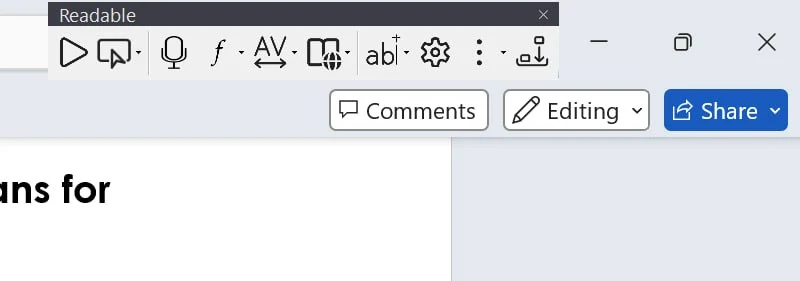
What Small Toolbar mode does
Small Toolbar mode reduces the size of the toolbar buttons, making the overall toolbar significantly smaller and less intrusive. All buttons remain present and accessible — the only change is the visual size.
How to turn Small Toolbar on
- Click the Settings button on the Readable toolbar
- Open the Toolbar tab
- Tick the Small floating toolbar checkbox
- Close the Settings dialog — the change takes effect immediately
What stays the same
Small Toolbar mode is a visual change only. The following remain unchanged:
- Every button and dropdown is still present
- All keyboard shortcuts work exactly the same
- Tooltips appear on hover as normal
- All companion apps and features remain accessible
Small Toolbar mode is a floating-toolbar option — it is available only when the Position is set to Manual or Track Window. When the toolbar is Docked, the Small Toolbar setting is unavailable. It works with any Colours setting (BW, Blue or Colours).