

Sensory Ruler is a small program that puts a horizontal coloured bar on your screen — an "on-screen ruler" that helps your eyes track lines of text without losing place. It mimics the function of a physical reading ruler that many readers use with paper books, but adapted for the screen. It is part of the Sensory Readable Suite, and can also be launched independently from its own desktop icon at any time.
Video help
A walkthrough of Sensory Ruler, so you can see it in action without leaving this page. The video only contacts YouTube once you press play.
What Sensory Ruler looks like
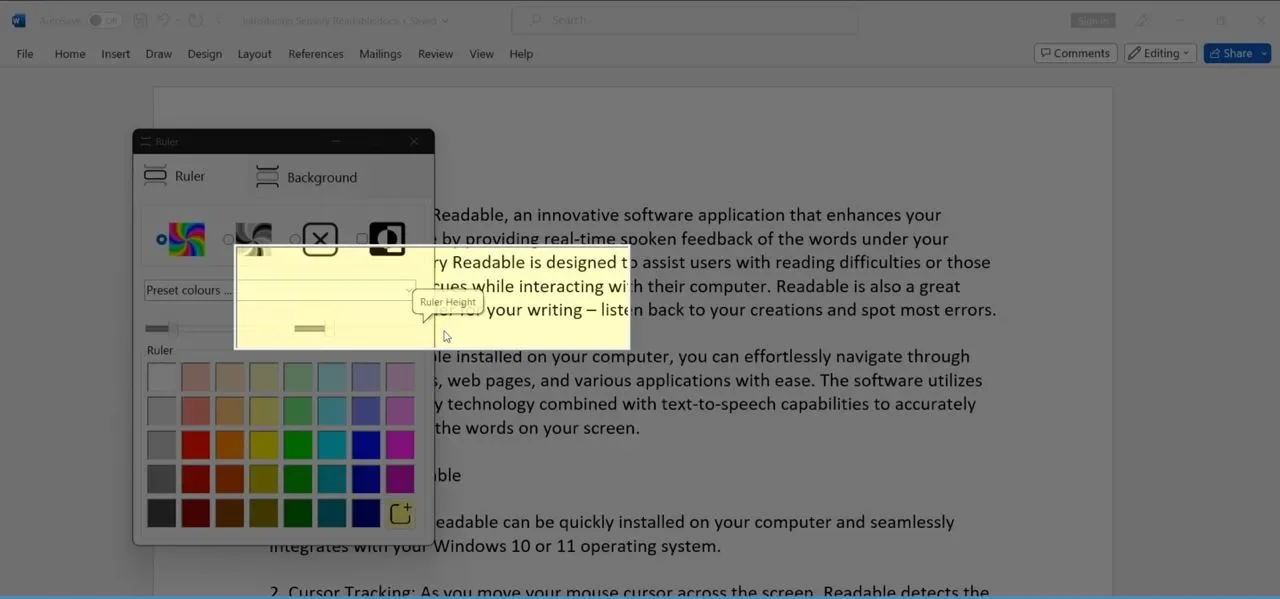
The ruler is a horizontal bar that sits across your screen. Configurable parameters include:
- Colour
- Choose from a range of colours including yellow, blue, green, pink, and others. The same colours that work as Irlen overlays often work well as ruler colours.
- Width / height
- Adjust the height of the ruler bar — typically just enough to cover one or two lines of text.
- Transparency
- From fully opaque (covers what's behind) to highly transparent (just a coloured tint).
- Position
- Drag the ruler to wherever you need it on screen. Some users keep it permanently centred; others move it to follow their reading.
- Following the cursor
- Optionally, the ruler can follow your text cursor, automatically moving down as you read.
How to use Sensory Ruler
- Launch Sensory Ruler from the Windows Start menu
- The ruler appears on your screen — usually centred initially
- Drag it up or down to position over the line you want to read
- Adjust colour, width and transparency from the Sensory Ruler settings (right-click the ruler or open the Windows taskbar icon)
- Read with the ruler covering or underlining the current line
- Move the ruler down as you progress through the text
Sensory Ruler with Readable
Sensory Ruler is part of the Sensory Readable Suite, alongside Sensory Tint, Sensory Markers, Sensory PDF Reader and PDF Convert. You can launch Sensory Ruler from the More menu on the Readable toolbar, or run it directly from its own desktop icon at any time — Readable does not need to be running.
When used together, Sensory Ruler and Readable's Word Underline serve different purposes:
- Word Underline highlights the specific word being spoken — driven by Readable's speech.
- Sensory Ruler covers or underlines a whole line of text — for visual line-tracking without speech.
You can use both at once: the ruler provides a line-level anchor, while Word Underline picks out the specific word being spoken within that line.