
Custom Pronunciations let you tell Sensory Readable how to pronounce specific words — your own name, technical terms, abbreviations, names of places or people, and any words where the default pronunciation is wrong or awkward. Your custom pronunciations are remembered across sessions and apply everywhere Readable speaks.
Why custom pronunciations matter
Even the best text-to-speech engines mispronounce things. Common cases:
- Personal names — particularly non-English-language names, surnames, or unusual spellings
- Place names — local pronunciations that differ from the spelling
- Technical terms and acronyms — "SQL" pronounced as "sequel" rather than "S-Q-L"; "JSON" pronounced as "Jason" rather than "J-S-O-N"
- Brand names — many of which have non-obvious pronunciations
- Domain-specific vocabulary — medical, legal, scientific terms
- Loanwords from other languages — that the voice may try to read with English phonetics
Adding a custom pronunciation once means you never hear the wrong version again — every reading from then on uses your version.
Adding a custom pronunciation
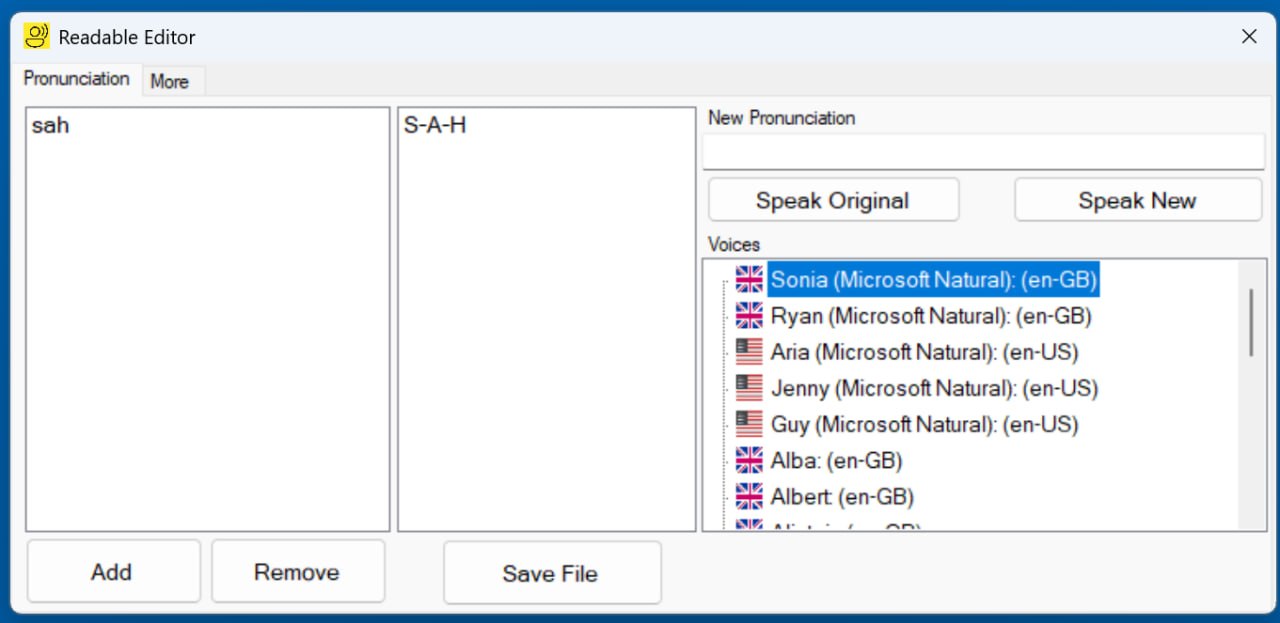
- Open the Readable Editor — either from the Windows Search box or from the toolbar's More menu
- The Editor opens on the Pronunciation tab
- Click Add pronunciation
- In the Word field, enter the word as it appears in text (e.g. "Siobhan")
- In the Pronounce as field, enter how it should sound (e.g. "Shavawn")
- Click the play button to test the pronunciation
- Adjust the spelling until it sounds right
- Click Save File
The new pronunciation takes effect the next time Sensory Readable is started.
Specifying the pronunciation
Write the word as it should sound, using normal English letters. The TTS engine reads the new spelling and produces the pronunciation you want. Examples:
Siobhan→ShavawnFeatherstonehaugh→FanshawWorcester→WoosterJSON→JasonSQL→Sequel
Word matching rules
By default, custom pronunciations match whole words, case-insensitively. So adding a pronunciation for "JSON" matches "JSON", "Json", and "json" but doesn't match "JSONP" or "myJsonValue".
Advanced options allow:
- Case-sensitive matching — match only the exact case you specified
- Partial word matching — match the word as a stem (e.g. "JSON" also matches "JSONs", "JSONified")
- Phrase matching — match multi-word phrases (e.g. "Sensory Readable" pronounced as a complete phrase rather than two words)
Where custom pronunciations apply
Custom pronunciations apply everywhere Readable speaks — Hover, Play, Read All, Voice Echo, Voice Typing playback, the Word Information popup, Save to Audio. They are part of your user profile and persist across sessions.
They also apply regardless of which voice you've selected — switch from Sonia to Ryan or any other voice, and your custom pronunciations continue to work.
Managing your pronunciations
The Pronunciations tab shows all your custom entries. You can:
- Edit any entry (the word, the pronunciation, or matching options)
- Test any entry's pronunciation with the play button
- Disable an entry temporarily without deleting it
- Delete entries you no longer want