
The Save to Audio feature converts text to a high-quality MP3 file you can keep, share or listen to on the move. Two key things to know about it:
- High audio resolution. The saved MP3 sound quality is excellent — clear voice rendering, good dynamic range, and minimal compression artefacts.
- Two ways to save. Save audio either directly from a Microsoft Word document, or from any text on the Windows clipboard — so you can save to MP3 from any application, not just Word.
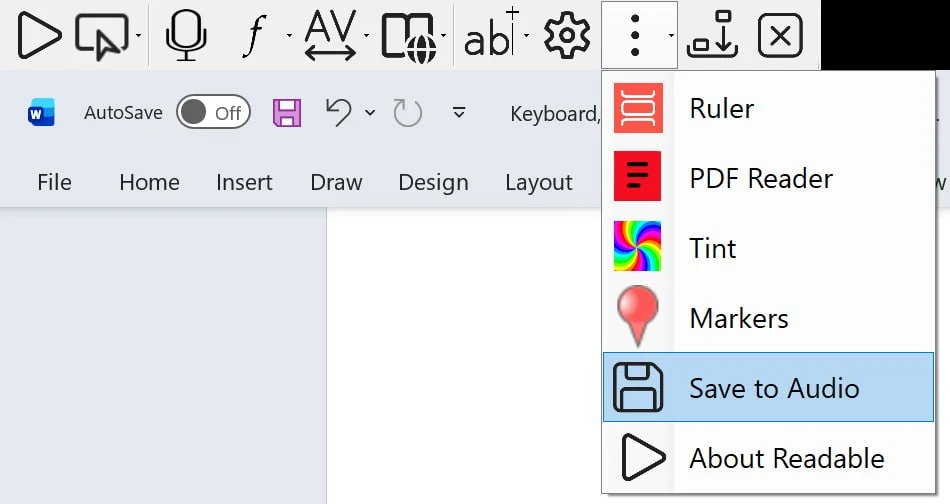
Save from the clipboard (any application)
This is the most flexible method — works with any text from any Windows app:
- In any application, select the text you want to convert and copy it to the clipboard (Ctrl+C)
- Click the More button on the Readable toolbar
- Choose Save to Audio File from the dropdown
- Confirm the source as the clipboard (the dialog detects there is text in the clipboard)
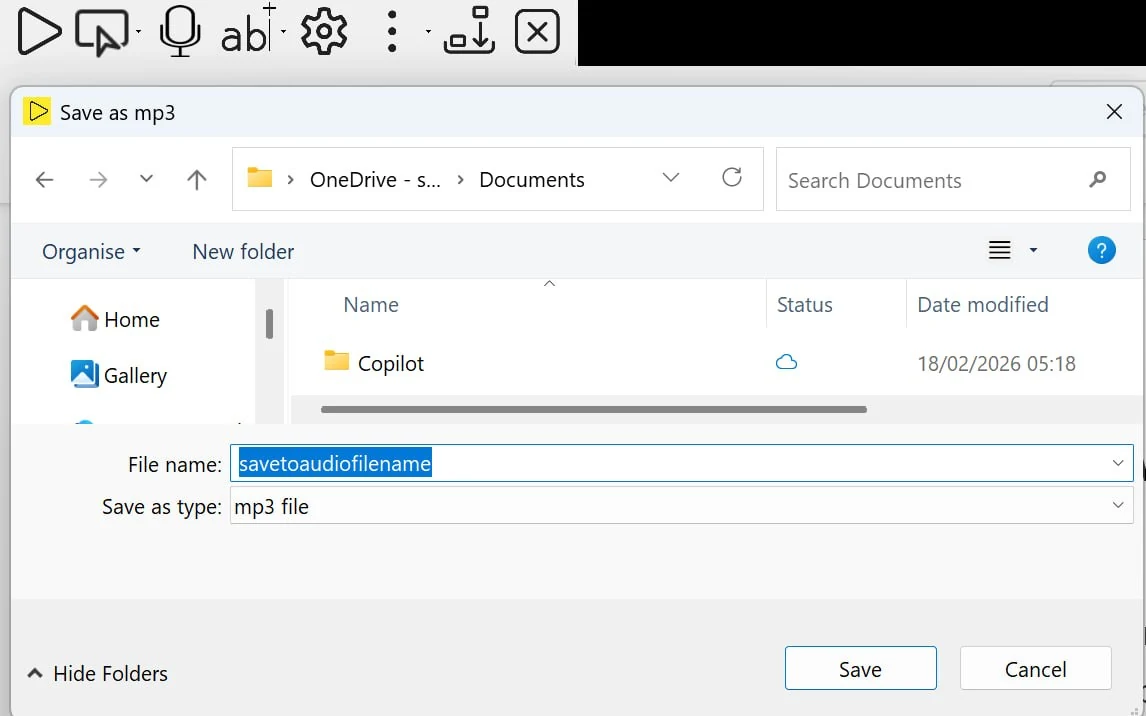
- Choose where to save the MP3 file and confirm
- Readable converts the text to audio and saves the MP3 to your chosen location
Save directly from Microsoft Word
If you are already in a Word document, you can save the whole document or a selection without going via the clipboard:
- Open the document in Microsoft Word
- Optional: select a portion of the document if you only want to save part of it
- Click the More button on the Readable toolbar
- Choose Save to Audio File
- The dialog detects you are in Word and offers the document (or selection) as the source
- Choose where to save and confirm
Hear a sample
Below is a 27-second clip of part of this page, exported by Readable using the Sonia voice. Click play to hear what your saved MP3 will sound like:
Voice and quality settings
The MP3 is generated using Readable's currently selected voice. Before saving:
- Pick the voice you want for the recording — this can be different from the voice you use for everyday reading
- Check the speed — for downloadable audio, slightly slower than your everyday reading speed often produces a more listenable recording
The saved MP3 is high-resolution audio suitable for headphones, in-car listening, or sharing with others.
What gets saved
The MP3 contains the spoken text only. Any formatting (bold, italics, headings, tables) is read in the standard way — for example, table cells are read row-by-row. Images are skipped. Footnotes are read in line where they appear.
Use cases
- Study material on the move. Convert chapters of textbooks or research papers into MP3 for the commute, gym or walk.
- Auditory proofreading. Save your own writing as MP3 and listen back later to catch issues you would skim past visually.
- Sharing. Email or message audio versions of long documents to family members or colleagues who would rather listen than read.
- Accessibility. Generate audio versions of documents for people with vision difficulties, who can then play them on any standard MP3 device.