
Sensory Readable speaks any text using a text-to-speech voice of your choice. Readable v3 introduces a hierarchical voice selector that groups voices logically — typically by source and accent — making it easier to find one that suits your reading style.
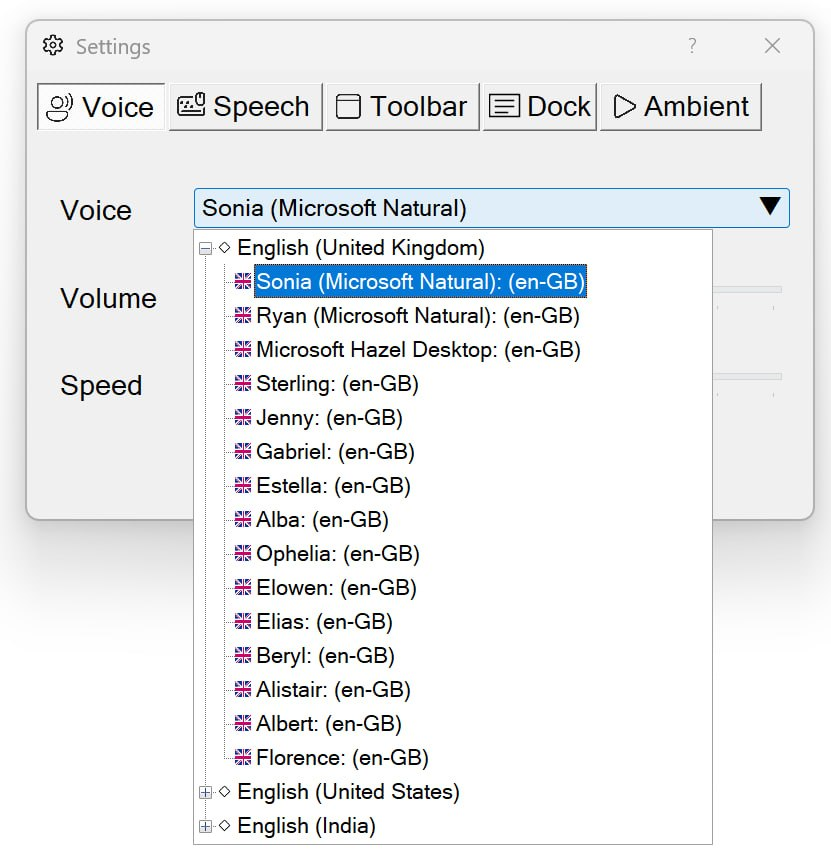
How to choose a voice
- Click the Settings button on the Readable toolbar
- Open the Voice tab
- Browse the voice tree — voices are grouped by source and accent
- Click a voice name to select it; click the play button next to a voice to hear a short sample
- Close the Settings dialog — Readable will use the new voice the next time speech starts
Different voices for different tasks
Different voices suit different tasks. Some general guidance:
- Long-form study and reading. Choose a voice whose tone you find easy to listen to over time.
- Children & learners. Younger-sounding voices or those with familiar accents (your own region) can feel more approachable.
- Proofreading your own writing. Pick a voice that sounds different from your inner reading voice — this helps you hear errors and awkward phrasing your eye would otherwise skip past.
- Dictation playback. A neutral voice with clear consonants works best for verifying transcribed speech.
Default voice for new installs
The default voice on a new Readable v3 installation is one of the Natural Voices (typically Sonia for UK English systems). You can change this at any time in Settings — Readable remembers your choice between sessions.