
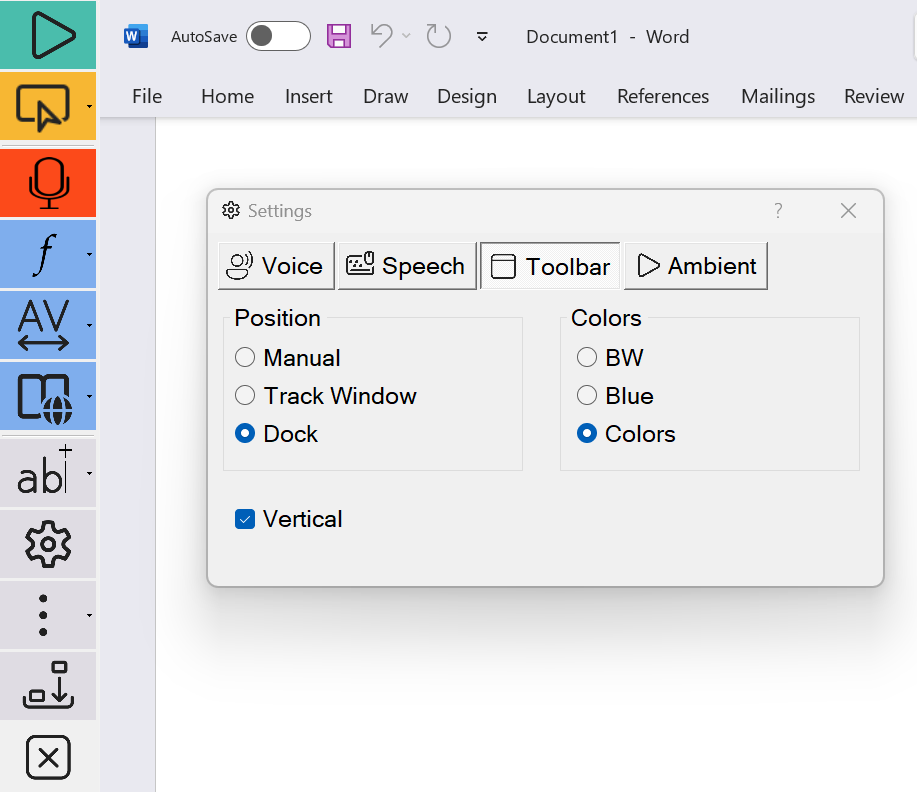
The Sensory Readable Toolbar operates very closely with your application window, for example Microsoft Word or Edge. The Toolbar view can be changed in View Settings, and the options are below.
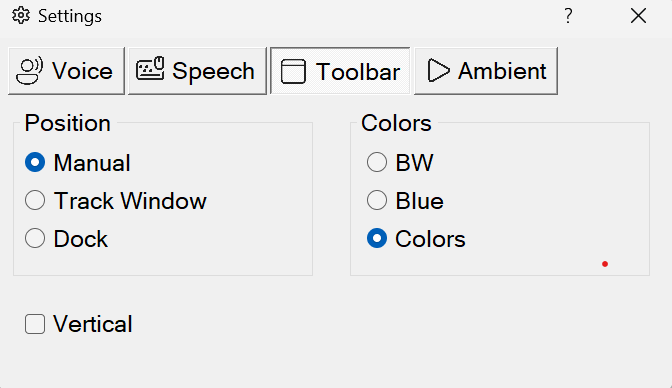
Colour Options for Toolbar in Manual Position with Microsoft Word (drag and move, minimise)

Black Options for Toolbar in Manual Position with Microsoft Word (drag and move, minimise)

Colour Options for Toolbar in Manual Position with Edge, Notepad etc (drag and move, minimise) - from v2.5
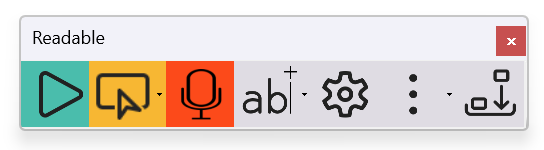
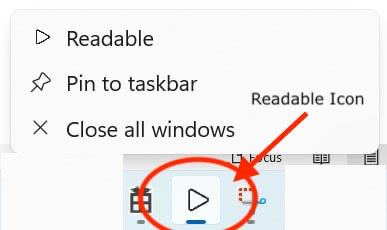
Vertical Toolbar in the "Docked" position, so fixed on the left hand side. Please note to close a docked window, minimise to the Windows dock and close with right click. From v2.5 a Close Button (x) is available to close Readable when in docked mode
Horizontal Toolbar in the "Docked" position, so fixed on the left-hand side. Please note to close a docked window, minimise to the Windows dock and close with right click. From v2.5 a Close Button (x) is available to close Readable when in docked mode.
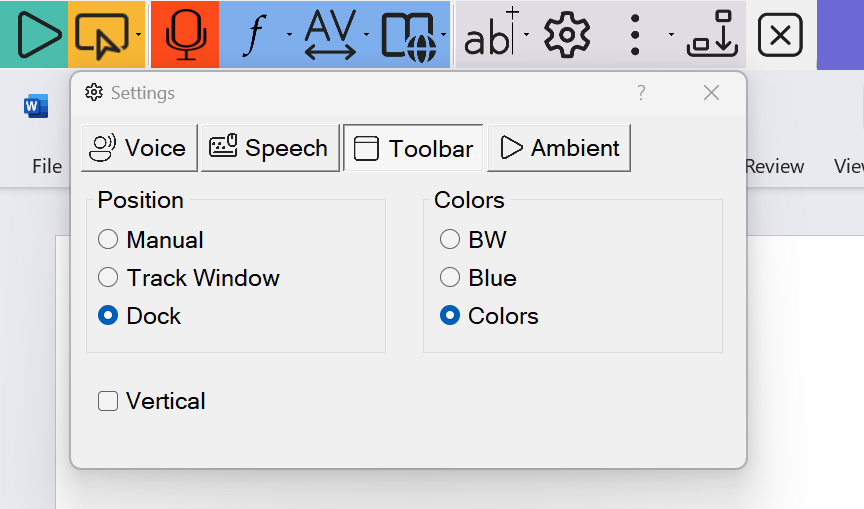
Please note to close a docked window, minimise to the Windows dock and close with right click.
From Readable v2.5 a Close Button (x) is available to close Readable when in docked mode.
Video of the Readable Toolbar Viewing options
https://youtube.com/embed/jFk8c2OvgOQ?showinfo=0&rel=0