
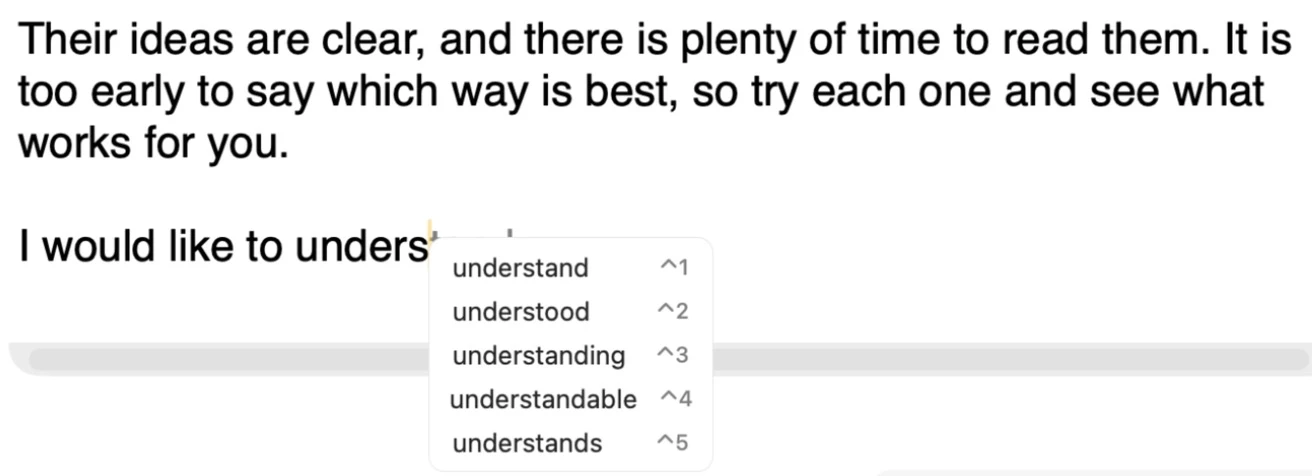
As you type in a text field in any app, Readable suggests ways to finish the word, and likely next words, in a small list just below the cursor.
Video help
Short videos showing Word Prediction and Autocorrect in Readable for Mac v2. The videos only contact Vimeo once you press play.
Accepting a suggestion
- Press ⌃ Control+1 to ⌃ Control+5 to accept the matching suggestion, or
- use the ↑ and ↓ arrow keys to choose one and press Return, or
- click a suggestion with the mouse.
Press Esc to close the list.
Turning prediction on
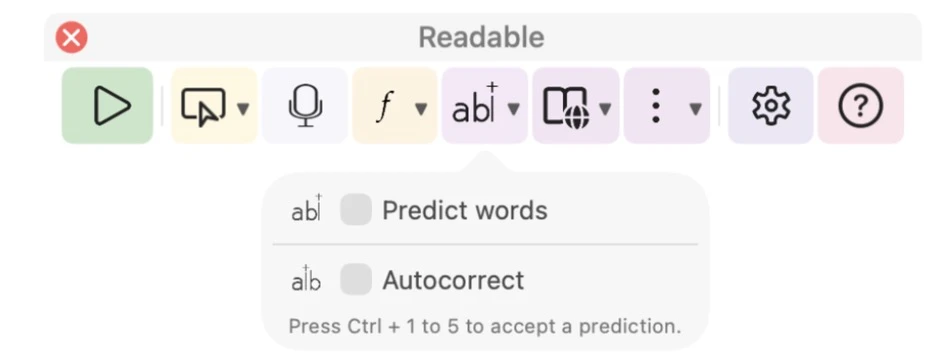
Word prediction is off by default. Tick Predict words in the Predict ▾ dropdown on the toolbar, or Predictions on the Predict tab of Settings.
Autocorrect
With Autocorrect ticked (in the Predict dropdown, or Auto-correct obvious typos as you type in Settings), Readable quietly corrects obvious typing mistakes as you finish each word. It is off by default.
Profanity filter
Profanity filter, on the Predict tab of Settings, keeps offensive words out of the suggestions. It is on by default.
Suggestions follow your Mac’s language and spelling preferences automatically.