
The Readable toolbar is a small floating panel that stays above your other windows, so it’s always within reach whatever app you’re working in. Clicking the toolbar doesn’t take focus away from the document you’re reading or writing.
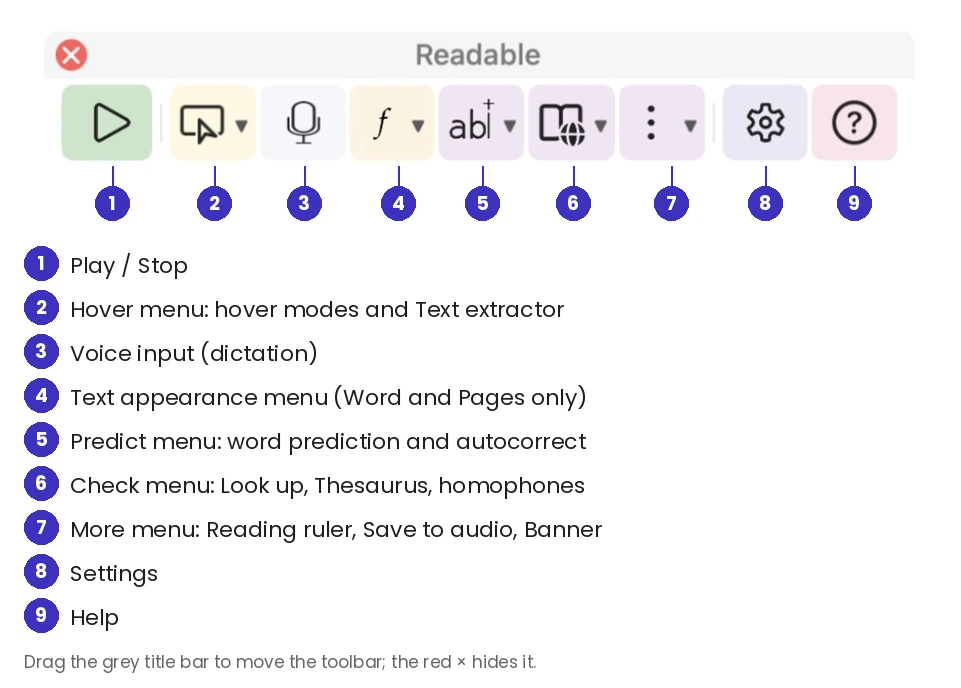
The toolbar has a thin title bar labelled Readable (just R when the toolbar is vertical). Drag the title bar to move the toolbar, and click the red × to hide it.
The toolbar adapts to what you’re doing: when Microsoft Word or Apple Pages is the app in front, it widens to show the Text appearance button, and narrows again when you switch to another app.
Video help
A short video showing this feature in Readable for Mac v2. The video only contacts Vimeo once you press play.
In this section
- Toolbar Buttons — what every button and dropdown does
- Toolbar Layout and Position — horizontal or vertical, size, colour mode, and whether it follows your window
- Showing and Hiding the Toolbar — the menu-bar icon, the Dock icon and ⌘ Command+⇧ Shift+R