From left to right (or top to bottom on a vertical toolbar), the buttons are:
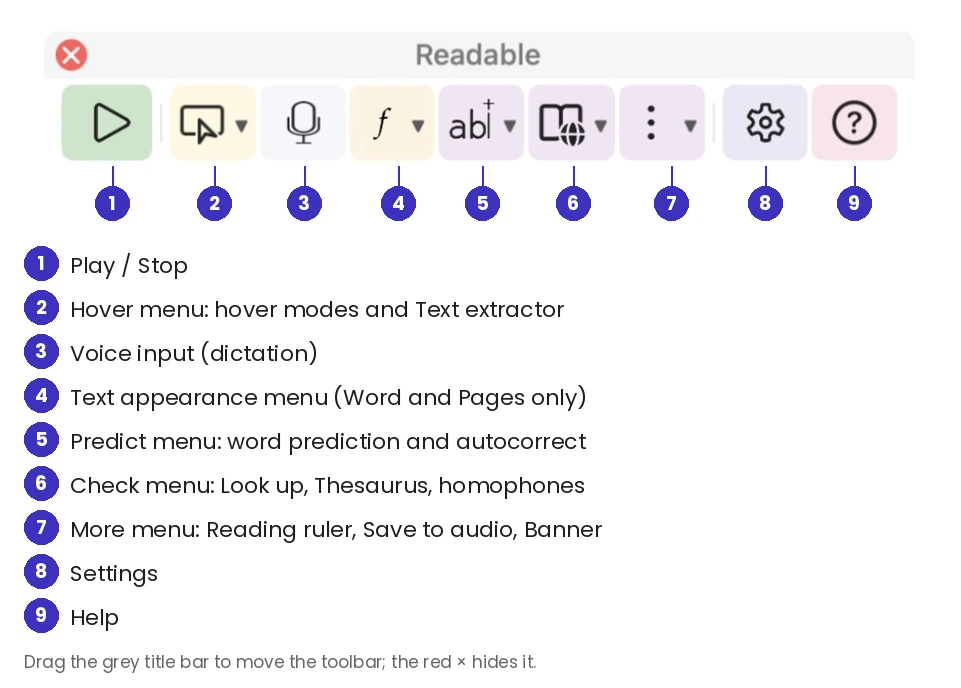
- Play / Stop
- Reads your selected text. If nothing is selected, Readable starts from where you last clicked and reads to the bottom of the window. While Readable is speaking the button turns into a red Stop button. Shortcut: ⌥ Option+⌘ Command+P. See Play and Read Selection.
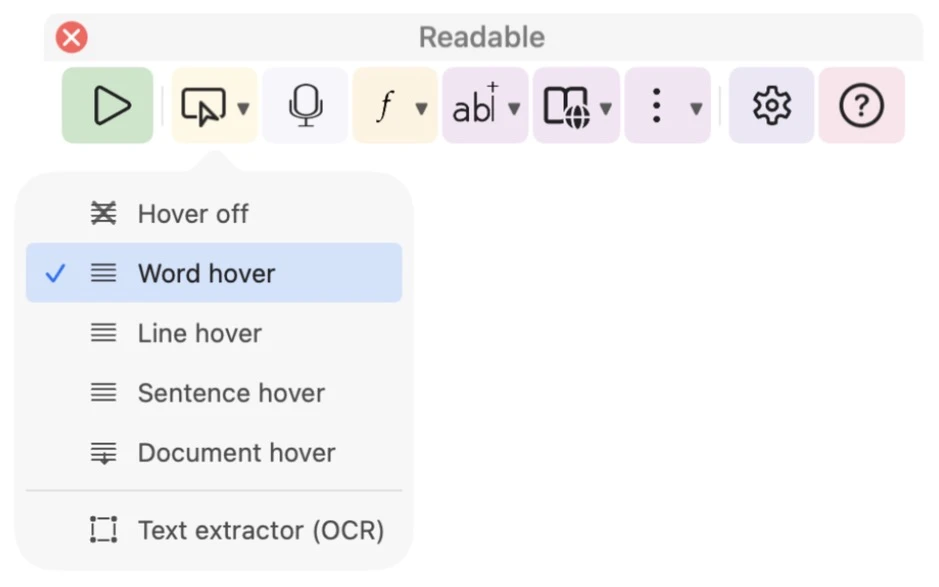
- Hover ▾
- Chooses the hover reading mode — Hover off, Word hover, Line hover, Sentence hover or Document hover — with a tick beside the current one. It also has Text extractor (OCR) and, once you’ve chosen a sound, Ambient sound to switch it on or off. See Hover Read Modes.
- Voice input (microphone)
- Starts and stops dictation into the app you’re typing in. See Voice Input.
- Text appearance ▾
- Font, size, spacing and colour for your document. Only shown when Microsoft Word or Apple Pages is in front. See Word and Pages Text Appearance.
- Predict ▾
- Switches Predict words and Autocorrect on or off. See Word Prediction and Autocorrect.
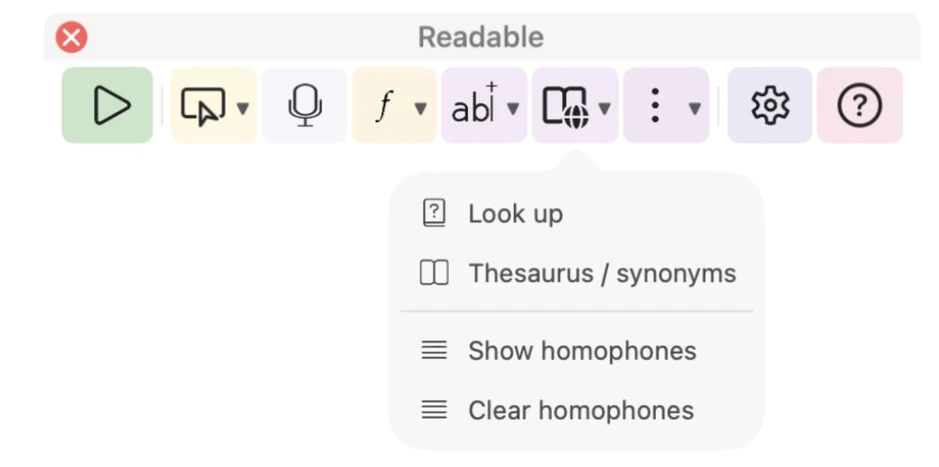
- Check ▾
- Look up, Thesaurus / synonyms, Show homophones and Clear homophones. See Word Tools.
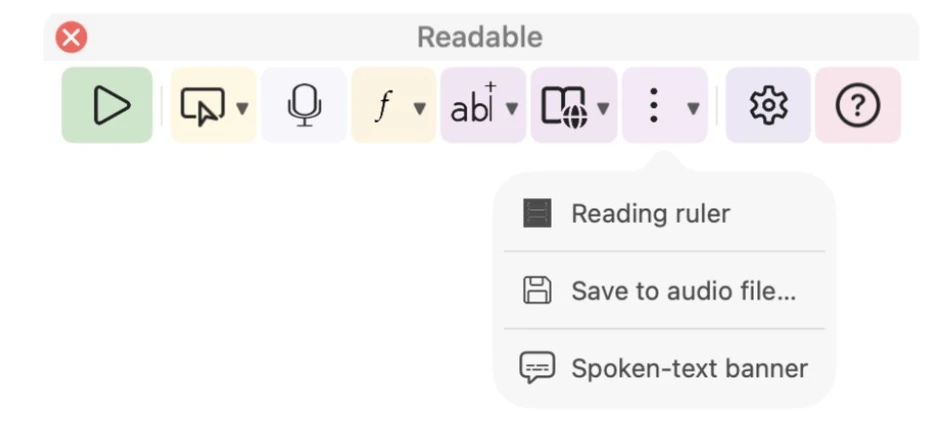
- More ▾
- Reading ruler (when Sensory Ruler for Mac is installed), Save to audio file… and Spoken-text banner. See Reading Ruler, Save to Audio File and Spoken-Text Banner.
- Settings
- Opens Settings, arranged in tabs: Speech, Reading, Banner, Predict, Ambient, Toolbar and About. See Settings Reference.
- Help (?)
- Opens the Readable help.