
Hiding the toolbar doesn’t quit Readable — your shortcuts, hover reading and prediction keep working. There are four ways to show or hide it:
- Click the Readable icon in the menu bar at the top of the screen.
- Click the Readable icon in the Dock.
- Press ⌘ Command+⇧ Shift+R.
- Click the red × on the toolbar’s title bar to hide it.
Video help
A short video showing this feature in Readable for Mac v2. The video only contacts Vimeo once you press play.
The menu-bar quick menu
Right-click (or Control-click) the Readable icon in the menu bar for a quick menu:
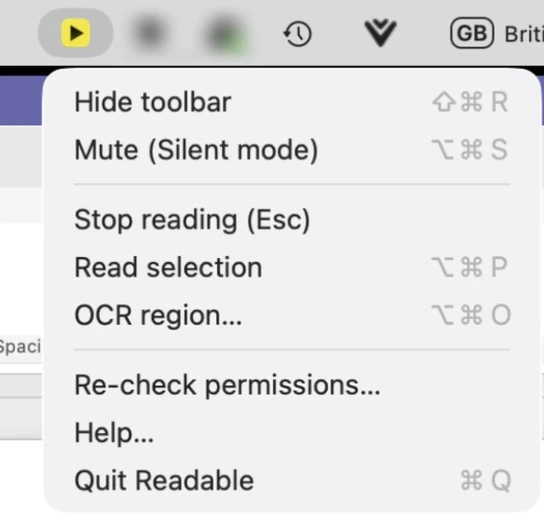
- Hide toolbar / Show toolbar
- Same as clicking the icon.
- Mute (Silent mode) / Unmute
- Turns Silent mode on or off.
- Stop reading (Esc)
- Stops speech.
- Read selection
- Reads the selected text.
- OCR region…
- Starts the Text Extractor.
- Re-check permissions…
- Checks Readable’s macOS permissions — see Installing and Permissions.
- Help…
- Opens the Readable help.
- Quit Readable
- Closes Readable completely.