
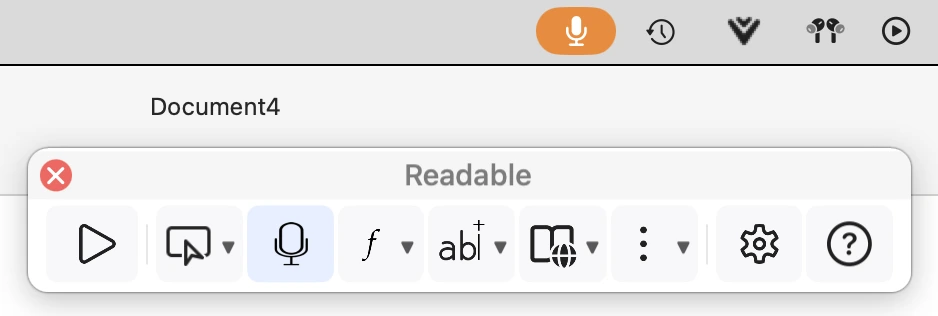
Click the microphone button on the toolbar to start dictating. Readable uses Apple’s speech recognition to turn what you say into text and types it into whichever app you’re working in — without taking focus away from your text field. Click the microphone again to stop.
While Readable is listening, macOS shows an orange microphone in the menu bar at the top of the screen. This is the Mac’s own sign that an app is using the microphone; it disappears when you stop dictating. The microphone button on the Readable toolbar also pulses while it is listening.
- The first time you use it, macOS asks for Microphone and Speech Recognition permission.
- Where your Mac supports on-device recognition for your language, dictation runs on the Mac. Otherwise it needs an internet connection, and Readable tells you if it isn’t available.
- Dictation stops automatically if you switch to another app, so your words don’t end up in the wrong document.
- Key Echo is paused while you dictate, so it can’t feed back into the microphone.
Video help
A short video showing this feature in Readable for Mac v2. The video only contacts Vimeo once you press play.
Echo dictation
With Speak dictated phrase back when listening stops ticked (on the Speech tab of Settings), Readable reads back what it transcribed when you stop — a useful check that it heard you correctly. It is on by default. See Key Echo and Voice Echo.