
The spoken-text banner is a floating window that shows the passage Readable is reading aloud, a few words at a time, with the current word underlined. It’s helpful when the original text is small, crowded or hard to follow.

Video help
A short video showing this feature in Readable for Mac v2. The video only contacts Vimeo once you press play.
Turning the banner on
Choose Spoken-text banner from the More ▾ dropdown, or tick Show the spoken-text banner on the Banner tab of Settings. The banner appears whenever Readable is speaking. To hide it, click its close button, or untick the option.
How the banner shows text
The banner shows a fixed group of words — 7 by default. Each group stays put until every word in it has been spoken, then the banner moves on to the next group, so the text doesn’t jump about while you’re reading it.
Moving and resizing
- Drag anywhere on the banner to move it.
- Drag the left or right edge to make it wider or narrower.
- Drag the bottom-right corner to resize it — the text size grows with the height, so a taller banner gives you bigger text.
Readable remembers the banner’s position, width and text size.
Banner settings
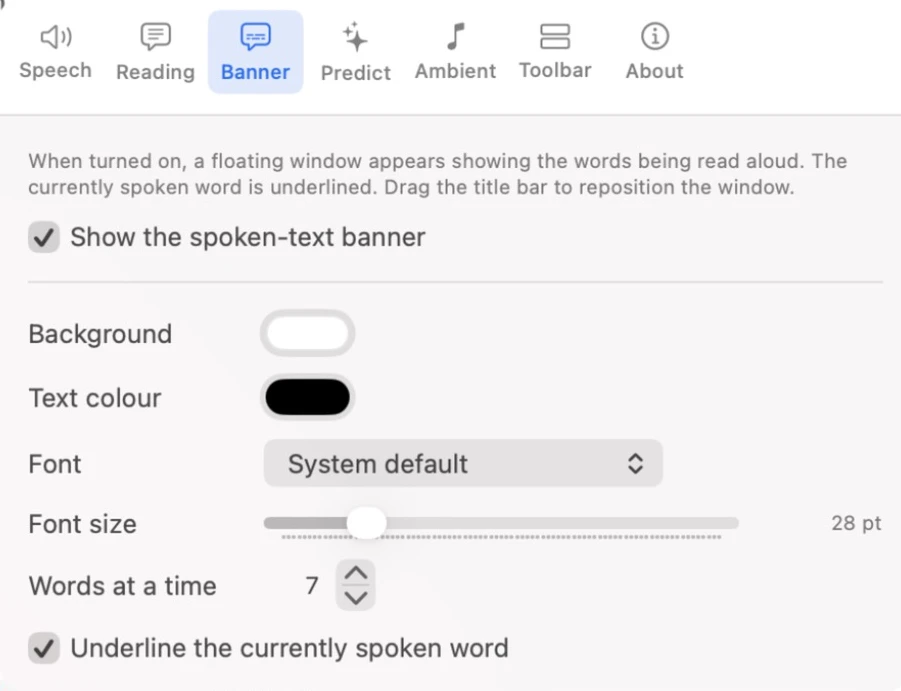
- Background and Text colour
- Pick colours that are comfortable for you to read — white and black by default.
- Font
- Any font installed on your Mac, or System default.
- Font size
- 12 to 96 point (28 by default).
- Words at a time
- 1 to 12 words (7 by default).
- Underline the currently spoken word
- On by default.
