
With hover reading, you point at text with the mouse and, after a short pause, Readable speaks it. Choose how much you hear from the Hover ▾ dropdown on the toolbar:
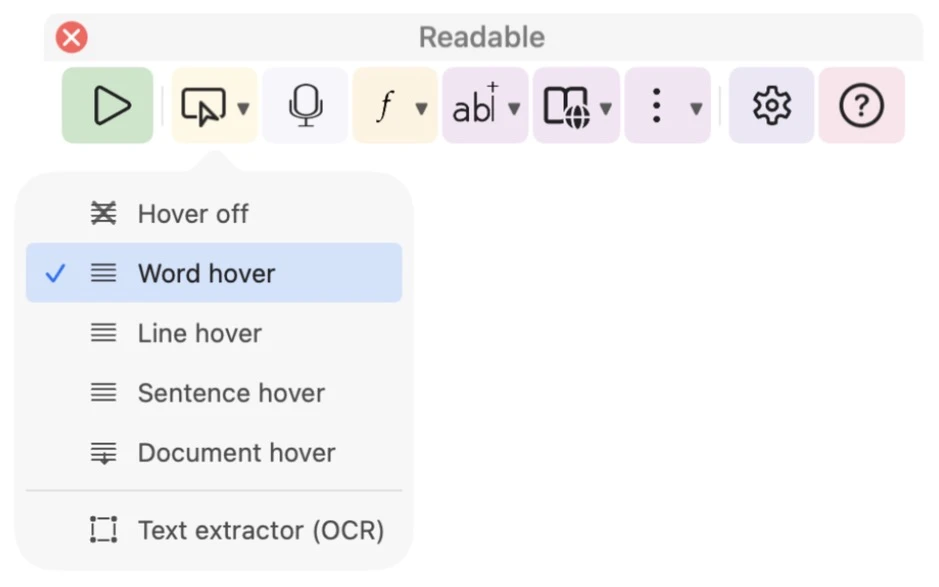
- Hover off
- Hover reading is switched off.
- Word hover
- Reads the single word under the pointer. This is the default.
- Line hover
- Reads the whole line the pointer is on.
- Sentence hover
- Reads the whole sentence, even when it runs across several lines.
- Document hover
- Reads everything in the window from the pointer downwards — see below.
Video help
A short video showing this feature in Readable for Mac v2. The video only contacts Vimeo once you press play.
Holding Control or Option to hover
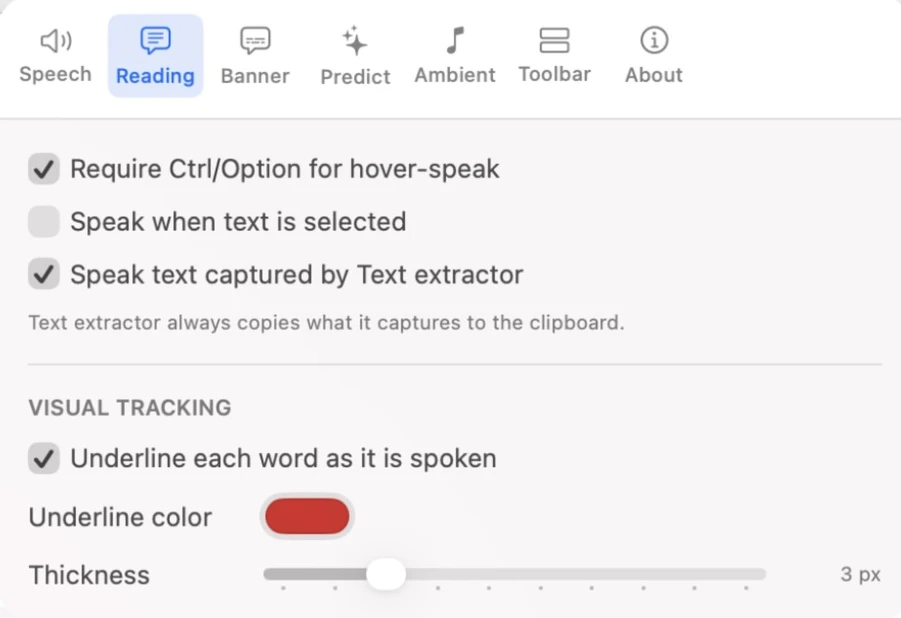
By default, hover reading only speaks while you hold down ⌃ Control or ⌥ Option. This stops Readable talking every time the mouse passes over text. To have hover speak without holding a key, open Settings, go to the Reading tab and untick Require Ctrl/Option for hover-speak.
Document hover
Choose Document hover and point at the place you want to start. Readable reads from the pointer down to the bottom of the window, including text in PDFs, images and apps that don’t share their text. The whole width of the window is captured, so nothing at the edges is missed, and multi-column layouts are detected so only the column you’re pointing at is read. Press Esc or click Stop to halt.