
Sensory Writeable includes a full set of text-to-speech settings. Open the settings panel by clicking the cog icon on the toolbar.

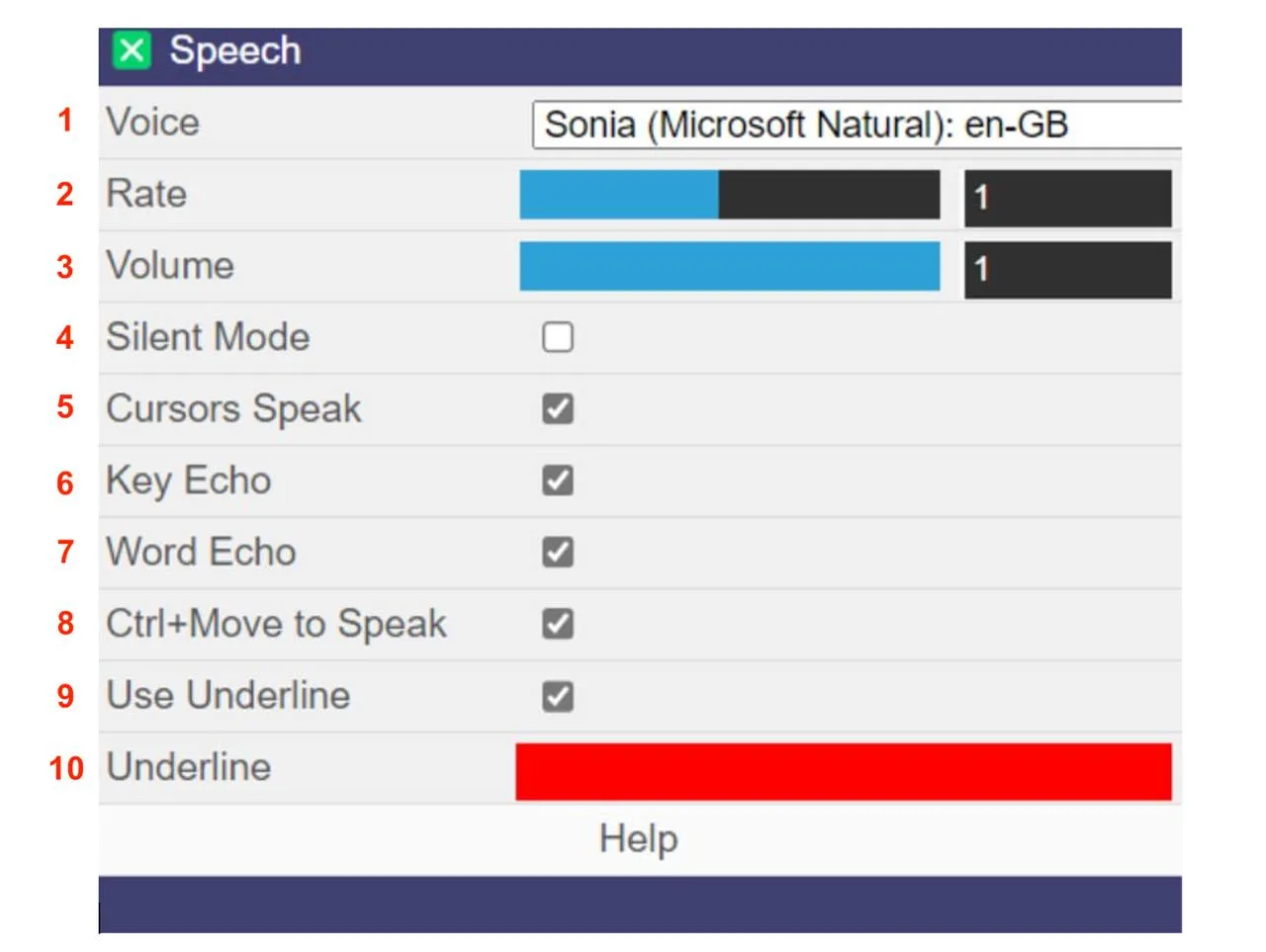
Settings explained
- Voice - Select your preferred text-to-speech voice from the pull-down list. The available voices depend on your Windows PC and installed voices. A wide range of natural-sounding voices is available on Windows 11.
- Rate - Controls the speaking speed. The default position is normal speed; drag left to slow down, right to speed up.
- Volume - Adjusts the text-to-speech volume independently of the Windows system volume.
- Silent Mode - Disables all text-to-speech without changing any other settings. Useful when you need to work quietly.
- Cursor Speak - Use the keyboard arrow keys to navigate and hear your text:
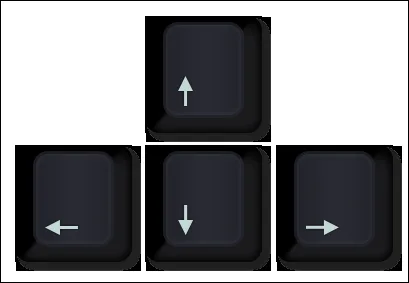
- Down or Up Arrow - speaks the whole line at the cursor.
- Right or Left Arrow - speaks the next or previous letter.
- Ctrl + Right or Left Arrow - speaks the next or previous word.
- Key Echo - When enabled, Writeable speaks each character as you type. Most useful for slower typists wanting audio confirmation of every key press.
- Word Echo - When enabled, Writeable speaks each word after you press the Space bar, so you can hear your writing as you go.
- Ctrl+Move to Speak - When enabled, you must press the Ctrl key while moving the mouse over text to trigger hover speech. When off, hovering over text speaks it automatically.
Choose the hover mode (Word, Line, or Block) from the toolbar:

- Use Underline - When enabled, each spoken word is underlined during playback - showing exactly which word or block is being read at any moment.
- Underline Colour - Choose the colour for the spoken word underline from the colour palette.
Press the Shift key at any time to stop speech immediately.