
The left-hand pane of Sensory Writeable is the text input area. You can paste text from an existing document, type directly, or dictate using Windows speech tools.
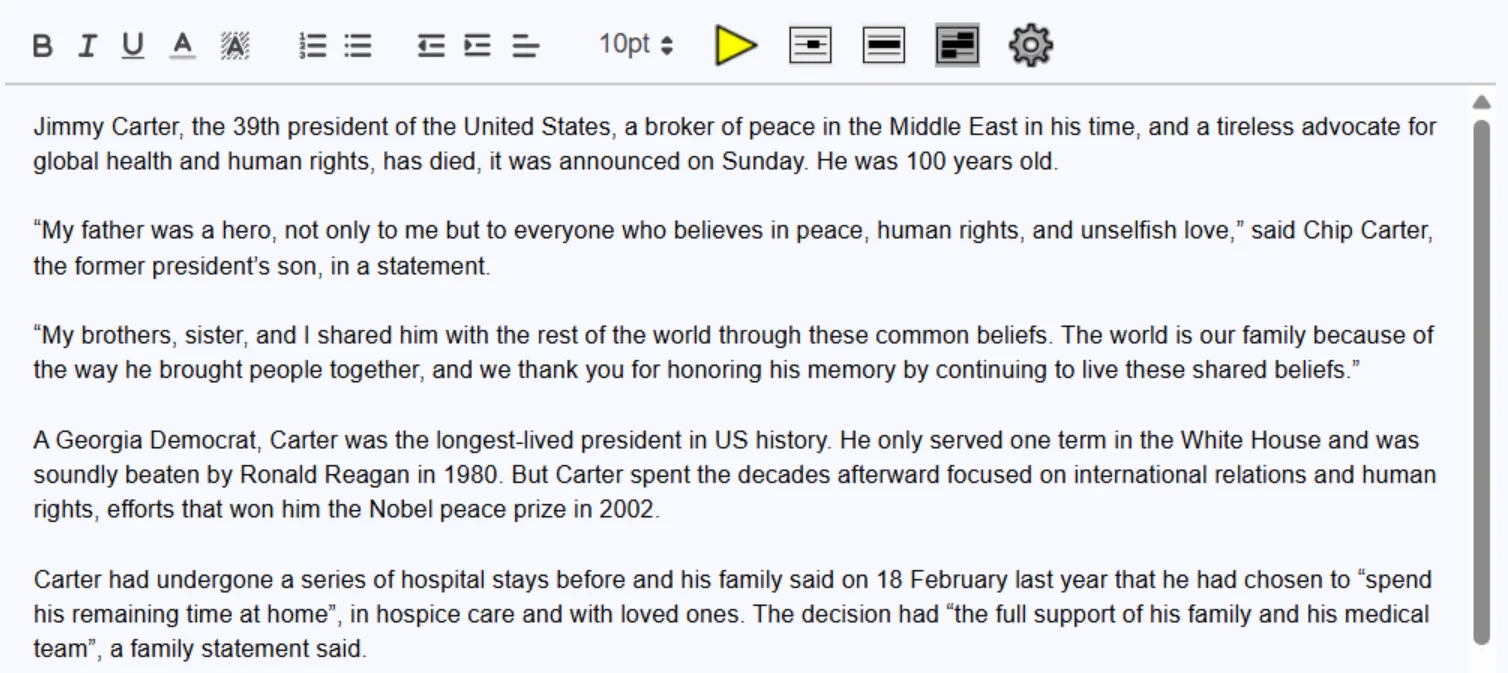
Getting text into Writeable
- Paste — copy text from Word, a web page, or another application and paste it in (Ctrl+V).
- Type — write directly in the input pane as you would in a word processor.
- Dictate — use Windows Voice Access or Windows Dictation to speak text directly into the pane. Ensure Writeable is the active window before dictating.
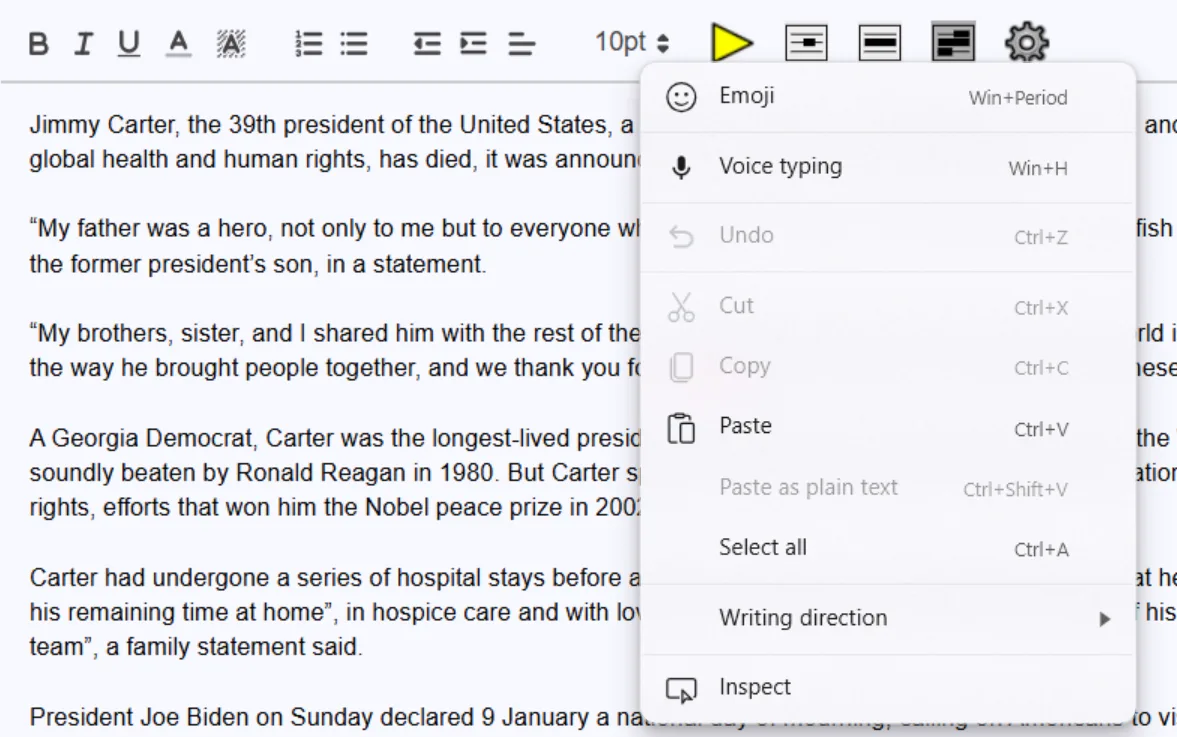
Right-click options
Right-clicking in the text input area shows a context menu with useful shortcuts — including cut, copy, paste, formatting options, and speech controls.
Your original document is not changed
Writeable analyses the text in its input pane and displays feedback in the comment pane on the right. Your original document (in Word or wherever you copied from) is never modified. You choose which suggestions to apply.