To start a new recording and transcription, click New Recording from the start screen.
The New Recording panel will open, as shown below.
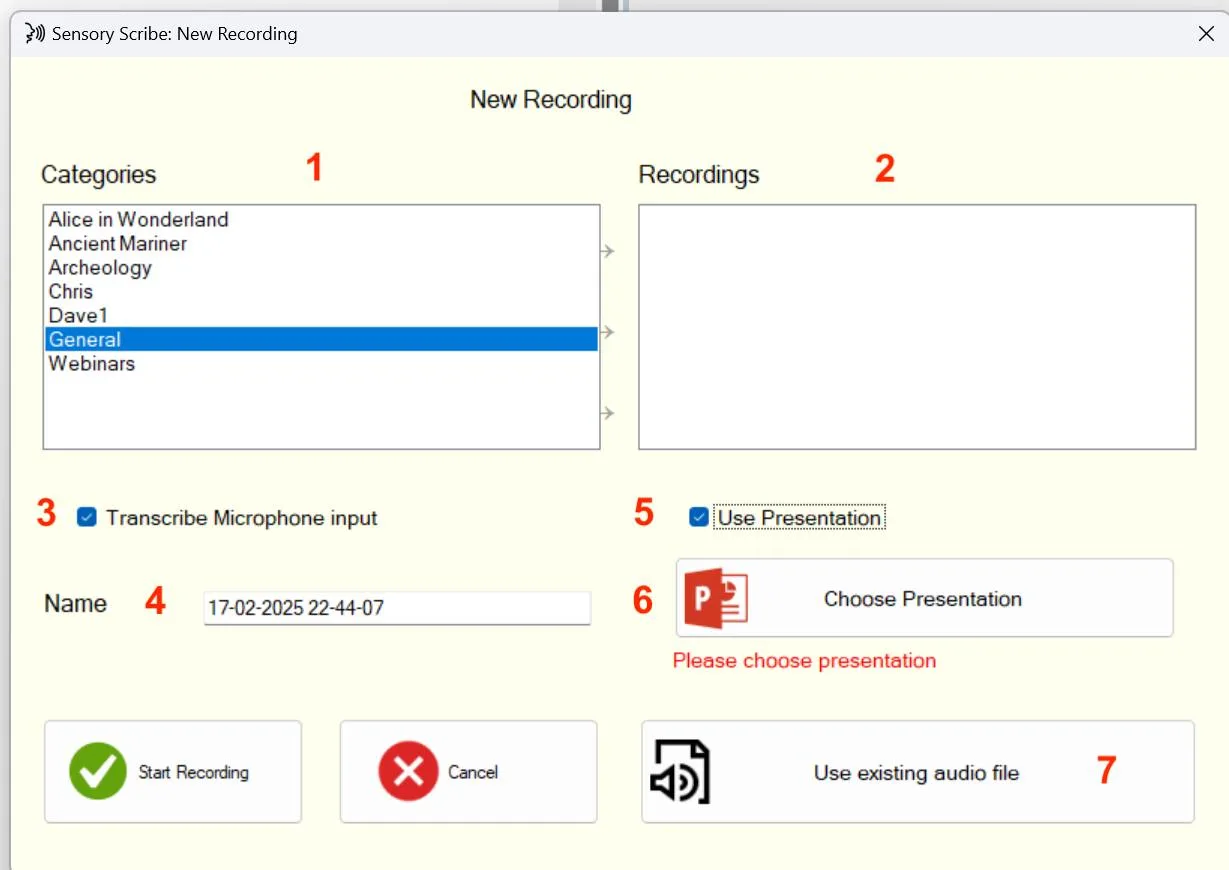
New Recording options
- Categories — Select the category folder to save the new recording into. The default is the General category. See Categories & Files for more on managing categories.
- Recordings — Shows a list of existing recordings already saved in the selected category folder.
- Transcribe Microphone Input — When ticked, Scribe records and transcribes live audio from your PC's built-in or connected microphone. When unticked, two alternative audio sources are available:
- a. Existing audio file (MP3) — Load an existing MP3 recording from any device to transcribe. See Transcribing Existing Audio.
- b. PC audio output — Scribe can transcribe audio playing through your PC's speakers from browser-based audio, websites, or streaming applications. This works automatically via the PC's audio output channel — no additional setup is required.
- Name — Choose a file name for the recording. The default is the current date and time (e.g. 17-02-2025 22-44-07).
- Use Presentation — Tick this to link a PDF or PowerPoint document to the recording. It will be displayed alongside the transcription during review.
- Choose — If Use Presentation is ticked, click Choose to select the file from your PC. Supported formats are PowerPoint (.pptx or .ppt) and PDF (.pdf).
- Existing Audio — To transcribe an audio file rather than record live, use this option to load the original MP3 file. A new recording and transcription is created from it.
Click Start Recording to begin. This initiates both the audio recording and the live transcription, phrase by phrase.
The Live Captions window
When you open a New Recording, the Windows 11 Live Captions panel opens automatically and begins processing speech. However, Scribe does not start recording or saving the transcription until you click Start Recording.

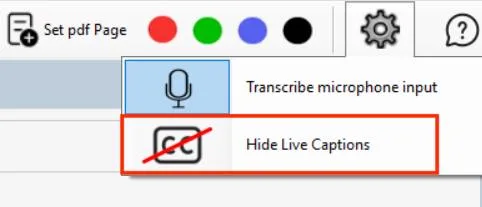
If the Live Captions panel is closed during a recording, the transcription will stop — but the audio recording continues. You can position the Captions panel at the top, bottom, or floating on screen. It can also be hidden via Scribe Settings.