
Once Sensory Scribe is recording you can concentrate your focus on the speakers during the meeting, conference or lecture. Scribe will record the audio and provide the transcribed text without a web connection. Always check with everyone involved that recording is acceptable, and sit close to the speakers for best transcription accuracy.
Scribe also provides tools to add notes, review the live transcript, and view or annotate an attached PDF or PowerPoint document.
When recording without an attached document, you will see the window below. You can minimise this window and recording and transcription will continue — but remember to click Stop when the event ends.
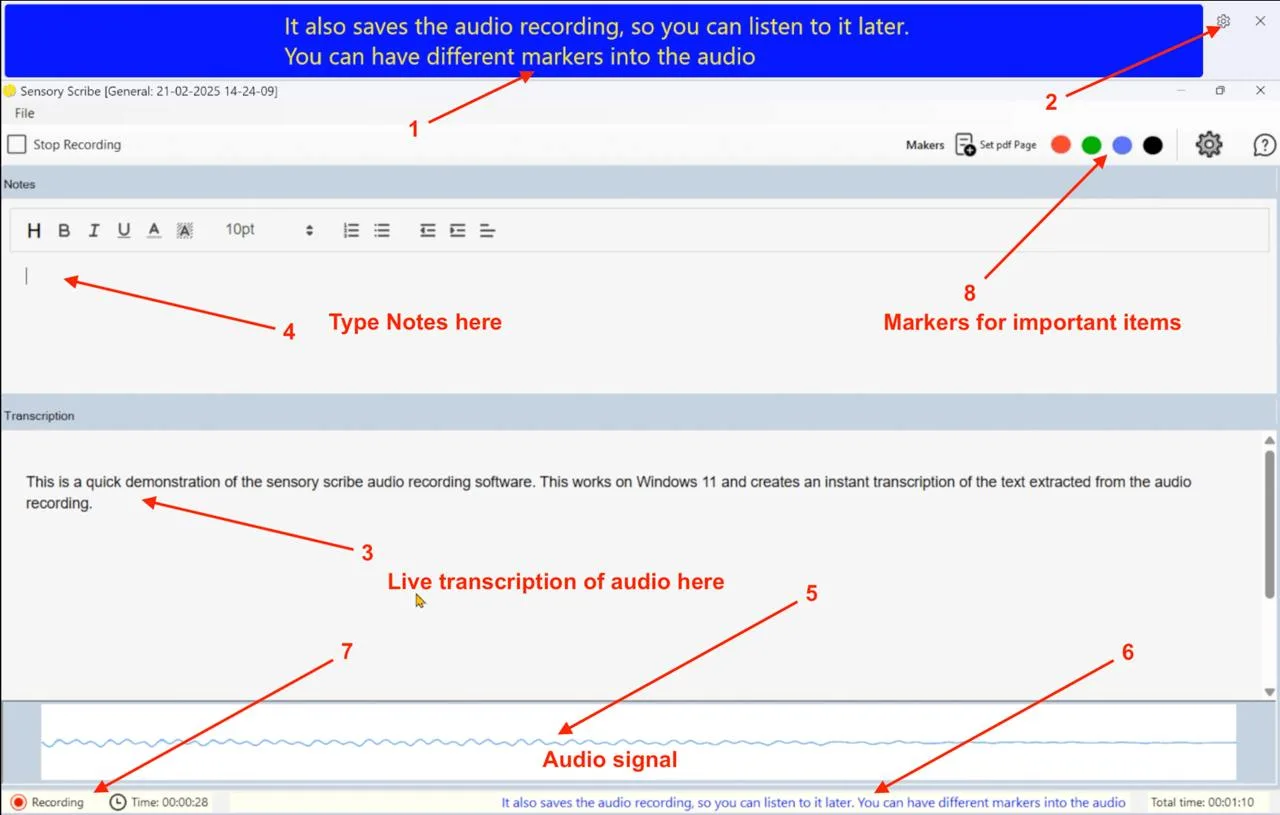
Recording window sections
- Live Captions window — Displays the current live transcription phrase. If this window is closed, Scribe cannot receive transcribed text and the transcription will stop (though the audio recording continues). To restart transcription, stop the recording and start a new one.
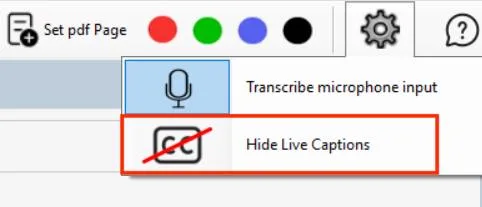
- Live Captions window controls — Standard settings for the Live Captions display and window position. Use Scribe Settings to minimise this window if it is distracting.
- Transcription record window — All transcribed text appears here. There is a brief delay before the most recent phrase appears while transcription processes. The transcription is created entirely on the PC and does not require an internet connection.
- Notes pane — Type notes alongside the live recording and transcription. Your notes are saved as HTML files within the Scribe recording folder.
- Audio signal display — Shows a live audio waveform so you can confirm that recording is taking place.
- Live caption mirror — Shows the same current live caption text as window (1). If you have hidden the Live Captions window, you can still see the incoming text here.
- Recording status — Shows the recording state and elapsed duration.
- Colour markers — Click a colour to insert a marker into the transcription at that point. Use them to flag important moments, topic changes, or different speakers. When reviewing a recording, click any marker to jump directly to that point in the audio.