
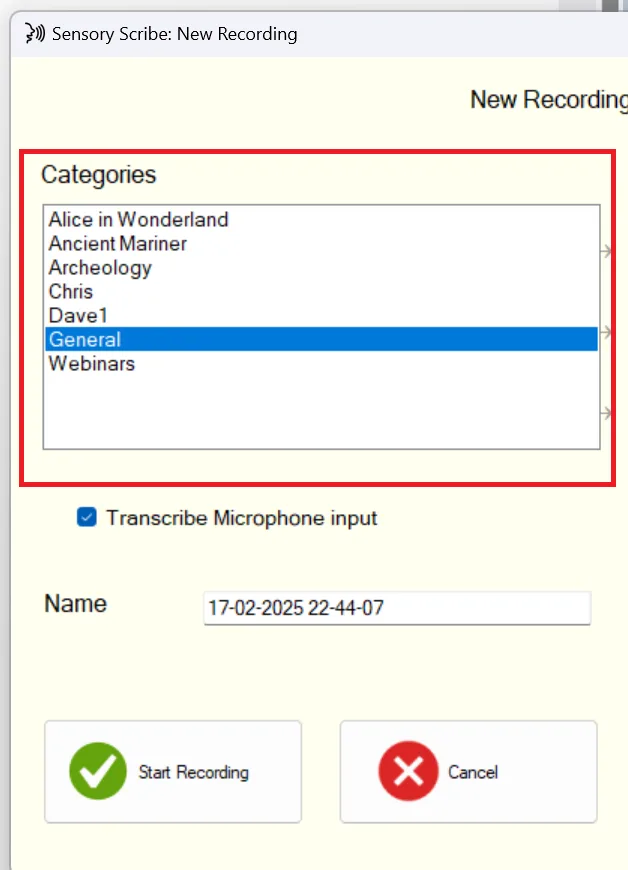
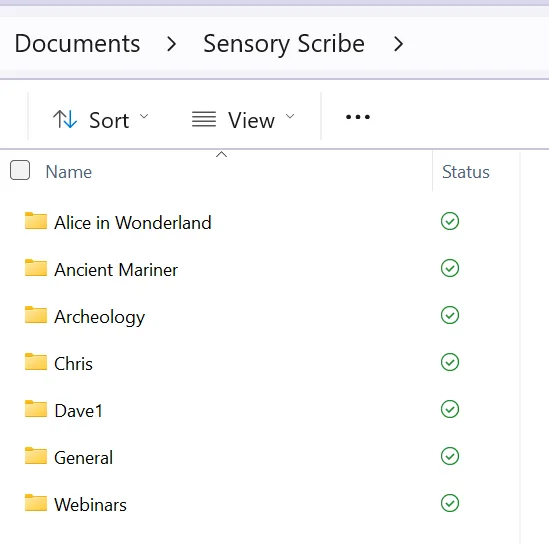
Sensory Scribe organises your recordings into category folders, which are stored within Windows Explorer in your Documents folder.
Creating categories
To create a new category, open Windows Explorer and navigate to your Documents folder, then to the Scribe subfolder. Create a new folder here — it will appear as a selectable category in Scribe when you next create a recording.
Files in each recording folder
After each recording, the category folder contains the following files:
- scribe.txt — The full transcribed text of the recording, saved as a plain text file.
- scribe.mp3 — The full audio recording of the event or meeting.
- scribe.srt — A subtitle file containing the transcribed text with timing data, synchronised with the audio. This file can be used with media players that support subtitles.
- Notes files (HTML) — Any notes typed during the recording are saved as HTML files within the recording folder. These can be opened in any web browser.
These files can be shared with others or opened individually as needed. The SRT subtitle file is particularly useful for sharing a synchronised transcript alongside the audio recording.