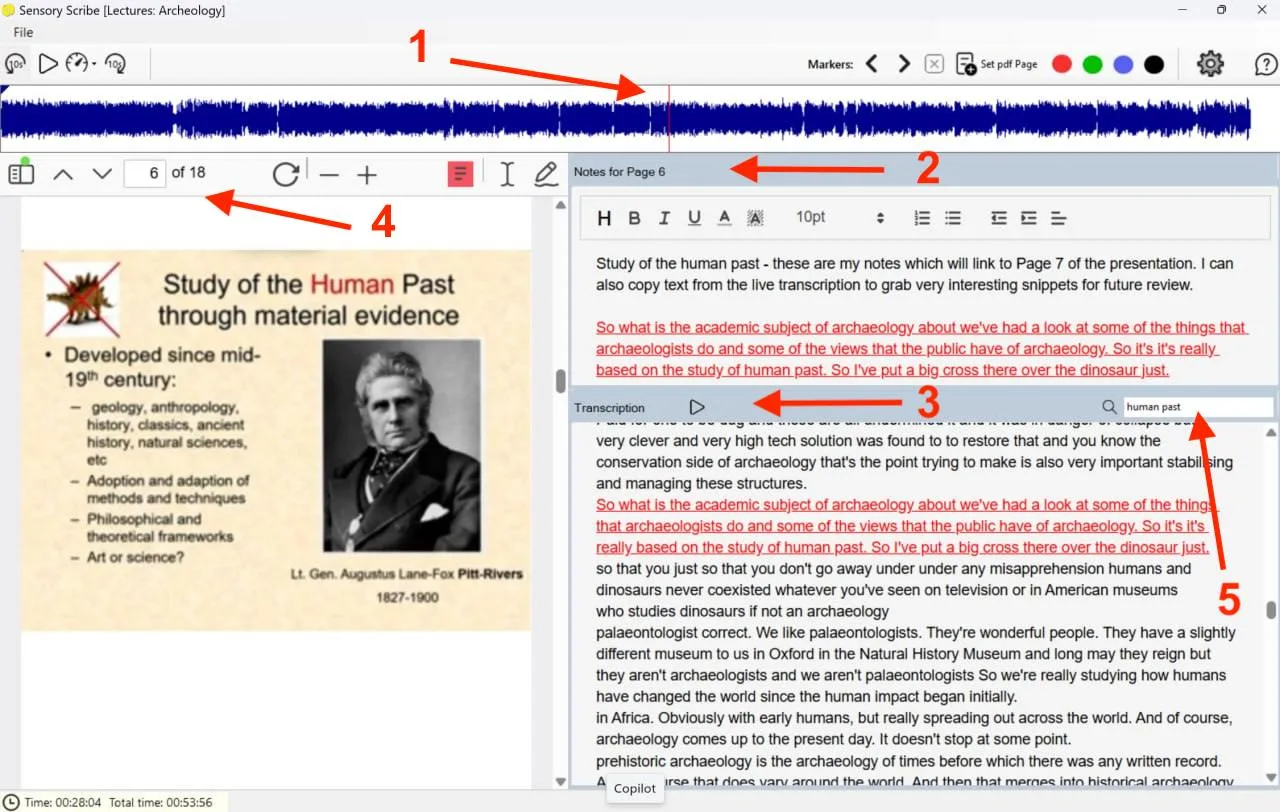
Upon completion of a recording — or when loading a previous recording for review — you will see the screen below. This example includes an attached PDF document. If no PDF or presentation was added, pane 4 will not be shown.
Review window sections
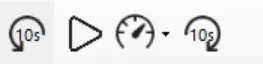
- Audio timeline — Shows the full audio recording. The vertical red line marks the current playback position. Use the player controls to play, skip forwards or backwards, or change the playback speed. You can also click anywhere in the Transcription pane (Section 3) and press Play — the audio will begin from the recording segment that matches that point in the text.
- Notes pane — Displays notes typed during the recording, and any transcription text you have copied and pasted in for reference.
- Transcription pane — The full transcript of the entire recording, available instantly with no internet required. Click anywhere in the text to hear the audio at that point. You can copy sections of the transcript to paste elsewhere — for example into a document editor or a text summarisation tool such as Microsoft Copilot.
- PDF / Presentation pane — If a document was attached to the recording, it is displayed here. Annotate the PDF using the built-in tools. The Notes pane synchronises to the PDF pages — as you turn pages, a fresh notes pane appears for each one.
- Search box — Search for any word or phrase in the transcription. Click the Search button to step through every instance, and hear the audio at each point.
Loading a previous recording
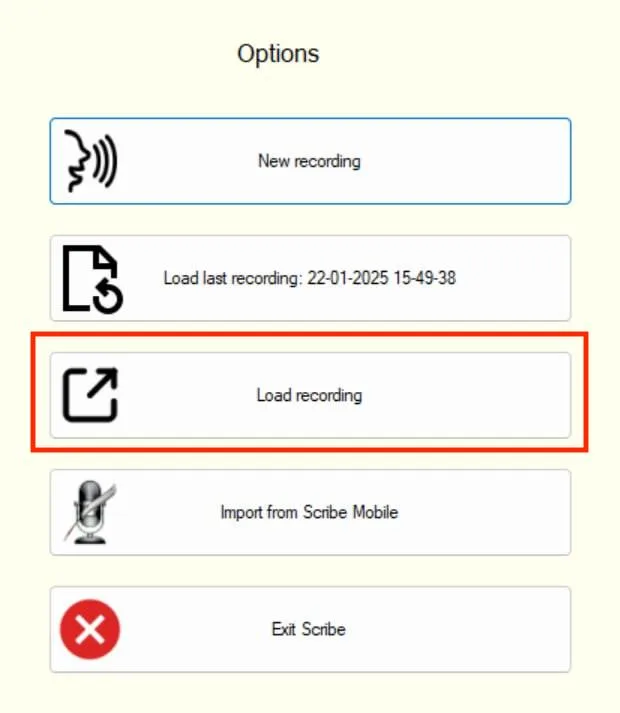
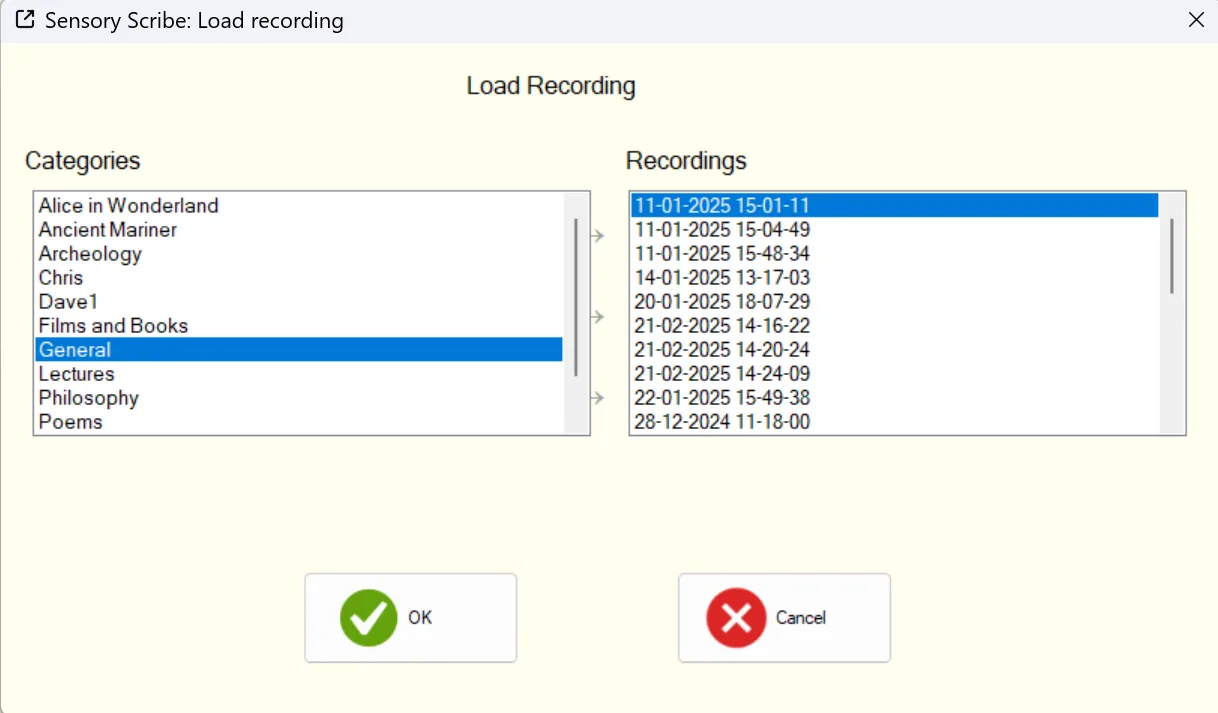
To load a Scribe recording made earlier, select Load Recording on the start screen, or press Ctrl+L from anywhere in Scribe. Choose the recording from your Scribe category folders.