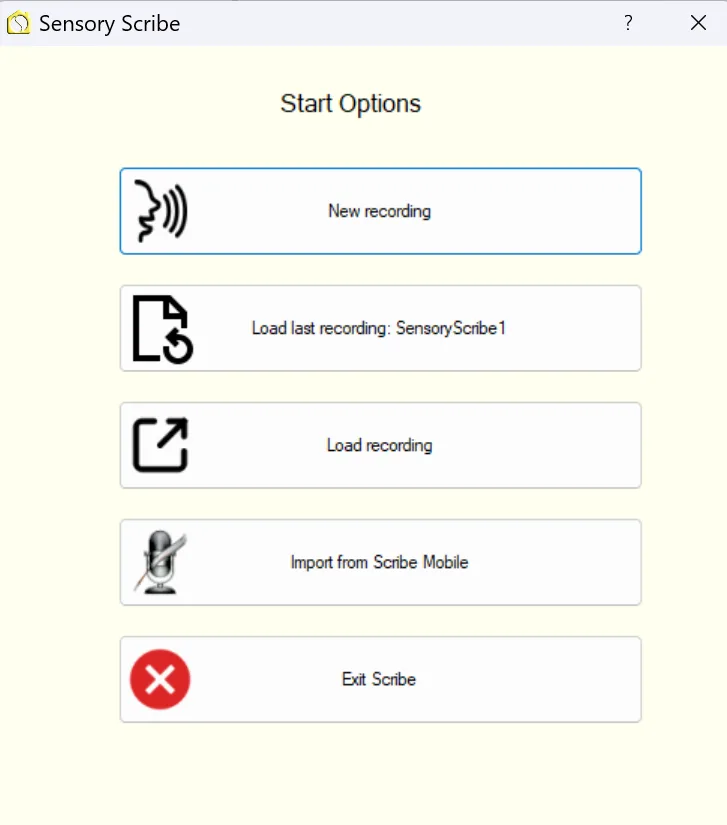
Scribe has a main menu with keyboard shortcuts. The menu options and their shortcuts are shown in the image below, and listed in the table beneath.
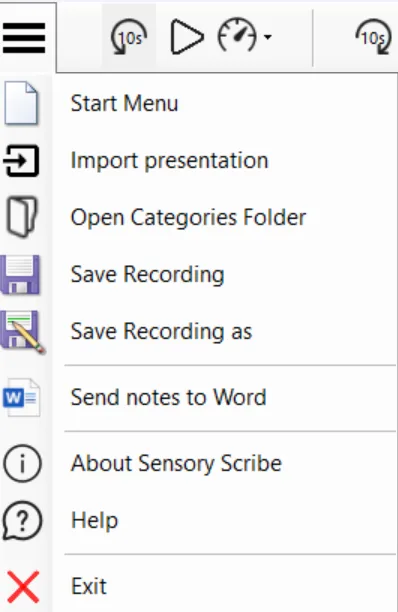
Menu options
| # | Option | Description | Shortcut |
|---|---|---|---|
| 1 | Start Menu | Main start screen — options to start new recordings, load existing recordings, or import from Scribe Mobile iOS | — |
| 2 | Import Presentation | Import a PDF or PowerPoint file to attach to an existing recording after it has been completed | — |
| 3 | Open Categories Folder | View categories (recording folders), create new categories, and browse the files within each recording | — |
| 4 | Save Recording | Scribe saves automatically after recording, but use this to save manually when adding notes or annotations mid-session | Ctrl+S |
| 5 | Save Recording As | Create a duplicate of the current recording folder under a new name in your Documents/Scribe folder | — |
| 6 | Send Notes to Word | Export your manually typed notes to Microsoft Word (Word must be installed) | — |