
Scribe settings are accessed by clicking the settings icon in the Scribe interface.

Settings options
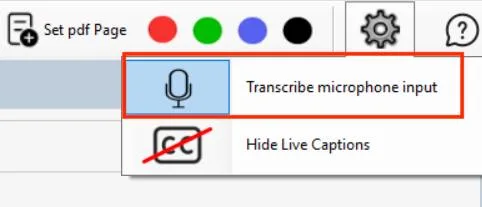
1. Transcribe Microphone Input
Toggle this setting to switch between transcribing from the live PC microphone input, or from a previously recorded audio or video file. This can be changed during a session — for example if you want to switch from live recording to transcribing a file.
2. Hide Live Captions
When recording, the Windows 11 Live Captions window always opens to display the current transcribed phrases. If this window is distracting, use this setting to hide (minimise) it. The transcription continues normally — you can still see the incoming text in the Scribe window itself.
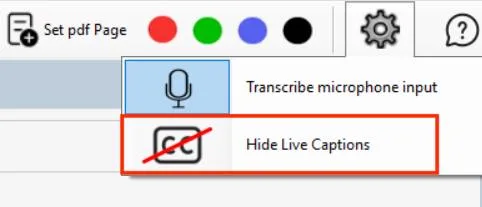
Important: Hiding the Live Captions window keeps transcription running. Closing the window entirely (clicking the X button) stops transcription. The audio recording will continue, but no further text will be captured.