
The Sensory Scribe app for iPhone and iPad is available from the App Store. It allows you to record and transcribe in meetings or lectures directly on your device, using the same local transcription technology as the Windows version — no internet connection required.
With the Scribe mobile app you can also add marks to flag important points in the recording, which carry across to Scribe for Windows when you import the file.
Importing a mobile recording into Scribe for Windows
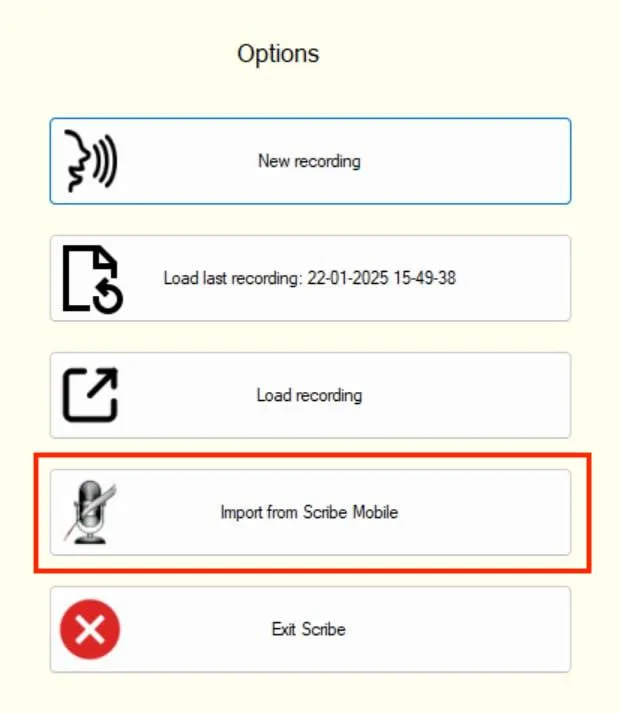
After completing a Scribe mobile recording, save the file to a shared drive such as OneDrive. Then open Sensory Scribe for Windows and use the Import Mobile button (shown below) to load the recording for further review, note-taking and searching.
Once imported, the recording opens in the full Scribe review window where you can play back the audio, search the transcript, and add notes.