
Click the Voice button on the Readable Toolbar to open Voice Control settings, or access them at System Settings → Accessibility → Voice Control. Dictation-only settings are in System Settings → Keyboard → Dictation.

Quick dictation (keyboard shortcut)
The quickest way to dictate text is with the keyboard shortcut: press the Function key (Fn) and F5 together to activate macOS Dictation in any application. Speak clearly, and your words appear where the cursor is positioned.
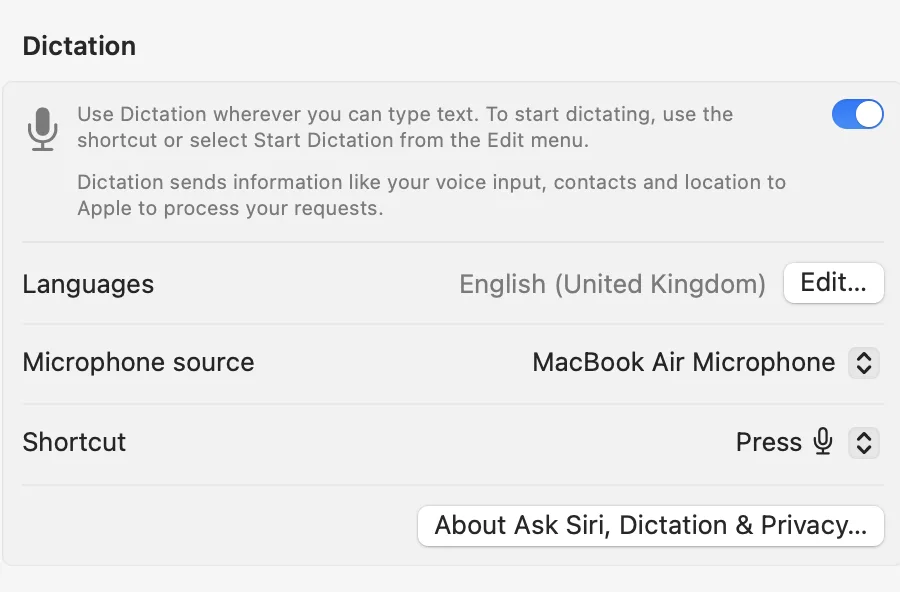
📖 Apple Help: Dictate messages and documents on Mac ↗
Voice Control — full hands-free control
Voice Control lets you operate your entire Mac by voice — navigating the desktop, clicking buttons, opening apps, and dictating text. Enable it in System Settings → Accessibility → Voice Control.
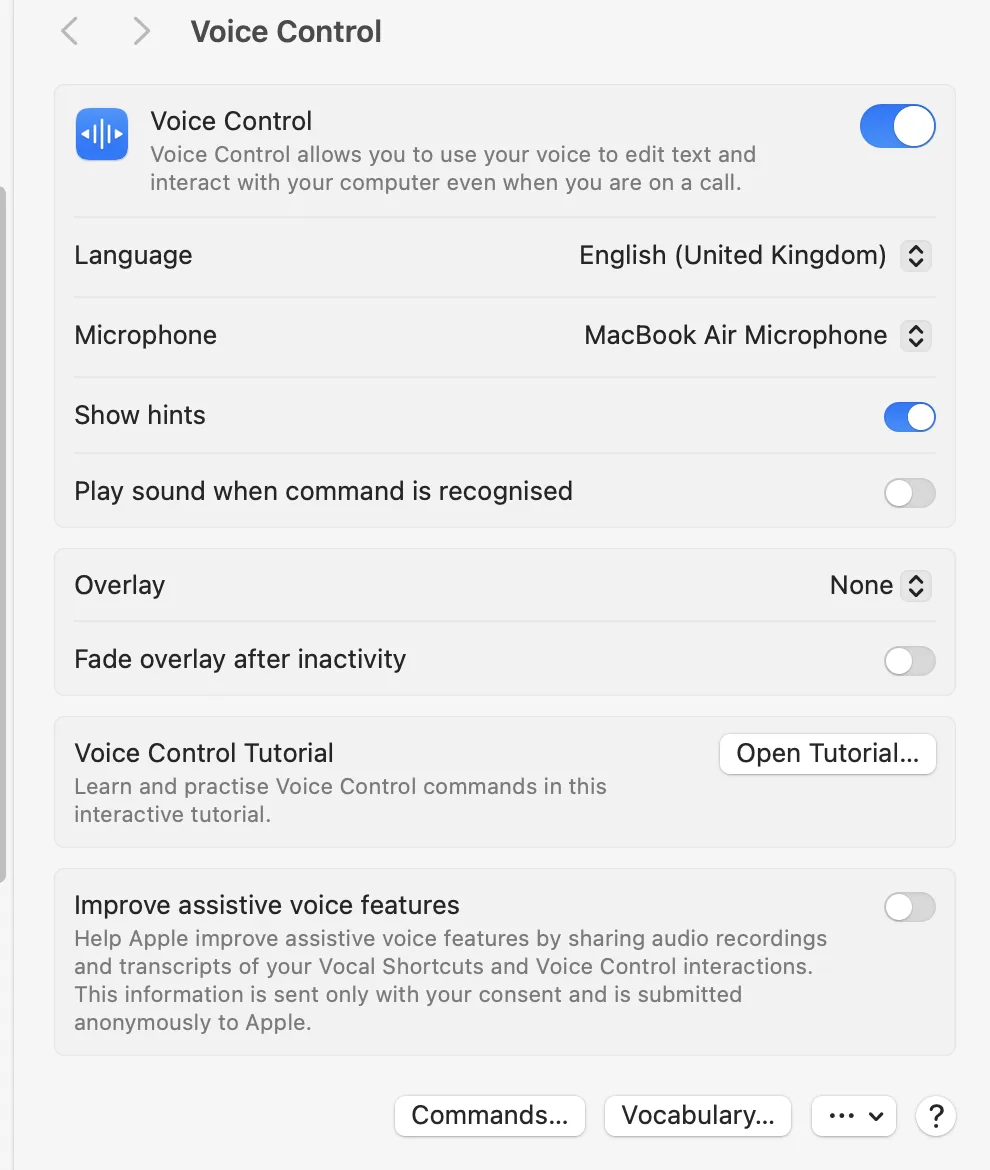
Once Voice Control is on, you can say commands such as:
- "Open Safari" — launches the app
- "Click [button name]" — clicks a named button
- "Show numbers" — shows numbered labels on screen elements for selection
- "Start dictating" or just speak — text appears in the active field
- "Stop listening" — pauses Voice Control
📖 Apple Help: Voice Control on your Mac ↗