
Click the Audio button on the Readable Toolbar to open macOS Audio accessibility settings, or find them at System Settings → Accessibility → Audio.

Background sounds
macOS includes a selection of built-in ambient background sounds — such as rain, ocean, stream, or white noise — that play while you work. These are designed to help with sound management, concentration, and focus, particularly useful while studying or working in a distracting environment.
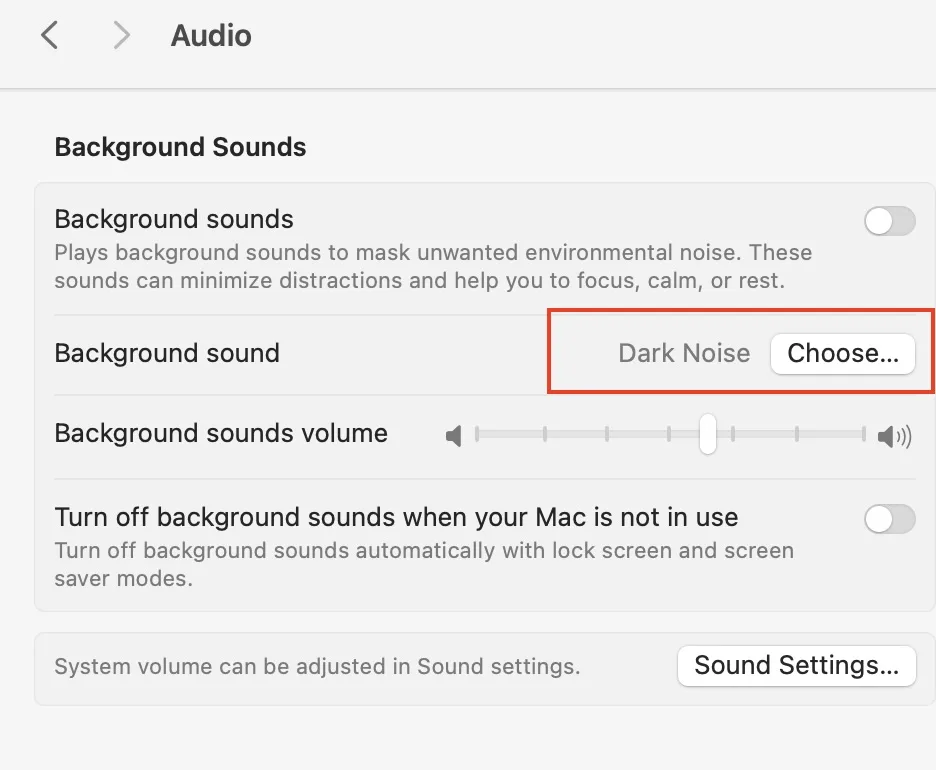
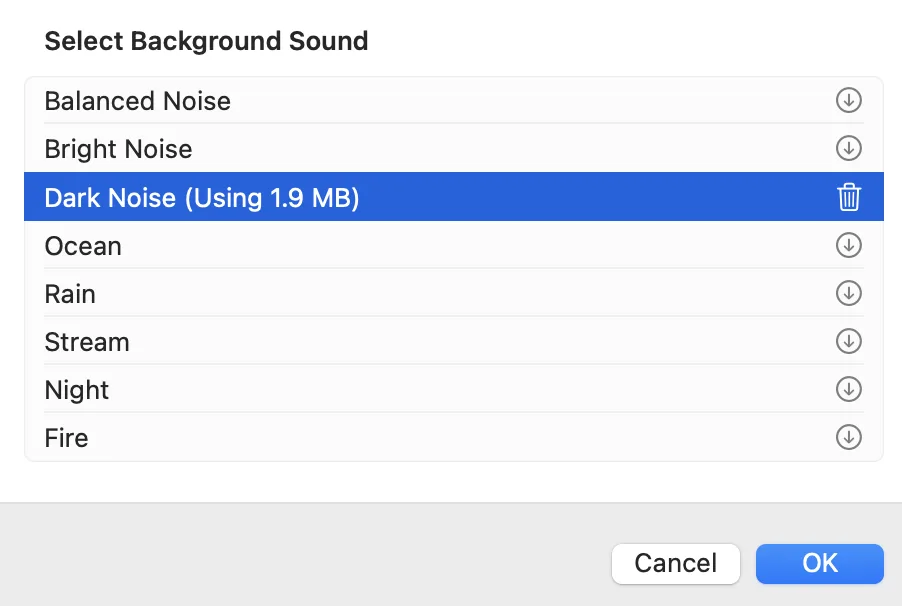
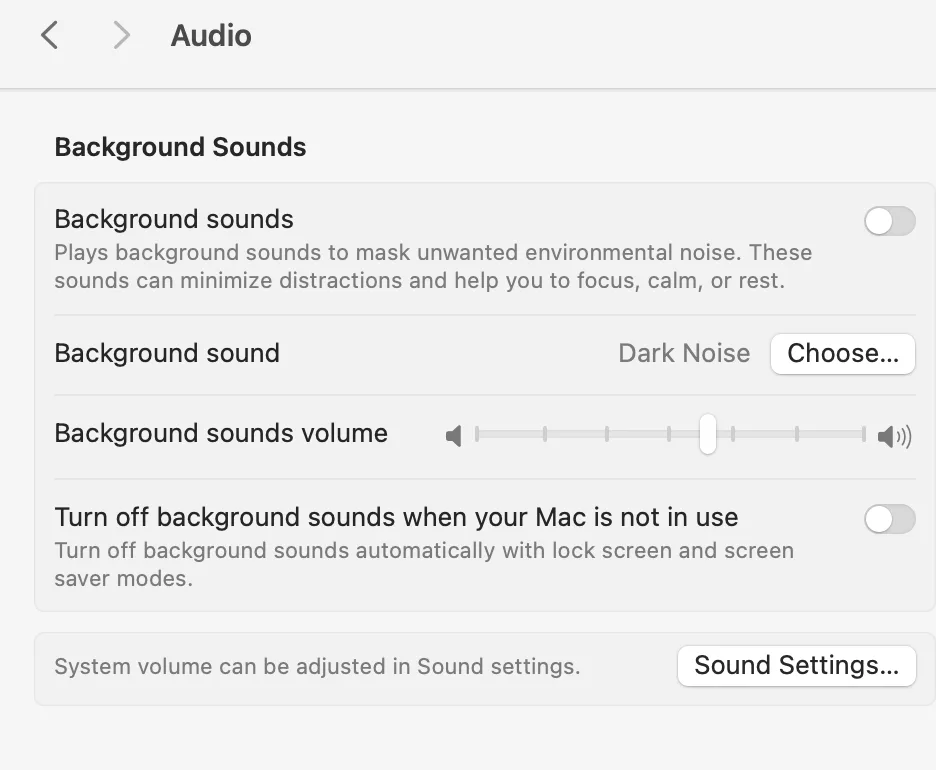
Enabling background sounds
- Open System Settings → Accessibility → Audio.
- Enable Background Sounds.
- Choose a sound from the selector dropdown.
- Adjust the background sound volume using the slider — this is independent of your system volume.
Downloading additional sounds
Additional background sound categories are available to download. In the Background Sounds panel, click a sound category to preview it, then download additional options as needed.
Background sounds continue to play even when the system volume is lowered — they use a separate audio channel. The dedicated volume slider in Background Sounds settings lets you set a comfortable level that does not interfere with speech, video, or other audio.