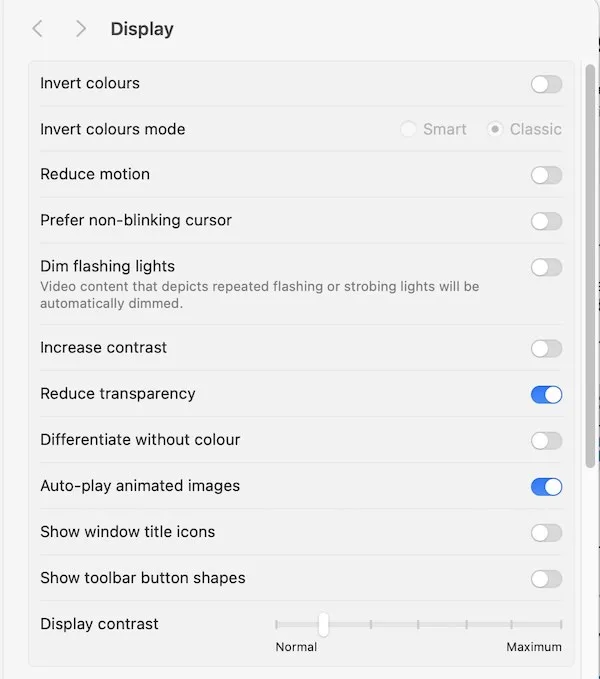
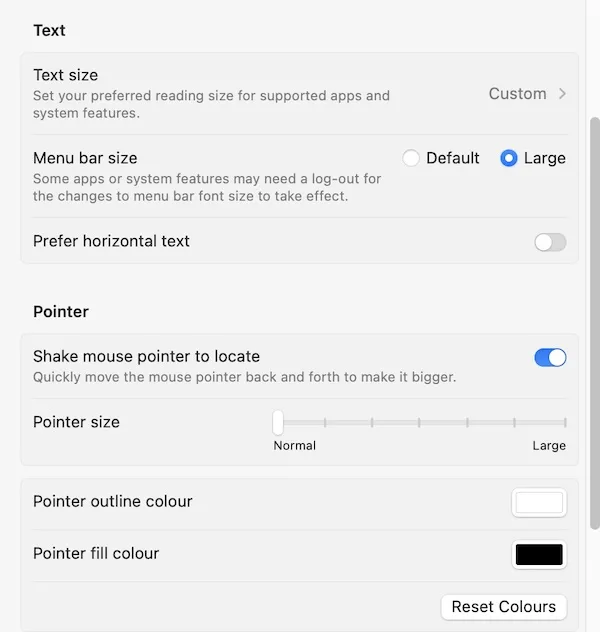
The Readable Toolbar links directly to macOS Display Accessibility Settings. Click the Display button on the toolbar to open these settings, or find them yourself at System Settings → Accessibility → Display.

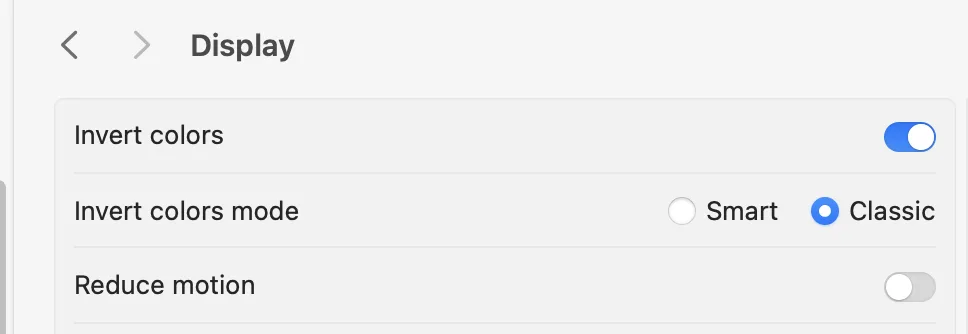
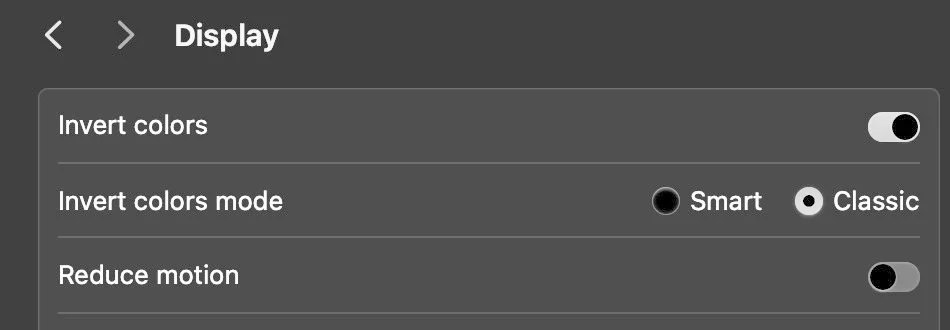
Invert colours
Inverting the display colours swaps the screen so text appears light on a dark background. This can significantly reduce glare for users who find bright white screens uncomfortable.
📖 Apple Help: Display Settings on your Mac ↗
Screen tint
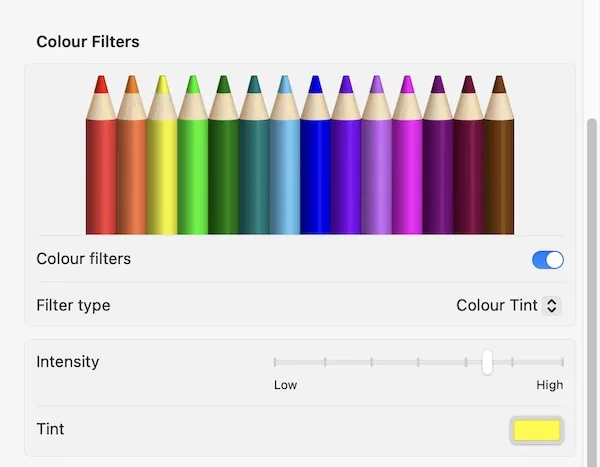
macOS allows you to apply a colour filter to the entire display — the equivalent of a screen tint overlay. Go to System Settings → Accessibility → Display → Colour Filters, enable Colour Filters, and choose the tint colour and intensity that suits you.
Text size and contrast
You can increase text size across macOS and adjust display contrast from the Display Settings panel. A larger text size or higher contrast makes reading significantly easier across all applications.