
macOS can speak any text that your mouse pointer rests on — similar to the hover speech feature in Sensory Readable for Windows. Enable Speak Under Pointer in System Settings → Accessibility → Spoken Content.
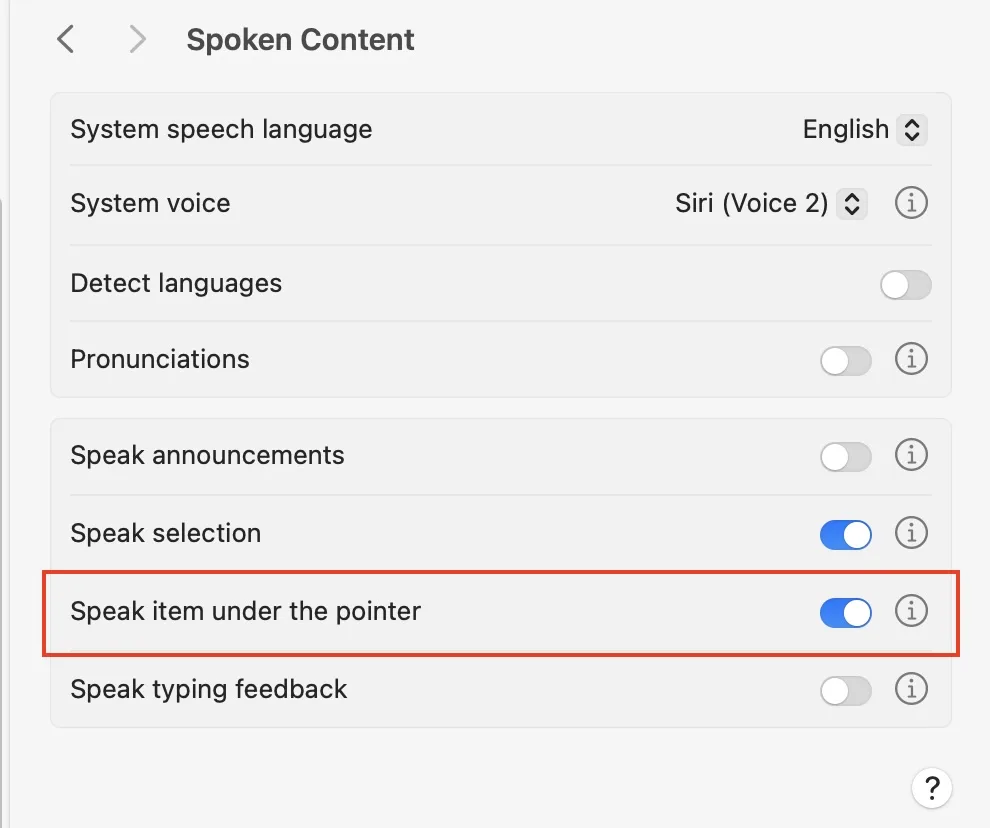
Enabling speak under pointer
Turn on Speak items under the pointer in Spoken Content settings. Then click the info symbol (ℹ) to see the full range of adjustments available.
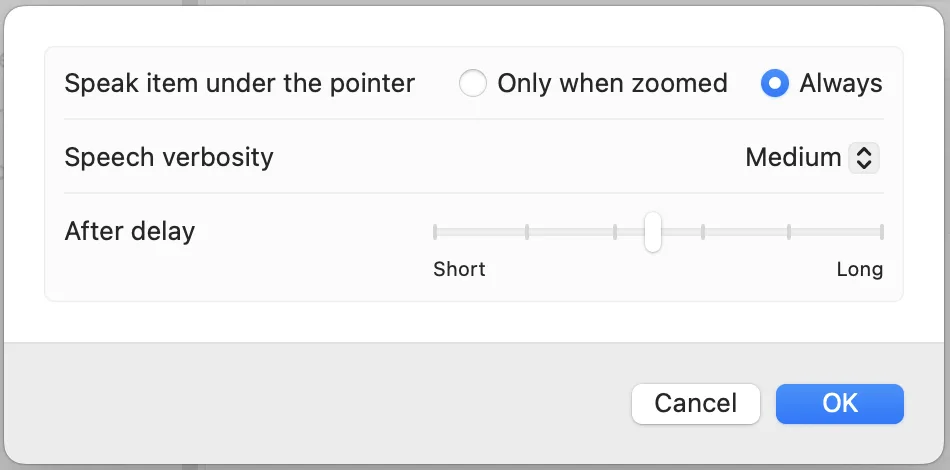
When to speak
You can choose when the speaking activates:
- Always — speaks text whenever the pointer rests on it anywhere on screen.
- Only when zoomed — speaking only activates when you have zoomed into the display. This is useful if you use macOS zoom regularly and want speech to assist with the zoomed content.
Verbosity and delay
- Verbosity (High, Medium, Low) — controls how much detail is spoken about interface elements. Low verbosity speaks just the text content; High verbosity includes additional information about buttons, labels, and controls.
- Delay — sets how long the pointer must rest on text before speaking begins. A longer delay prevents accidental speech when moving the mouse across the screen.