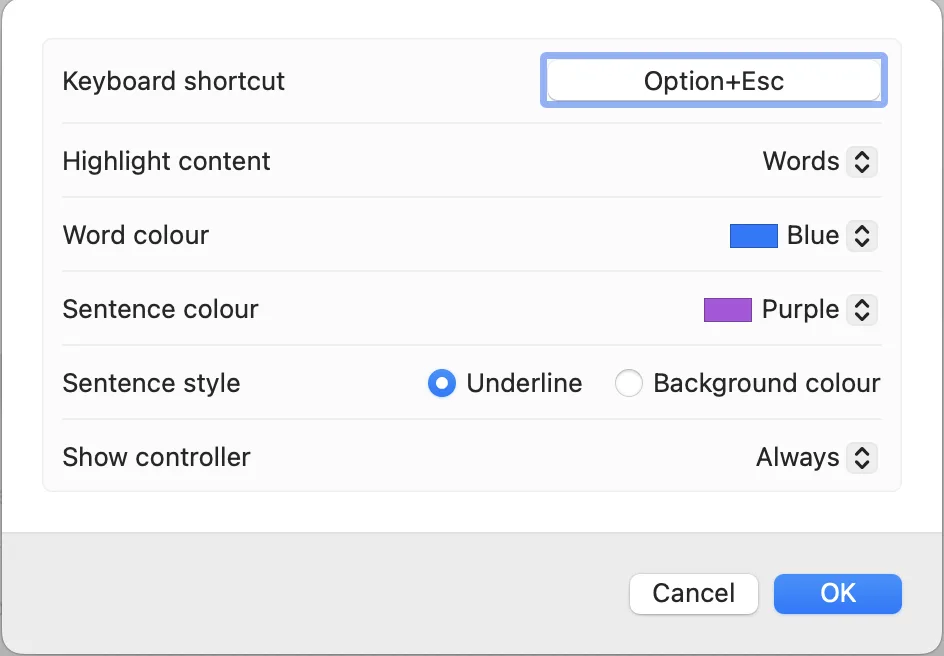
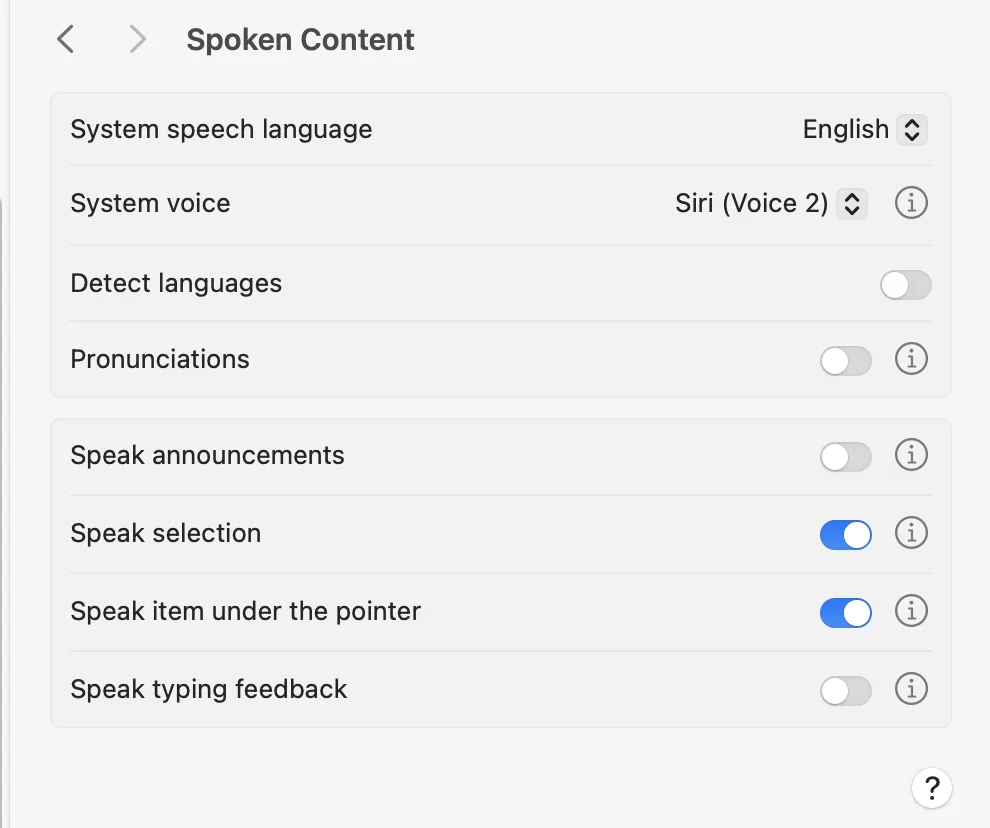
Click the Speech button on the Readable Toolbar to open macOS Spoken Content settings. You can also find them at System Settings → Accessibility → Spoken Content.

Apple macOS has a powerful built-in text-to-speech system with a wide range of high-quality voices in many languages. The Readable Toolbar gives you quick access to all these settings.
📖 Apple Help: Spoken Content Settings on your Mac ↗
Available voices
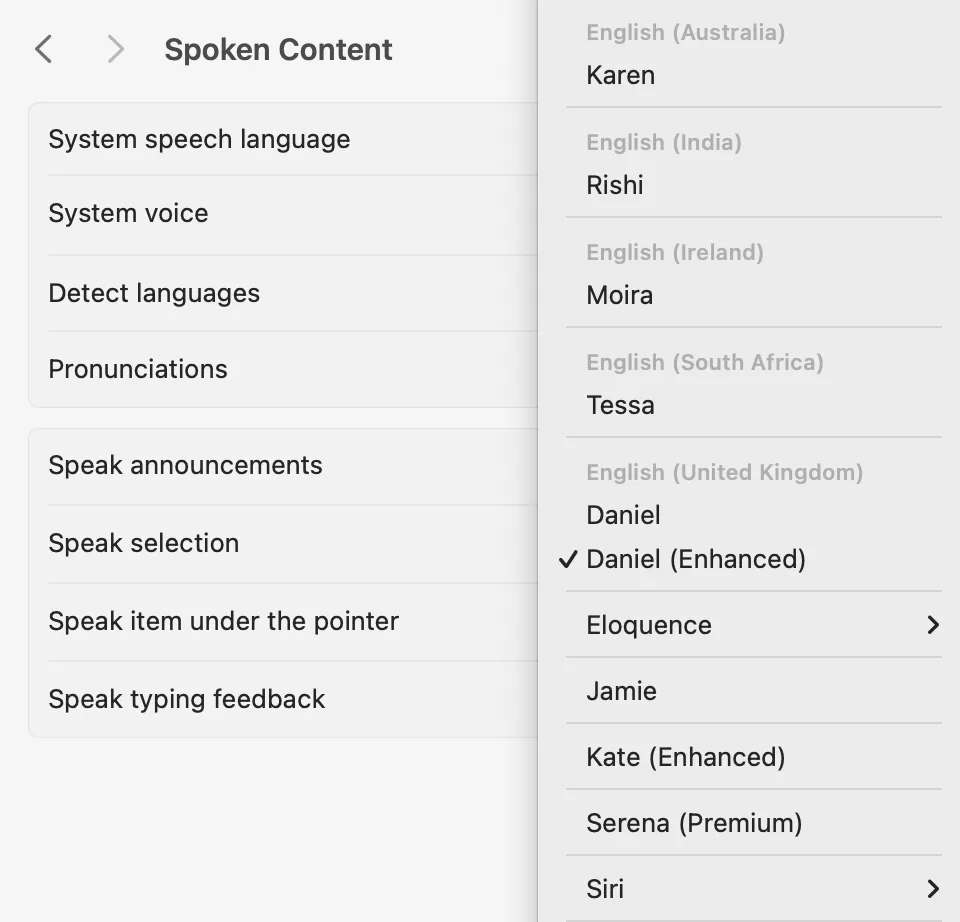
macOS includes a wide selection of text-to-speech voices, including popular English voices such as Daniel and Serena. You can download additional Enhanced and Premium quality voices for free from within the Spoken Content settings — Premium voices offer the most natural-sounding speech.
The floating TTS controller
macOS includes a floating Text to Speech controller toolbar that you can keep on screen for quick access to play, stop, rewind, and speed controls. To enable it, click the info symbol (ℹ) next to the Speak Selection setting, and turn on Show Controller.
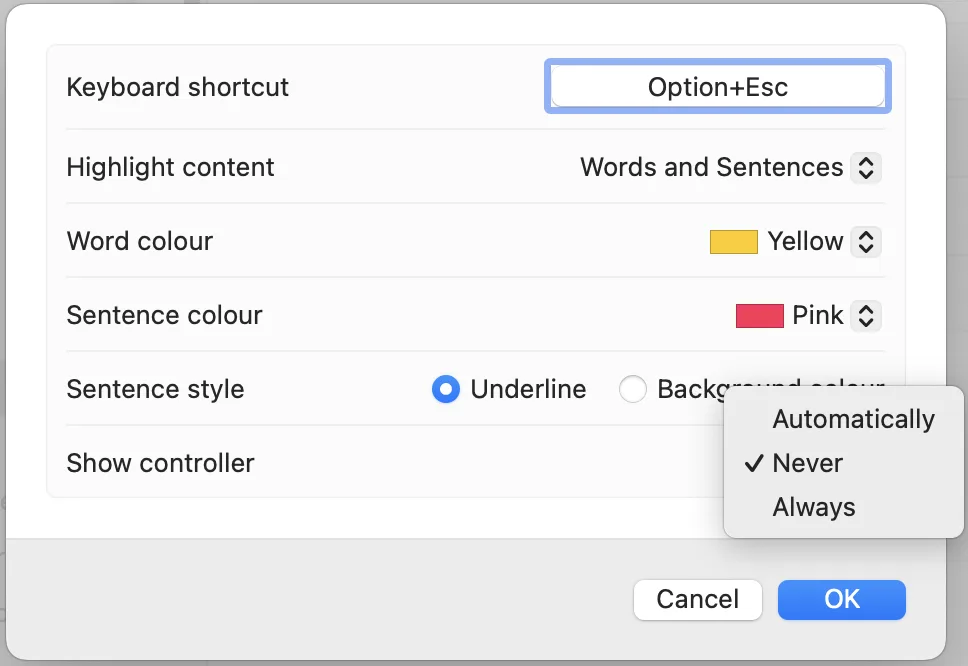

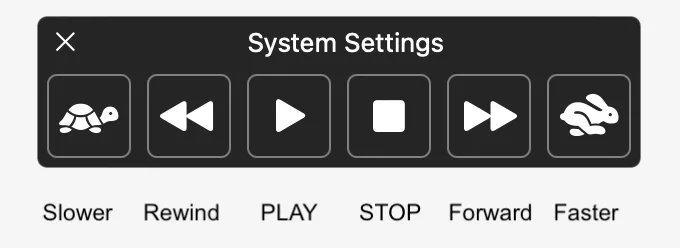
You can set the controller to appear only when speaking, or to stay visible always.
Word and sentence highlighting
When text is being spoken, macOS can highlight the current word and sentence in your chosen colours. These options are found in the same info panel (ℹ) as the controller settings.