
The voice used for all text-to-speech on your Mac is controlled from the macOS Spoken Content settings. Open them from the Readable Toolbar or go to System Settings → Accessibility → Spoken Content.
Selecting a voice
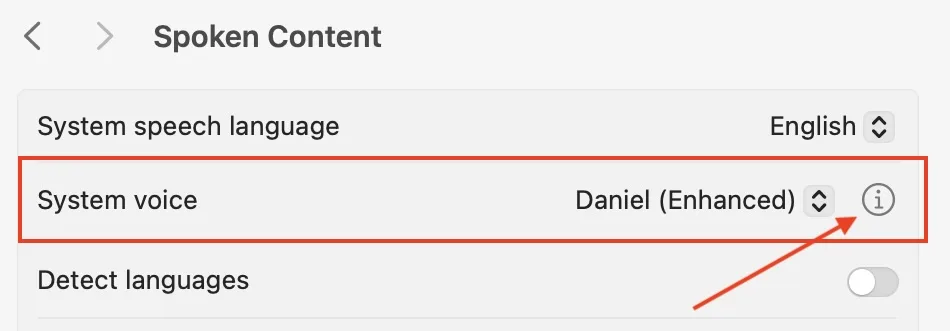
Choose your preferred voice from the System Voice dropdown in Spoken Content settings. The list shows all voices currently installed on your Mac, grouped by language. Click Manage Voices… to browse and download additional voices.
Detailed voice settings
Click the info symbol (ℹ) next to the selected voice name to open the full voice settings panel. From here you can adjust:
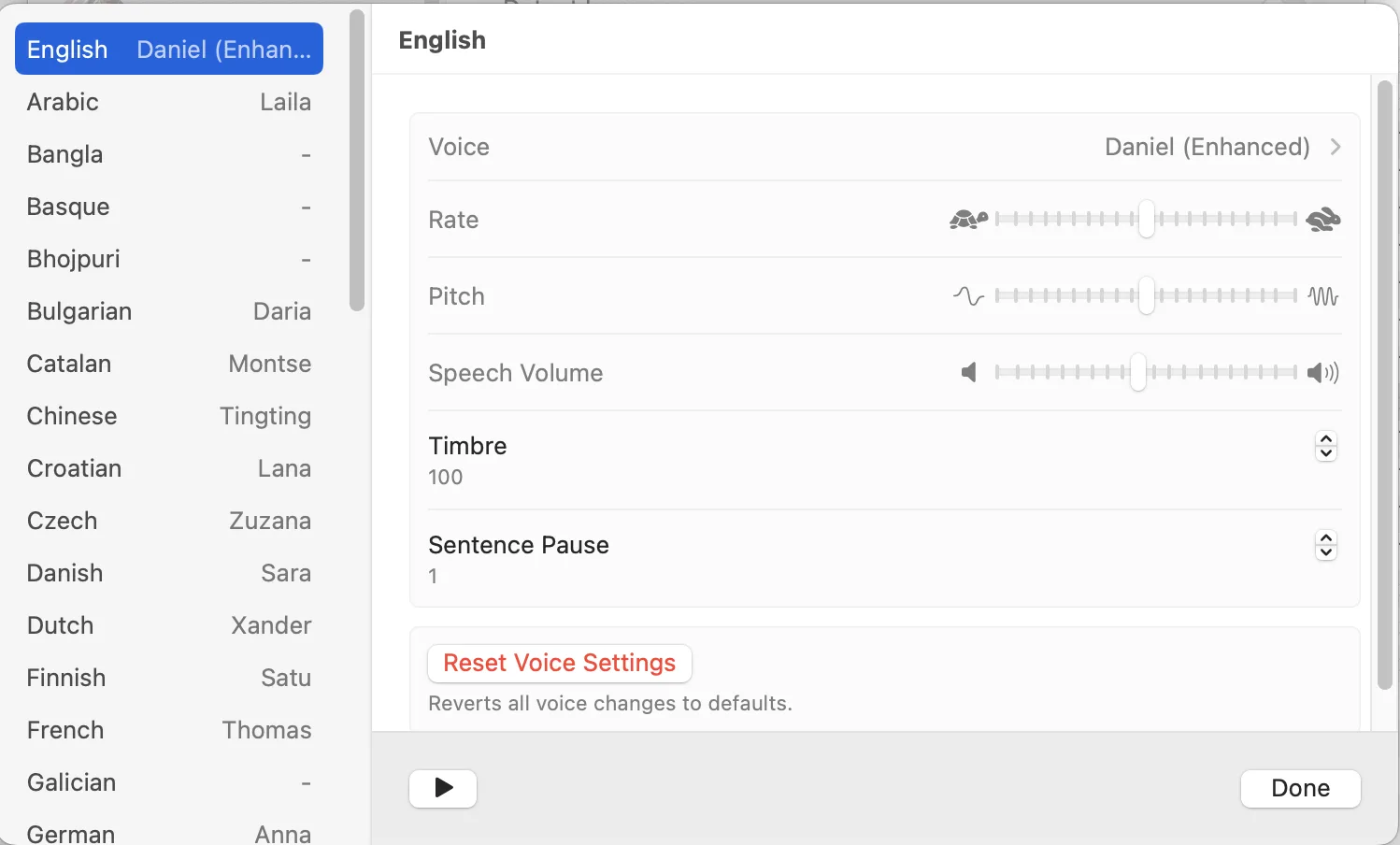
- Speaking Rate — how fast the voice speaks. Drag the slider left to slow down, right to speed up.
- Volume — the volume of the text-to-speech voice, independent of your Mac system volume.
- Pitch — available on some voices; adjusts the tone higher or lower.
- Timbre — available on some voices; adjusts the character or quality of the voice.
- Pause between sentences — sets how long the voice pauses between sentences, which can improve comprehension for complex material.